Contract and Mapped Quotes Exercises
The following exercises describe the different ways to map quotes and contracts.
Quote Mapping from Custom Claim Configurations
When you map a custom claim configuration to a new quote, contract line items that use the claim configuration are mapped to the quote and added as new lines. Follow the steps in this exercise to see how to do this.
-
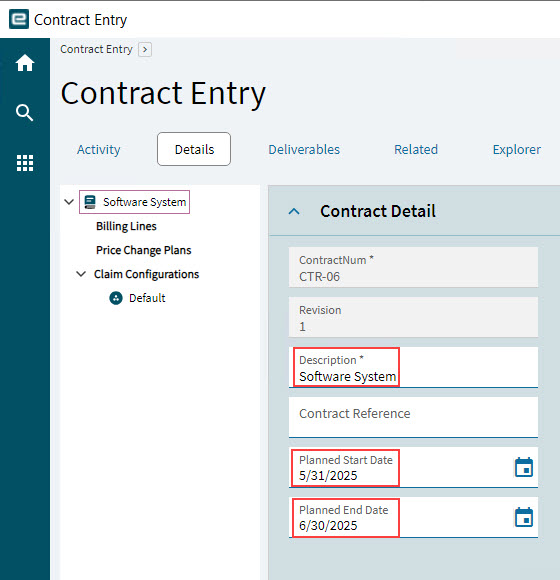
Create a new contract with a Description of “Software System”, a Customer, a Planned Start Date and a Planned End Date. See Adding a New Contract.
-
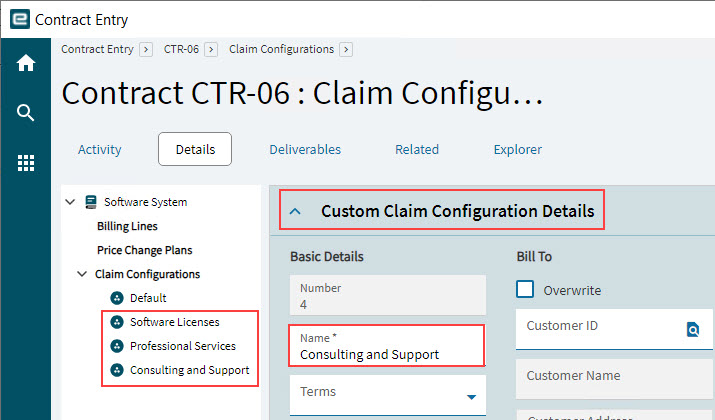
Add three new claim configurations. See Adding Claim Configurations.
-
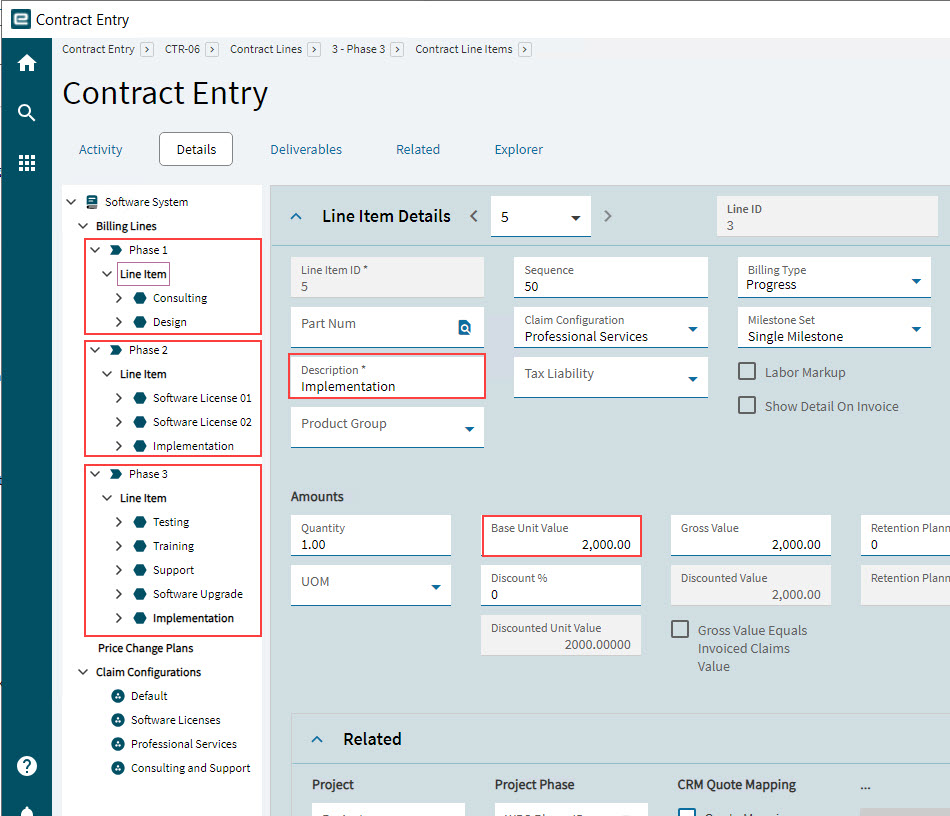
Add contract lines (see Adding Contract Lines) and contract line items (see Adding Contract Line Items).
-
Give each contract line: add a Base Unit Value and select the appropriate claim configuration for the line (see Selecting a Claim Configuration).
-
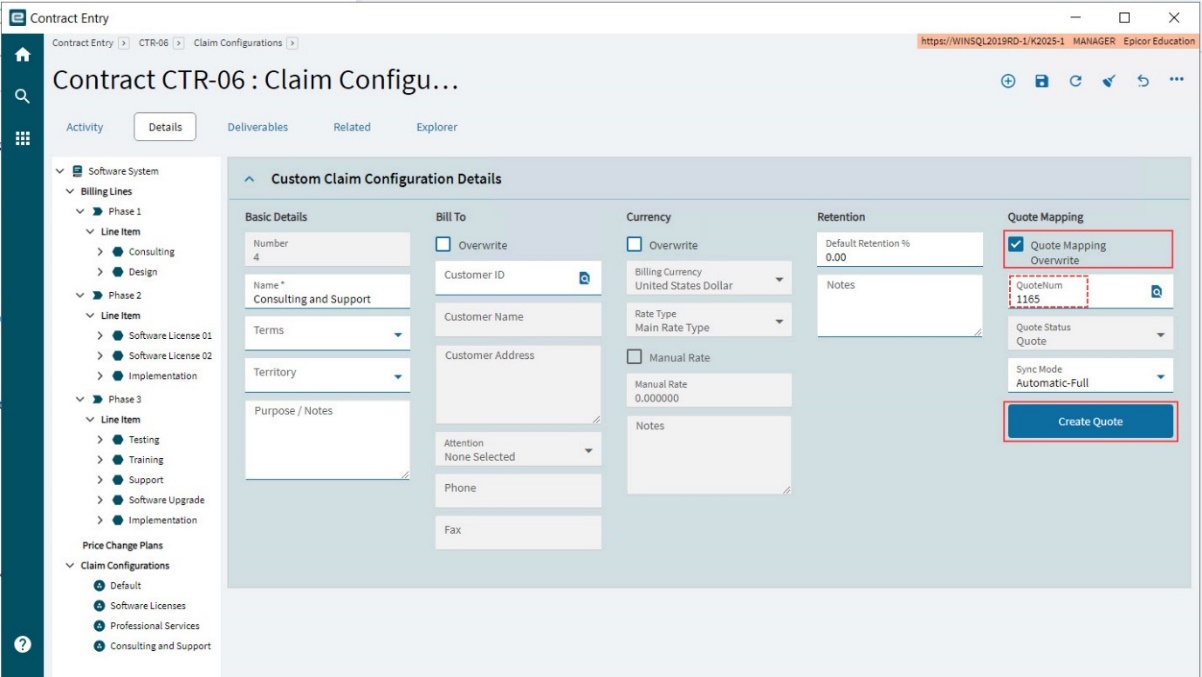
Update each claim configuration by adding a new quote. See Editing Claim Configurations.
-
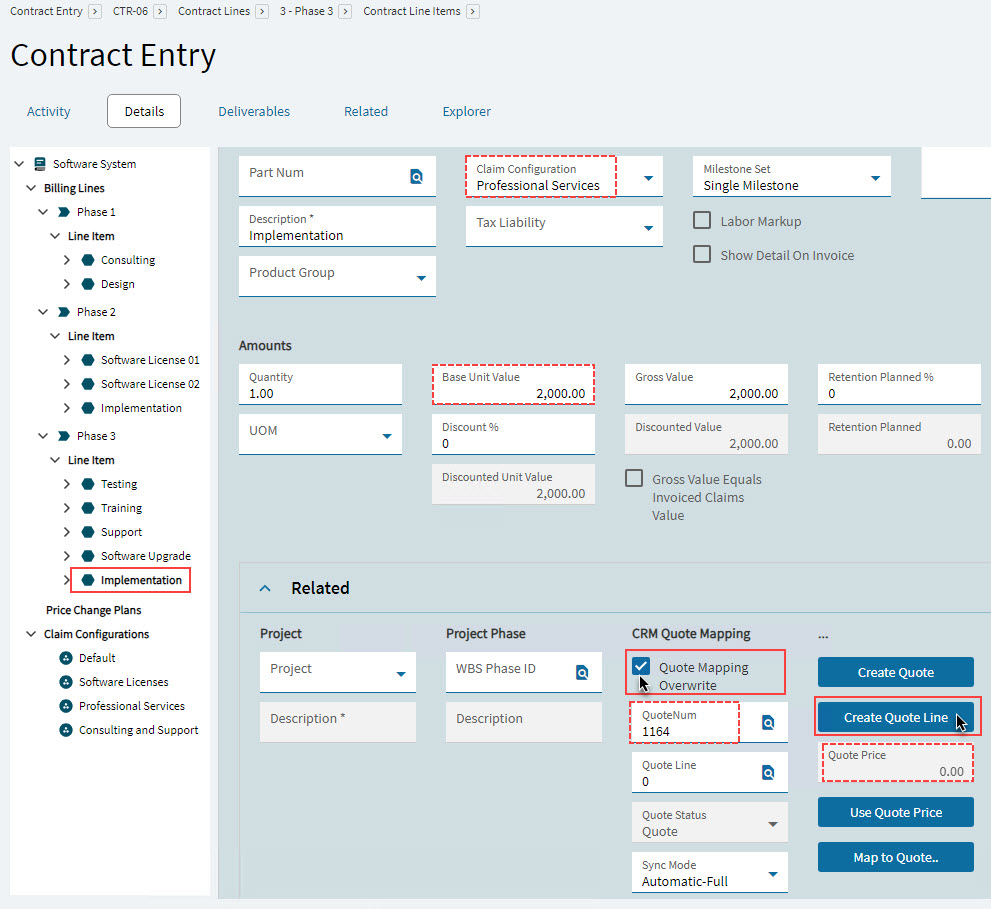
Check that each of the contract line items is linked to the correct quote, based on their Claim Configuration and the corresponding claim configuration’s quote number.
The Base Unit Value for the line item should show in the Quote Price. If it does not, then right-click on the Quote Num and select APM Quote Entry. If there is no quote line matching the contract line item, then return to the contract screen and add the quote line (see Updating Related for a Contract Line Item).
-
If you update the Base Unit Value for a contract line item, update this in the quote. See map to quote in Updating Related for a Contract Line Item).