Subcontracts Exercise
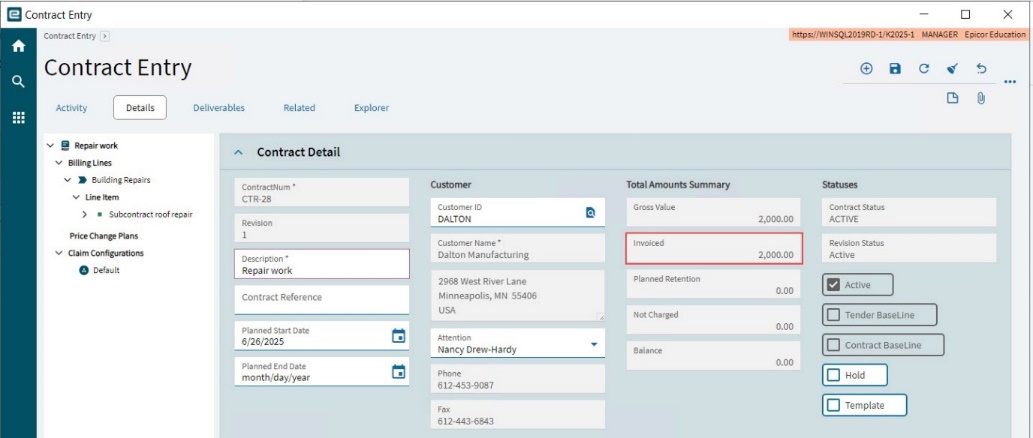
In this example, we subcontract a roof repair to a supplier at a cost of $1,500.
We charge the customer $2,000.
The example shows the steps to take to create a subcontract and then create a subcontract claim. Within the subcontract claim, we will create an AP Invoice.
Finally, we create a contract claim to invoice our customer.
Prerequisites
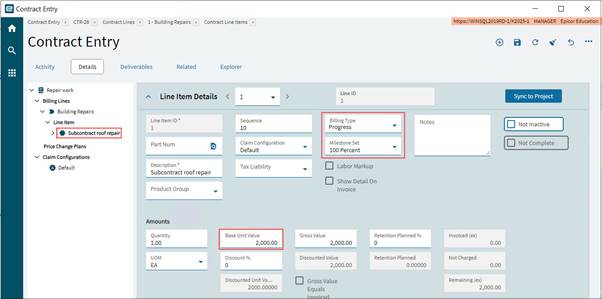
Have an active Contract linked to an active Project, to use in this exercise. The Contract should have a contract line item for subcontracting. Select a Billing Type of Progress or Quantity. In our example, we select the Progress Billing and a Milestone Set.
Add Cost Code to the Mapped WBS Phase on the Project
-
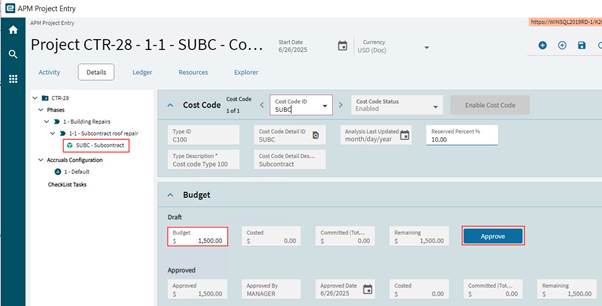
Navigate to the WBS Phase that maps to the Contract Line Item for a Subcontract and add a new Cost Code suitable for subcontracting (for example SUB). See Adding Cost Codes to WBS Phases.
-
Give the Cost Code a budget and approve this. In our example this is $1,500.
Create a New Subcontract Order
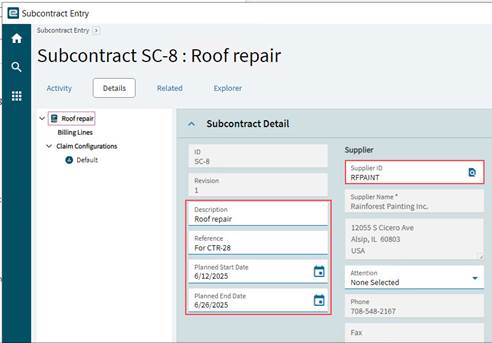
Add a new Subcontract Order. See Adding a New Subcontract. Enter the following:
-
Description, Reference, Planned Start Date and Planned End Date.
-
Search for and select a Supplier (this is the Subcontractor). When you tab out of the Supplier field, the supplier details are populated from the supplier record. Select Attention from the drop-down list.
-
The Payment Terms and Tax Liability default from the supplier’s Terms and Tax Liability. Update if required.
Create Order Lines and Line Items from a Project
-
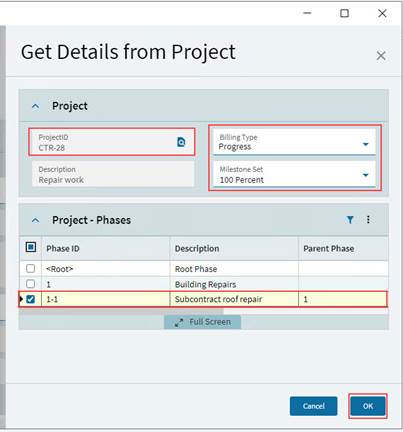
Get the project phase from the new Project (see Get Details from Project). For this example, select Progress Billing Type and a Milestone Set.
| If the subcontractor works on multiple Projects/Contracts during the defined Subcontract Order period, go through each of the applicable projects and continue adding phases as new lines to the Subcontract Order. |
Update Line Items Details
-
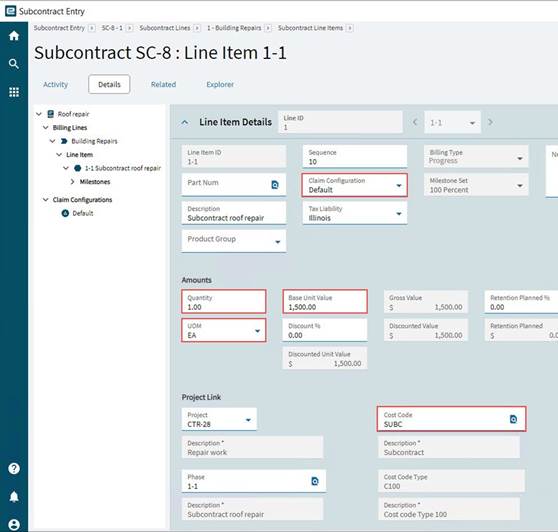
Ensure the following fields for the new Subcontract Line Items are captured, and update these if required.
-
Select Quantity of 1.
-
Enter a Base Unit Value that is the same value as the approved budget on the project: $1,500.
-
Select UOM of EA.
-
Set the Discount % to 0.00.
-
Set the Retention Planned % to 0.00.
-
Keep the Default Claim Configuration.
-
-
Update the Cost Code for each of the Subcontract Order Line Items (see Updating Project Link), on the Project Link section.
-
Save.
Activate the Subcontract Order
When all the Subcontract Order Lines have been added and updated, activate the Subcontract Order (see Activating a Revision). Note the Gross Value (in section Total Amounts Summary), which is the sum of Value for all Lines in the Subcontract Order. Now change the subcontract status to Active. See Changing the Subcontract Status.
Create a Subcontract Claim
-
When the subcontract order is ready to pay, create a subcontract claim for this (see Subcontract Claiming).
-
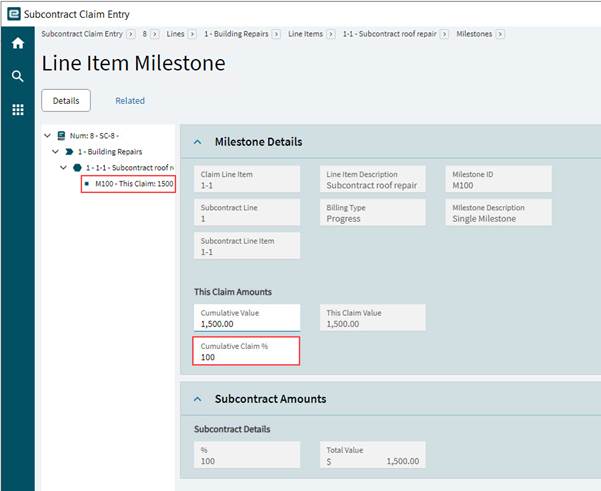
Update the values on each claim line, to match the work that has been completed and can now be paid for. In our example there is only one claim line, which has milestone details.
Approved Processing
Review, submit and approve the Subcontract Payment Request.
-
Populate the Cumulative Approved fields. The amounts entered can be less than the Approved value, if appropriate.
Once the subcontract payment request has been reviewed, submitted, and approved, an AP Invoice can be created for it.
Create Invoice from Subcontract Claim
The subcontractor issues an invoice for the approved amount, and an AP Invoice will be processed for payment.
-
Still in Subcontract Claim Entry, navigate to the Claim Details card.
-
Optionally calculate the tax (see Tax Calculation).
-
Print the claim for the supplier to review (see Claim Document Generation/Printing).
-
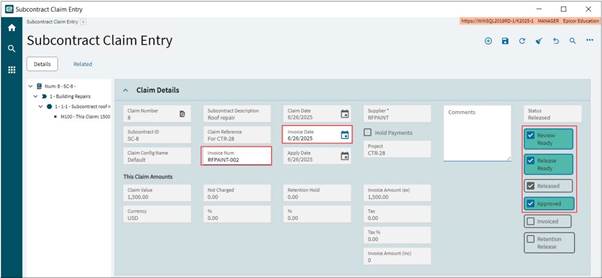
Release and Approve the Subcontract Claim (see Submission and Approval).
-
Create an AP Invoice from the Subcontract Claim (see Generate an AP Invoice).
-
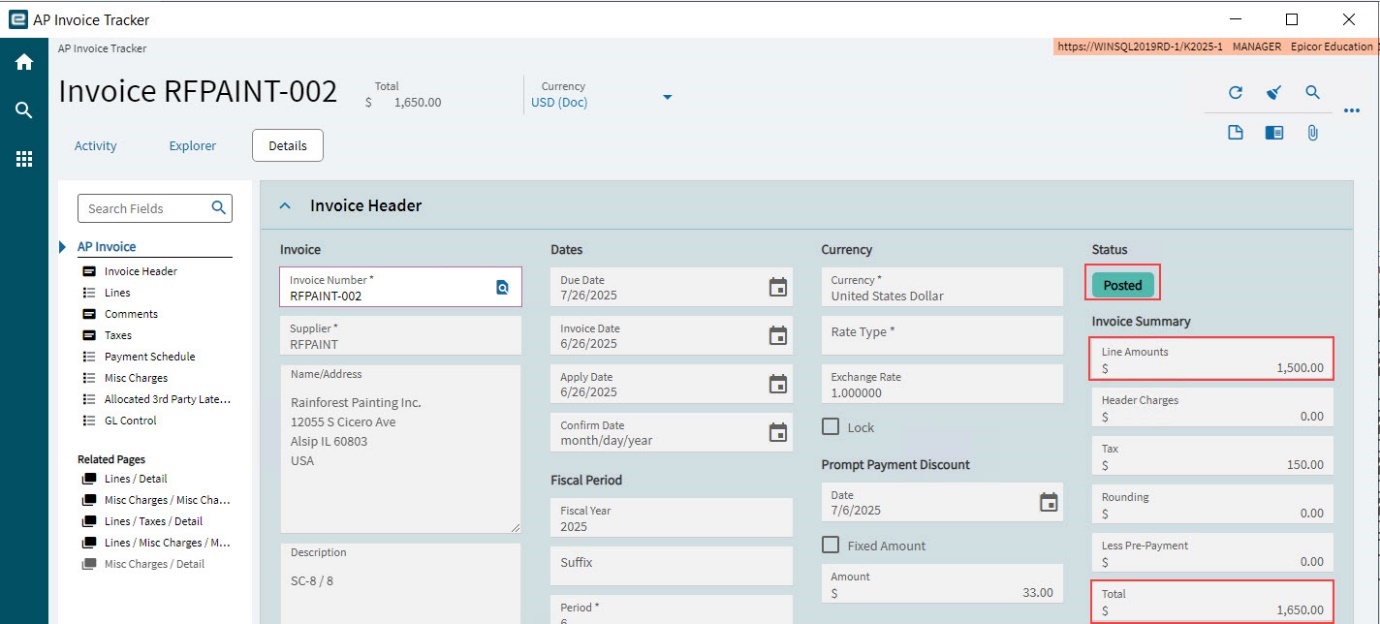
Right-click on the Invoice Num and open the APM AP Invoice Tracker to check that this has posted.
Recalculate Analysis
-
Return to the Project in APM Project Entry.
-
Run Recalculate Analysis to bring in the A/P transaction. See Running Recalculate Analysis.
-
Refresh
 the project.
 -
On the Ledger page, click Transaction Summaries to open the Transaction Summaries slide-out panel:
-
Click Refresh Summary on the Transaction Summaries slide-out panel.
-
The Summary card includes the new AP invoice amount in the A/P Analysis column (see Summary).
-
The Cost Type Summary card shows the invoice total from the A/P Invoice rolled up into the Costed for the Cost Code’s Cost Code Type. (See Cost Type Summary).
-
The transaction details are listed by Cost Code Type on the Cost Type Transaction Detail card (see Cost Type Transaction Detail).
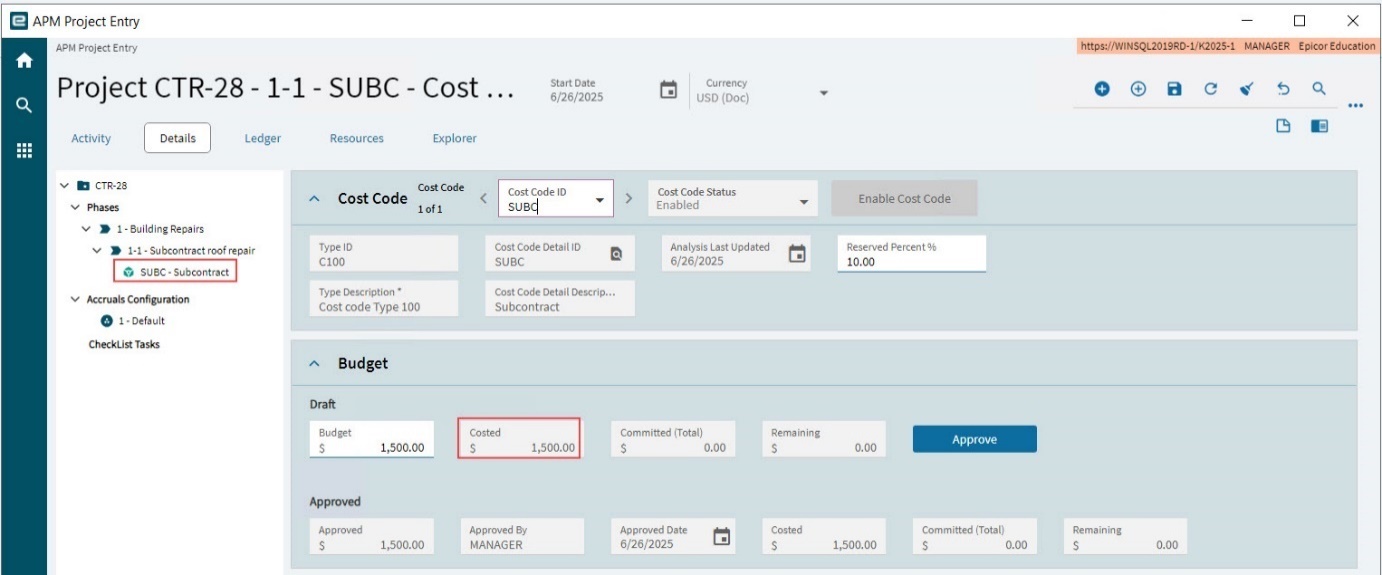
Note the changes on the Details page for the affected Phase > Cost Code:
-
On the Budget card the Costed value increases by the transaction total. The Remaining decreases by the transaction total. See Budget for a Cost Code.
-
Create a Contract Claim
You can now add a contract claim, to claim for the subcontract line in the contract.
-
Add a contract claim for the contract (see Entering a Contract Claim).
-
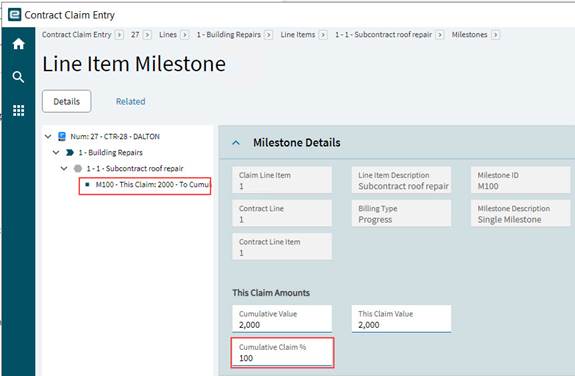
Review the contract claim line item. On the Milestone Details card, enter a Cumulative Claim % of 100% to claim the full amount.
-
Submit and Approve the Contract Claim (see Submission and Approval) and generate an A/R Invoice (see Generate an AR Invoice).
-
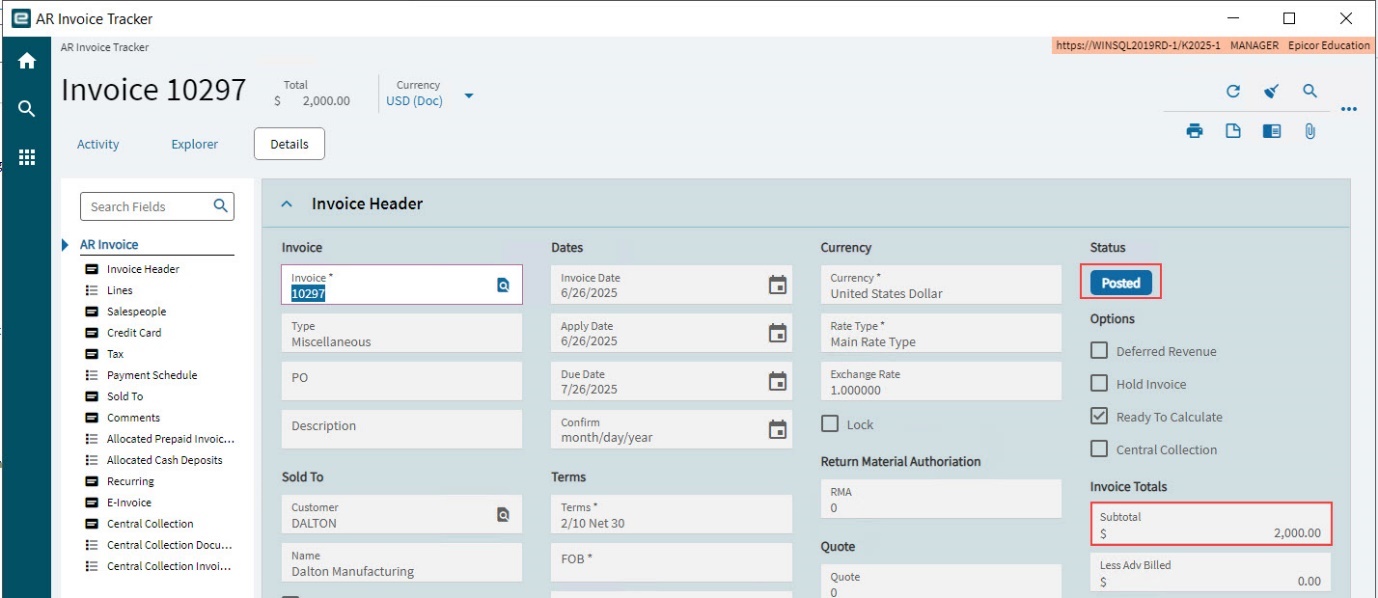
Right-click on the Invoice Num in Contract Claim Entry, to open the invoice in APM AR Invoice Tracker. Check to see that the invoice is Posted.
Recalculate Analysis
-
Return to the Project in APM Project Entry.
-
Run Recalculate Analysis, to bring the posted transactions into the Project Ledger (see Running Recalculate Analysis).
-
Refresh
the project.-
The posted transactions appear on the Ledger page:
-
On the Project Ledger Transaction List card, there is now a transaction showing the Billed amount, which also appears in the Revenue column.
-
-
On the Transaction Summaries page:
-
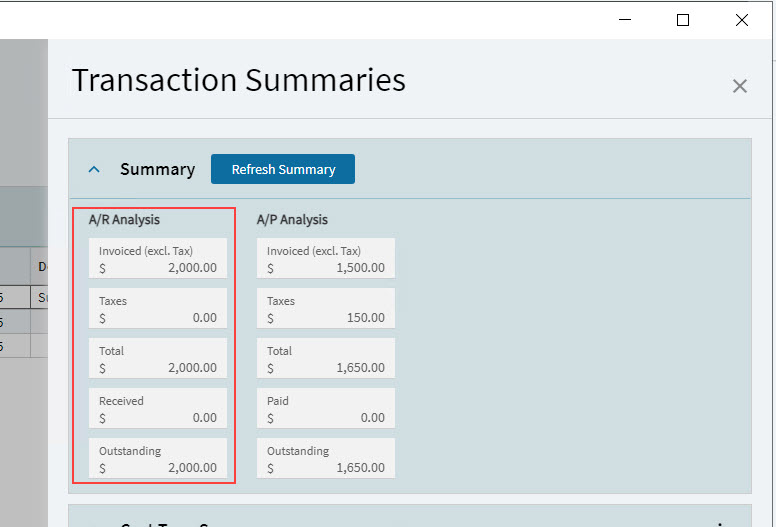
On the Summary card, click Refresh Summary. The total invoice amount is included in the A/R Analysis. (The A/P Analysis shows the AP Invoice amount for the supplier.)
-
-