Contract Types
Creating a Contract Type allows you to group a selection of default values that you can reuse across different contracts, resulting in more standardised contracts.
There are three fields that can optionally be defined for a Contract Type, as well as a Code and Description:
-
Milestone Set
-
Billing Type
-
Advanced GL Control Settings
Defaults in the Contract Type are added as defaults on the Contract Entry > Defaults card for new Contracts using this Contract Type.
- Menu Path
-
Advanced Project Management > Contract Management > Setup > Contract Type
|
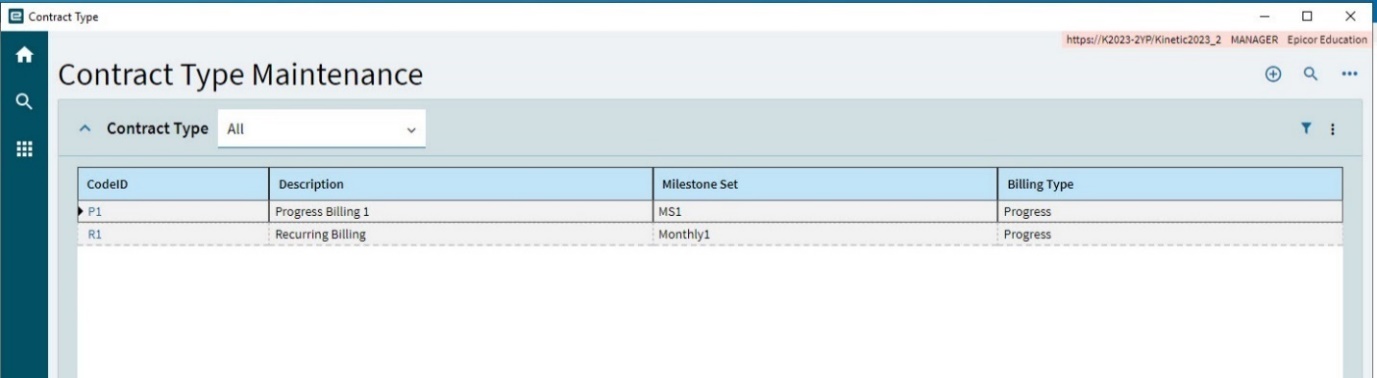
When you create a new Contract, you can select a Contract Type to auto-populate the relevant data in the New Contract slide-out panel. See Adding a New Contract.
Adding a Contract Type
-
Navigate to Contract Type Maintenance.
-
Select New
 on the Standard toolbar.
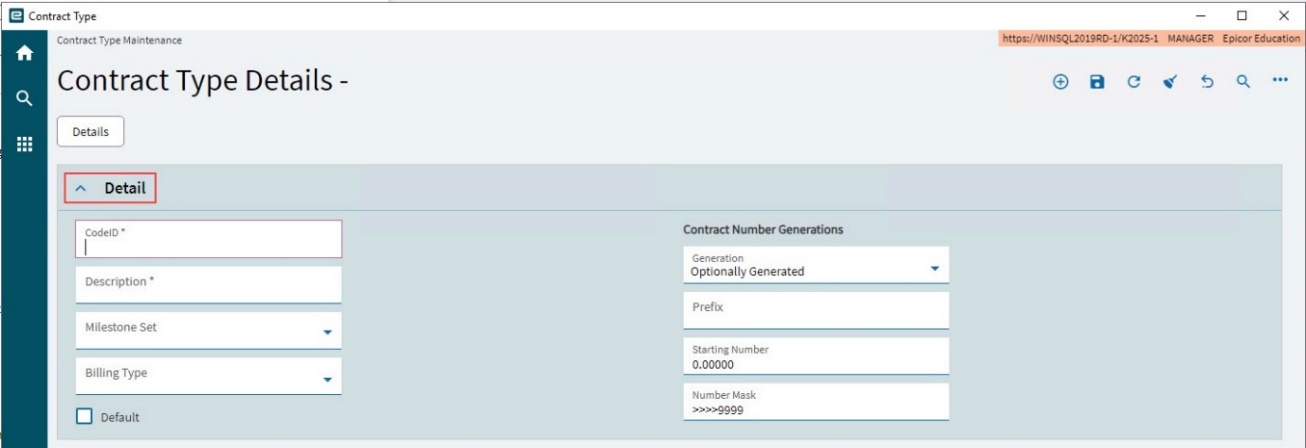
The Details page opens, with the Detail card expanded.
-
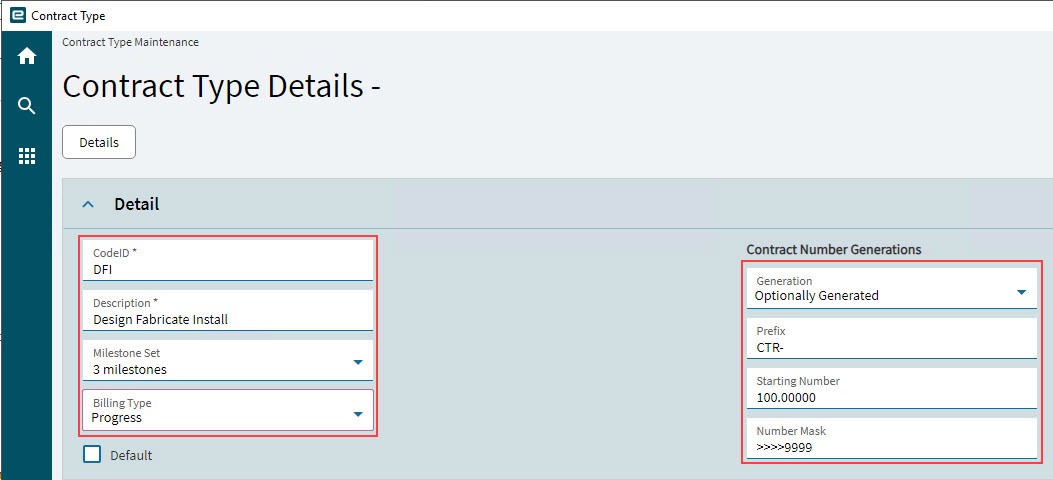
Enter a CodeID for the new Contract Type.
-
Enter a Description.
-
Select a Milestone Set from the drop-down list.
-
Select a Billing Type from the drop-down list.
-
Select Default if this is the default contract type for new contracts.
-
Set the Contract Number Generations.
-
Select a Generation from the drop-down list.
-
Enter a Prefix.
-
Enter a Starting Number.
-
Enter a Number Mask.
-
-
Select Save
 on the Standard toolbar.
|
Advanced GL Control Settings
The Advanced GL Control Settings are derived from the Configuration. See APM Configuration. Currently these settings are read-only. Contracts inherit their default Advanced GL Control Settings from the Contract Type.
Automations - For Active Contract Revision
The settings here apply to active revisions contracts of this Contract Type.
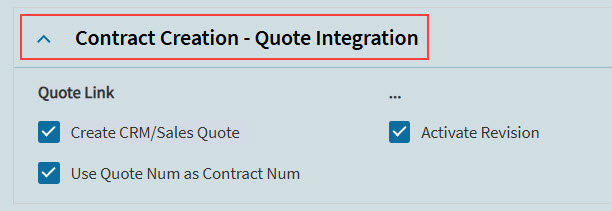
Contract Creation - Quote Integration
These settings relate to a linked CRM quote or contracts created using this Contract Type.
To create a linked CRM Quote, select the Create Linked CRM Quote check box. Select a Sync Mode (Manual or Automatic-Full).
-
If Create CRM/Sales Quote is selected, then Create Linked CRM Quote is selected in the New Contract slide-out panel, for this Contract Type. Sync Mode is set to Automatic-Full.
With this setting selected, the new contract will have a linked quote.
-
If Use Quote Num as Contract Num is selected, the new contract’s contract number is the same as the quote number.
-
If Activate Revision is selected, the new contract is automatically activated. A memo is saved to the new contract.
|
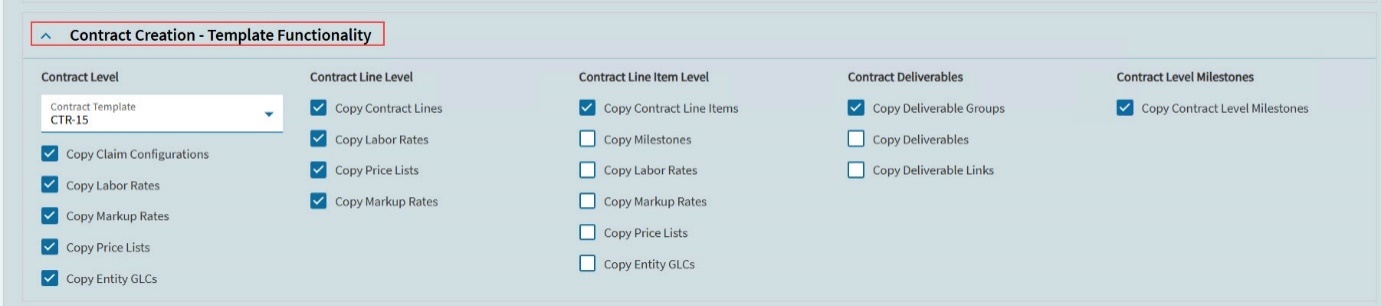
Contract Creation - Template Functionality
Use this section to select a template always used for this Contract Type. Contracts using this contract type will be based off the selected Contract Template.
After selecting a Contract Template you can select which details of the contract template are copied to a new contract, by selecting from the available check boxes. Note that some of the check boxes are only enabled when another check box is selected (for example, select Copy Contract Lines to enable Copy Contract Line Items).
-
Select a Contract Template from the drop-down list. Contracts that are designated as Templates are available for selection.
-
Choose contract level options to copy to a new contract by selecting check boxes from the Contract Level section:
-
Copy Claim Configurations
-
Copy Labor Rates
-
Copy Markup Rates
-
Copy Price Lists
-
Copy Entity GLCs
-
-
Choose contract line level options to copy to a new contract by selecting check boxes from the Contract Line Level section.
-
Copy Contract Lines
-
Copy Labor Rates
-
Copy Price Lists
-
Copy Markup Rates
-
-
Choose contract line item level options to copy to a new contract by selecting check boxes from the Contract Line Item Level section.
-
Copy Contract Line Items
-
Copy Milestones
-
Copy Labor Rates
-
Copy Markup Rates
-
Copy Price Lists
-
Copy Entity GLCs
-
-
Choose contract deliverables options to copy to a new contract by selecting check boxes from the Contract Deliverables section.
-
Copy Deliverable Groups
-
Copy Deliverables
-
Copy Deliverable Links
-
-
Choose contract level milestones options to copy to a new contract by selecting the check box from the Contract Level Milestones section.
-
Copy Contract Level Milestones
-
Only those features that are selected will copy into a new Contract (for example, Claim Configurations, and Contract Lines if these are the only selections).
|
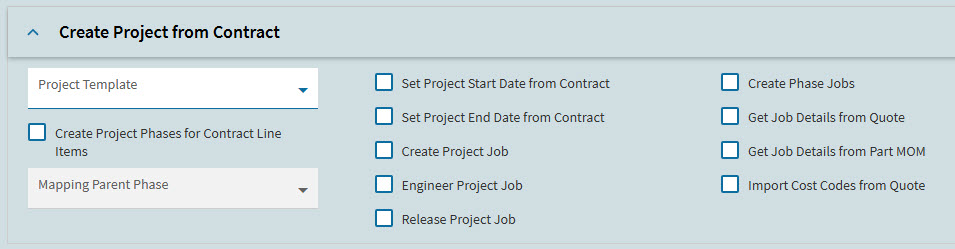
Create Project from Contract
This section contains a set of defaults for selections when creating a project from a contract of this Contract Type. You can select different settings from the defaults when Creating a Project from Contract.
|
| Setting | Details |
|---|---|
<column 1> |
|
Project Template |
Select a project template from the drop-down list. When creating a project from a contract of this contract type, this is the project template used. |
Create Project Phases for Contract Line Items |
If selected, project phases are created, based on the project template’s phases. |
Mapping Parent Phase |
This is used for mapping Sales Order lines or Quote lines under the specified phase within the project template. |
<column 2> |
|
Set Project Start Date from Contract |
If selected, the project start date uses the contract start date. |
Set Project End Date from Contract |
If selected, the project end date uses the contract end date. |
Create Project Job |
If selected, the project job is created automatically. |
Engineer Project Job |
If selected, the project job is set to Engineered. |
Release Project Job |
If selected, the project job is set to Released. |
<column 3> |
|
Create Phase Jobs |
If selected, a phase is created for each phase of the project template. |
Create Job Details from Quote |
If selected, job details are created for each project phase. |
Get Job Details from Part MOM |
If selected, job details are fetched from the part’s method of manufacturing. |
Import Cost Codes from Quote |
If selected, cost codes are imported from related quotes. |
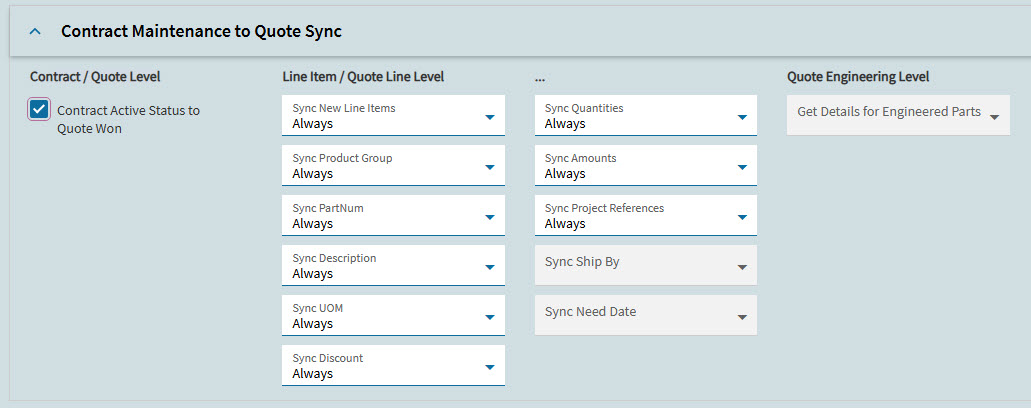
Contract Maintenance to Quote Sync
If APM Project Configuration is configured for CRM Quote Mapping, with Sync Mode selected as Automatic-Full, then updates to contract lines are synched to their corresponding quote lines.
The Contract Maintenance to Quote Sync section has options for controlling what is synced for contracts of this Contract Type, and when this should occur.
|
| Setting | Details |
|---|---|
Contract / Quote Level |
|
Contract Active Status to Quote Won |
Change quote status to Won when the contract status is updated to Active. |
Line Item / Quote Line Level |
|
Line Item / Quote Line Level Select conditions for updates to each of the following fields/group of fields:
|
For each of the drop-downs lists, update the corresponding field on the quote to the new value on the contract, if there are changes to the contract during the selected conditions. Selected conditions are:
|
Quote Engineering Level |
|
Get Details for Engineered Parts |
This option is currently disabled. |
Contract Maintenance to Project Sync
This section has settings which determine when various elements of the contract are synced with the project. For each of these elements (for example, Contract Level description, Line Level new lines) you can select when, if ever, they are synced with the related project.
For each listed element, these are the options to select:
- Never
-
Never sync to the project
- Before Contract Tendered
-
Sync to the project until the contract is tendered (Contract Status is Tendered)
- Before Contract Awarded
-
Sync to the project until the contract is awarded (Contract Status is Awarded)
- Before Contract Active
-
Sync to the project until the contract is active (Contract Status is Active)
- Always
-
Sync to the project always (regardless of the contract Status)
-
Set the Contract Level selections.
-
Sync Description
-
Sync Start Date
-
Sync End Date
-
-
Set the Line Level selections.
-
Sync New Lines
-
Sync Descriptions
-
-
Set the Line Item Level selections.
-
Sync New Line Items
-
Sync Descriptions
-
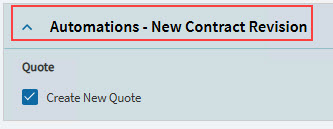
Automations - New Contract Revision
The check box Create New Quote is selected or cleared, affecting its default value for a new contract created from this contract type.
If Create New Quote is selected for a new contract, a new linked CRM Quote is automatically created for that contract. Sync Mode defaults to Automatic-Full.
|