Markup Sets
'Markup' is the increase applied to the estimated cost of an operation or material to arrive at the final bid value to be presented to the customer in a Contract Claim.
APM provides for the creation of Markup Sets. Each Markup Set can contain one or more Markups. APM Markups can be created for Expenses, Parts, Operations or Other.
In turn, Markup Sets can be defined against specific Customers, Industry Types or Project Types depending on the need at the time. The Markup Set in its most basic format may just be a rate for a timescale, for example, an FY2026 Markup Set as a default for the full year, unless changed for specific Customers.
Markup Set Maintenance
- Menu Path
-
Advanced Project Management > Contract Management > Setup > Markup Set
|
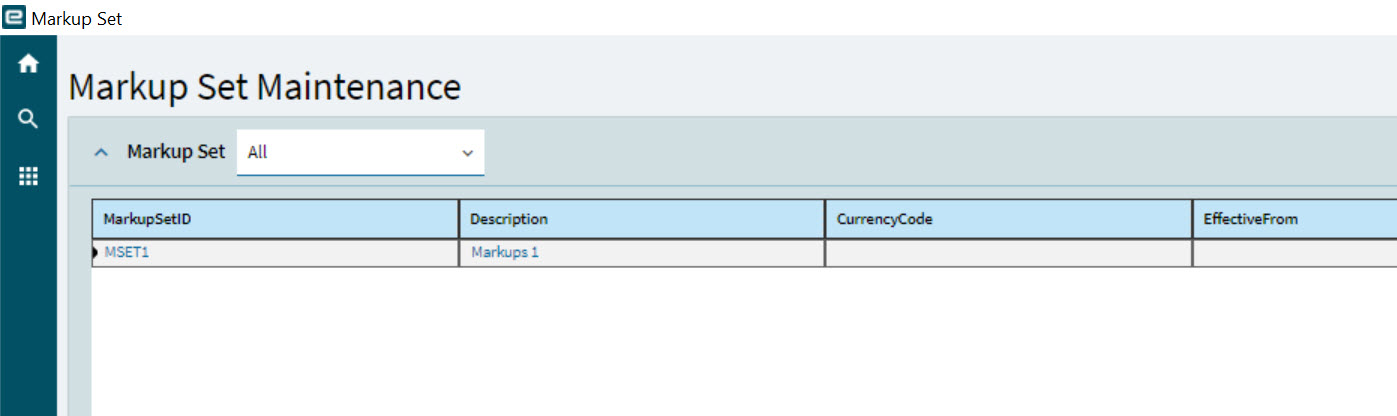
Below is an example of a typical Markup Set for a Customer with multiple types of cost inputs which use a variety of markup types and their respective charges. The Markup Set is effective for a selected date range.
|
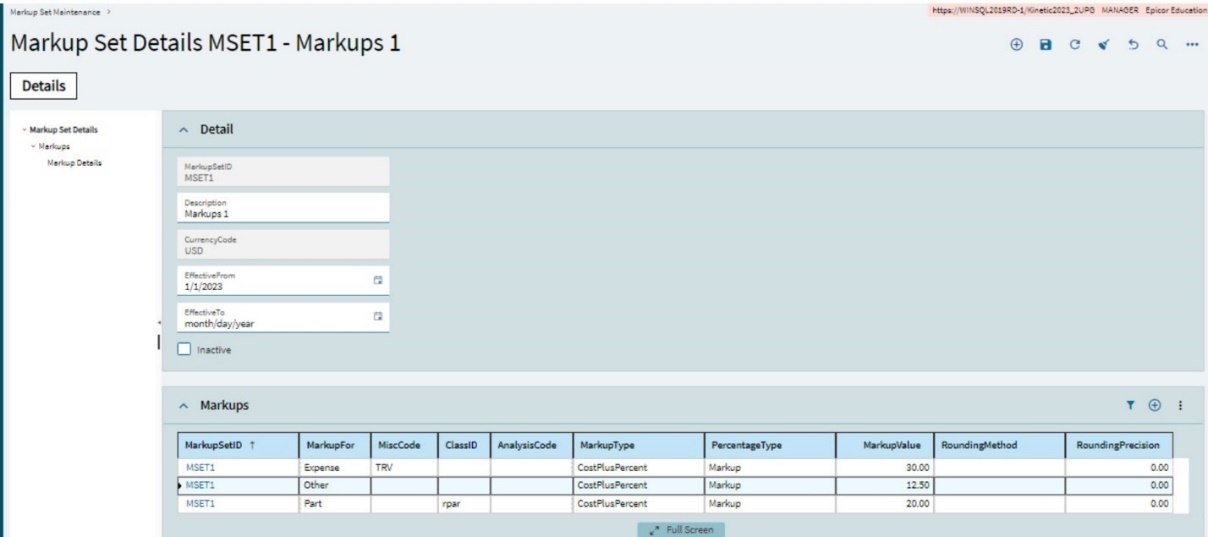
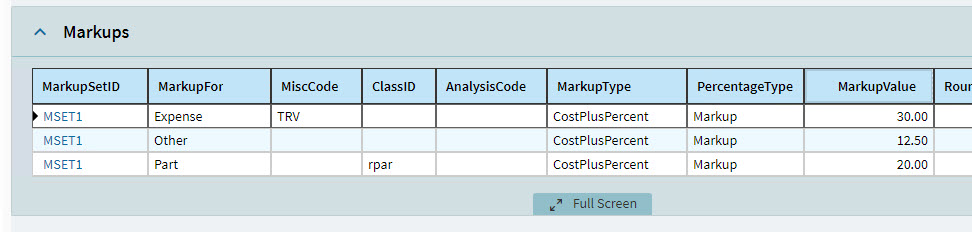
Each Markup Set has one or more Markups:
|
Adding a Markup Set
-
Select New
 on the Standard toolbar.
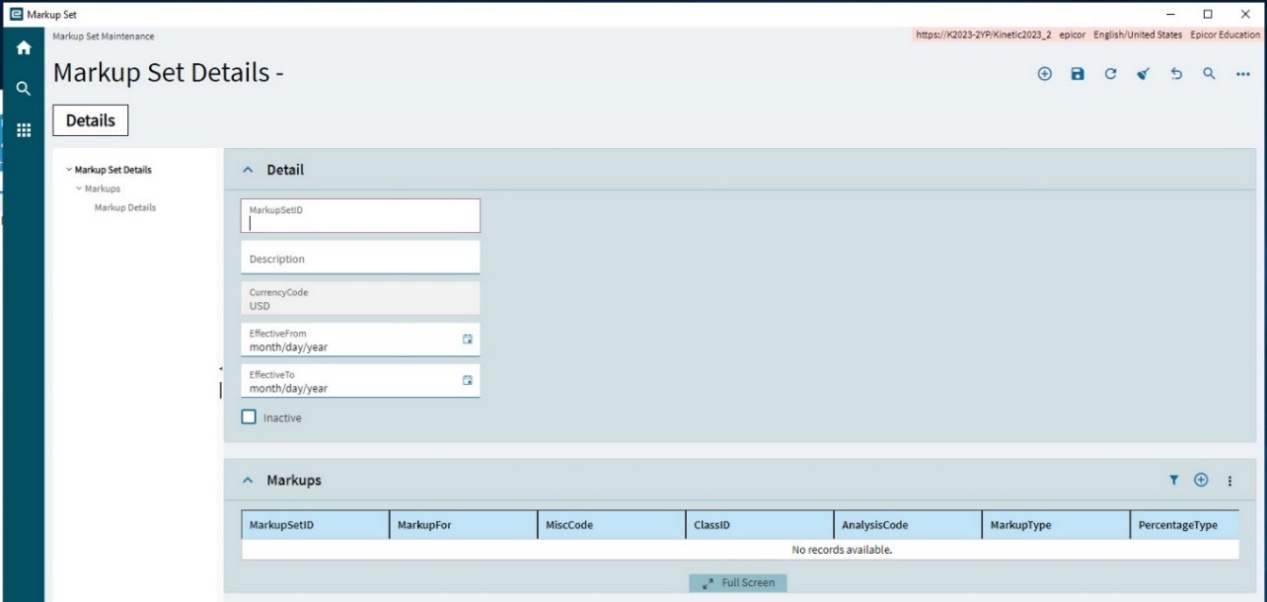
The Details page opens, with the Detail card expanded.
1
On the Detail card:
-
Enter a MarkupSetID for the new Markup Set.
-
Enter a Description.
-
Select an Effective From date and an Effective To date.
-
Select Inactive if you want to deactivate the Markup Set temporarily.
-
Select Save
 on the Standard toolbar.
Adding a Markup
-
Select a Markup Set from the grid.
-
Select Markups on the Navigation Tree.
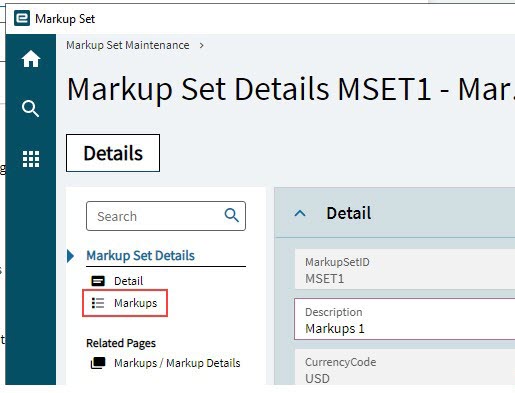
-
Select New
on the Markups toolbar.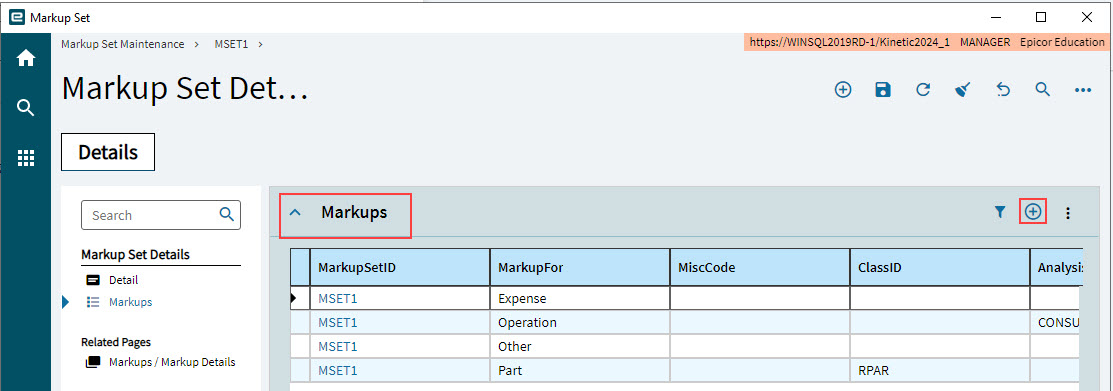
A new Markup is added, with the MarkupSetID filled in.
-
Click the Markups / Markup Details on the Navigation Tree.
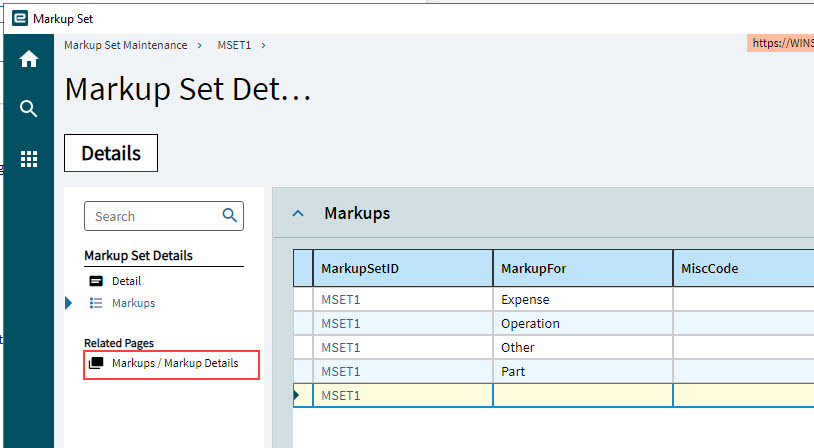
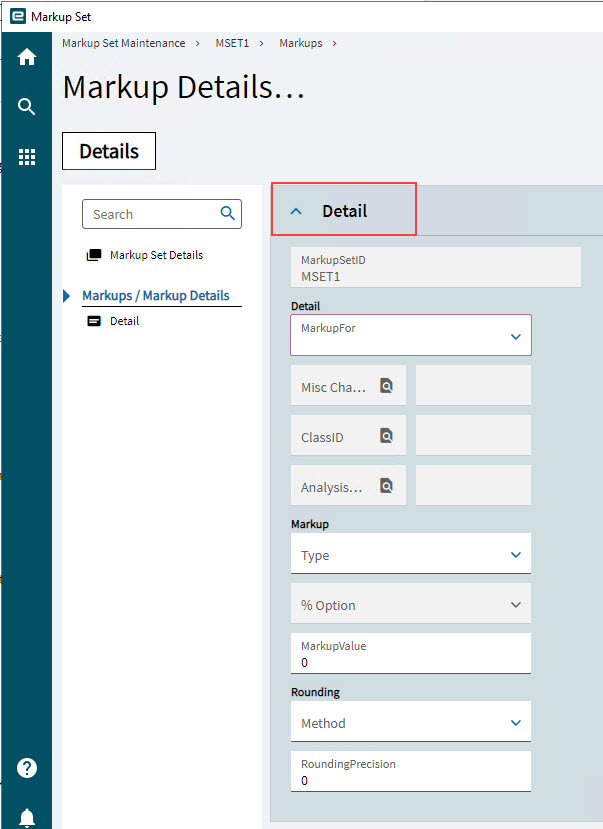
The Detail card for the new markup appears.
-
Select one of the following options for MarkupFor:
-
Expense
-
Operation
-
Part
-
Other
-
-
Complete the Detail section, depending on the selected MarkupFor:
-
For an Expense, select a Misc Charge.
-
For a Part, select a ClassID.
-
For an Operation, select an Analysis Code.
-
-
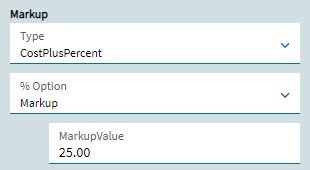
Select a Type from the Markup drop-down list.
-
If you selected CostPlusPercent, select a % Option from the drop-down list.
-
Select a MarkupValue.
-
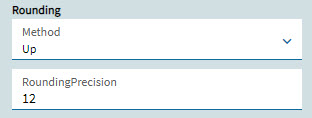
Select a Rounding Method (Up, Down, or Nearest) and Rounding Precision.
-
Select Save
on the Standard toolbar.The new Markup is added.
-
Continue to add Markups to the Markup Set.