Cost Codes
Advanced Project Management uses APM Cost Codes to classify Project costs.
APM uses standard Kinetic Analysis codes which must be linked to APM Cost Codes to create the Cost Breakdown Structure, also known as CBS or Work Breakdown Structure (WBS).
Cost Code Types and Cost Codes form the main part of the Cost Breakdown Structure (CBS). The Cost Code Types allow for the grouping of multiple Cost Codes, for reporting purposes.
Cost Codes are linked with other elements such as Analysis Code, Misc Charges and Part Class so that where these elements exist, the related financial transactions are assigned to the Cost Code they are linked with.
APM Project Budgets, Cost Codes and GL Control Codes
APM Project budgets are built up from Cost Codes.
The Cost Code is the main part of the CBS as it carries the budget value and the GL Control Codes for assuring the posting of transactions into the correct accounts.
Note that:
-
A Cost Code can only be associated with a single Cost Code Type.
-
A Cost Code can be associated with multiple WBS Phases within a single Project.
-
A WBS Phase Cost Code can have its own different GL Control Code.
If no GL Controls Codes are specified, the WBS Phase Cost Code inherits the GL Control from the APM Project Header.
Cost Breakdown Structures
The cost breakdown structure within APM can be set up in several ways depending on the outcome desired by the individual organization.
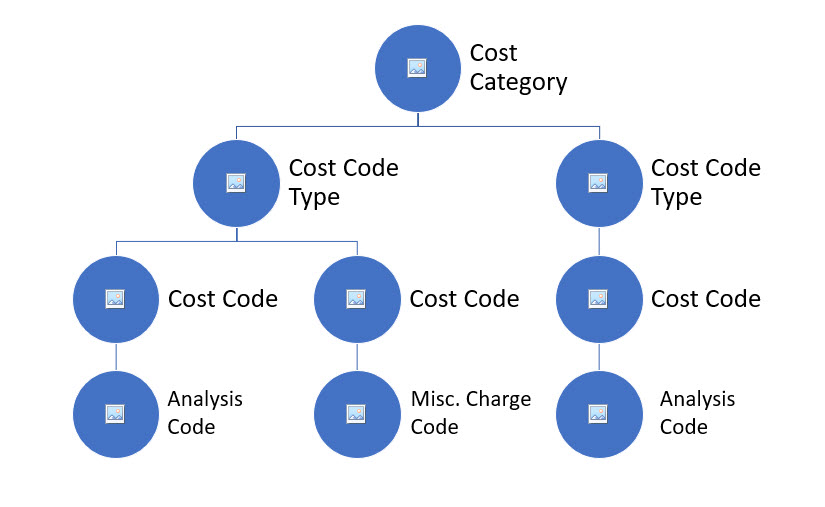
Below is a representation of a typical Cost Breakdown Structure with all Cost Code Types rolling into a single Cost Category (for example, Labor).
|
Below is a less typical Cost Breakdown Structure where both Labor and Material Costs roll up within a Cost Code and to a Cost Code Type with no singular association to a Cost Category.
|
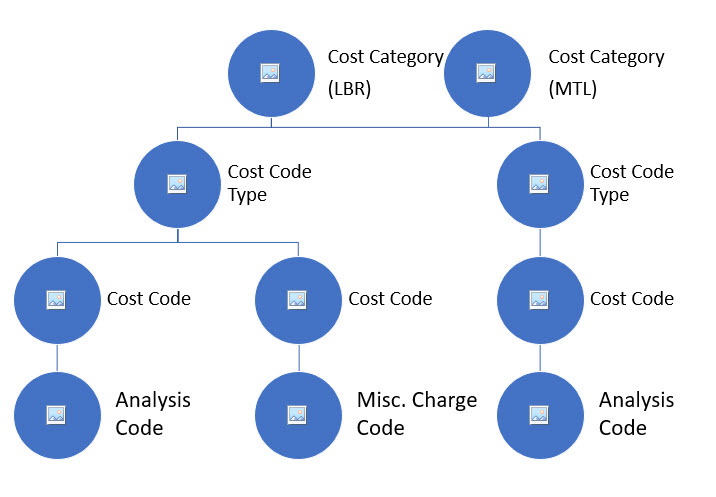
These two different configurations are managed through the setup of the Analysis Code and the associations with Cost Code and Cost Code Type.
For efficient setup of the configuration there needs to be an understanding of the ultimate reporting outcomes required, as well as the level of information that can be achieved from within operations.
The defining of standard Kinetic Analysis Codes is key to providing efficient cost roll up through the Cost Breakdown Structure.
Cost Code Maintenance
Use Cost Code Maintenance to set up a Cost Code Type and then create Cost Codes associated with that Cost Code Type.
To open Cost Code Maintenance:
-
Navigate to Advanced Project Management > Project Accounting > Setup > Cost Code.
The Cost Code Maintenance screen displays, with the CostCodeType card expanded.
Adding a Cost Code Type
-
To add a new Cost Code Type:
-
Select New
 on the Standard toolbar.
A new Cost Code Type is added.
-
Enter a Cost Code Type ID.
-
Enter a Description.
-
Select Inactive if you want to keep the Cost Code Type inactive for now.
-
Select ExcludeFrom AccrualsProc if you want to exclude any Cost Codes from this type from Project Accruals for any reason.
-
Select Save
 on the Standard toolbar.
The new Cost Code Type is saved.
Adding a Cost Code
-
Select a Cost Code Type in the grid.
This opens the Cost Code Type page, with the Navigation Tree on the left.
-
Select the Cost Code Detail node on the Navigation Tree.
-
Select New
on the Standard toolbar.A new Cost Code is added.
-
Enter a unique CostCodeDetailID for the new Cost Code.
-
Enter a Description.
-
Enter a Reserved Perc, if applicable. This overrides the Reserved Percent defined in Advanced Project Management Configuration, just for this Cost Code.
-
Select Inactive if you want to keep the Cost Code inactive for now.
-
Select ExcludeFrom AccrualsProc if you want to exclude this Cost Code from Project Accruals for any reason.
-
Select Save
on the Standard toolbar.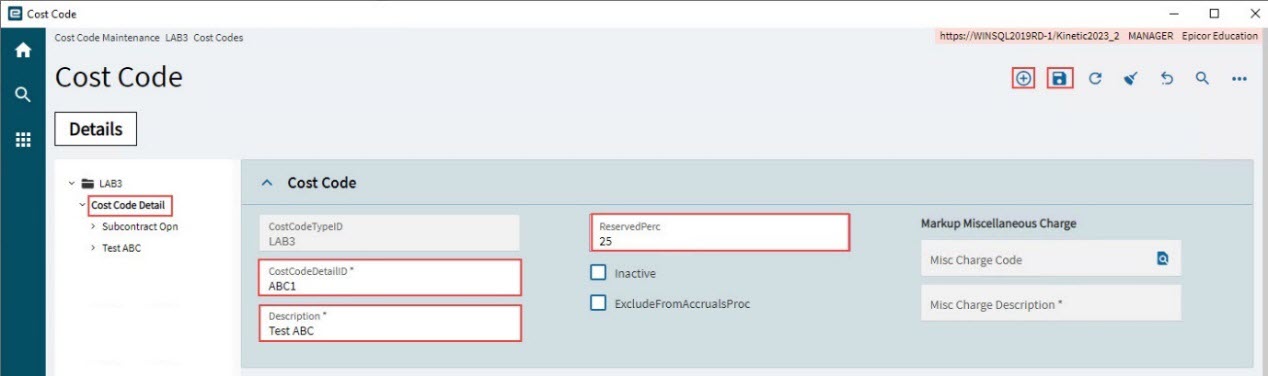
-
To add a Markup Miscellaneous Charge to the Cost Code:
-
Select the Cost Code node on the Navigation Tree.
In the Cost Code card:
-
Select the Search
 button in the Markup Miscellaneous Charge edit box.
 -
Search for and select a Miscellaneous Charge.
-
Select Save
on the Standard toolbar.The Charge ID and Description are brought into the Cost Code’s Misc Charge Code and Misc Charge Description, respectively.
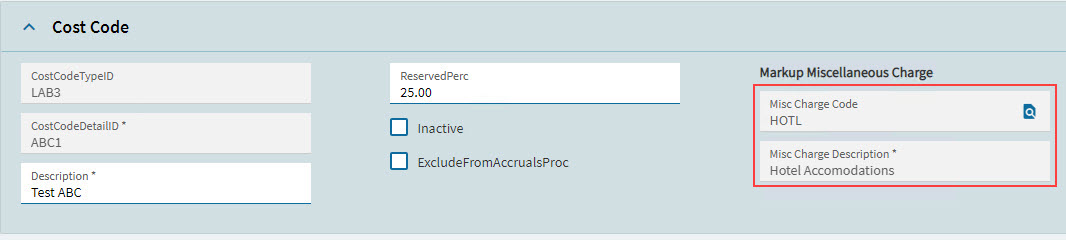
Adding an Analysis Code
See how to add an Analysis Code to the new Cost Code: Linking an Analysis Code to a Cost Code.
Follow the same process to add a Miscellaneous Charge Codes, Part Classes, Roles, and GL Controls, as required. All of these must already be in Kinetic (see the below sections for how to add and maintain these elements).
Uncategorized Cost Codes
A special Cost Code Type called ‘Uncategorized’, with its set of Cost Codes, is used for allocating transactions within a project phase, when a suitable Cost Code is unavailable (for example, where an Analysis Code is not selected, or when the selected Analysis Code does not map to one of the Phase’s Cost Codes).
There are four Cost Codes that belong to the ‘Uncategorized’ Cost Code Type:
-
Labor
-
Material
-
Other
-
Subcontract
A Cost Code of the ‘Uncategorized’ type is automatically inserted into a project’s phase, if necessary. For example, if Material is Purchased and Received against a phase’s job and no matching Cost Code can be found, the ‘Material’ Cost Code from the ‘Uncategorized’ Cost Code Type is inserted, and the Cost allocated to that. Similarly, the ‘Labor’ Cost Code is inserted for unmapped Operation costs.
In summary, Cost Codes are inserted into Phases depending on the transaction type, as shown below:
| TranType | Cost Code from 'Uncategorized' Cost Type |
|---|---|
PartTran |
Material |
LaborDtl |
Labor |
APInvExp |
Subcontract |
All others |
Other |
Linking Elements to a Cost Code
You can link one or more of any of the following elements to an APM Cost Code:
-
Analysis Codes
-
Part Classes
-
Miscellaneous Codes
-
Role Codes
-
GL Controls
-
Navigate to Advanced Project Management > Setup > Cost Code.
In Cost Code Maintenance:
-
Select a CostCodeTypeID to open a Cost Code Type.
-
Select a Cost Code on the Navigation Tree.
This opens the Cost Code details. Now link one or more elements, as described below.
Linking an Analysis Code to a Cost Code
Note that an Analysis Code can only belong to a single Cost Code.
| Read about Analysis Codes. |
To link an Analysis Code to a Cost Code:
-
Expand the Cost Code on the Navigation Tree.
-
Click on Analysis Codes on the Navigation Tree.
-
Select New
on the Standard toolbar.This creates a new Analysis Code link with the Cost Code.
-
Search for and select a Cost Code Analysis ID.
The Analysis Code and Description are brought into the Cost Code Analysis ID and Description, respectively.
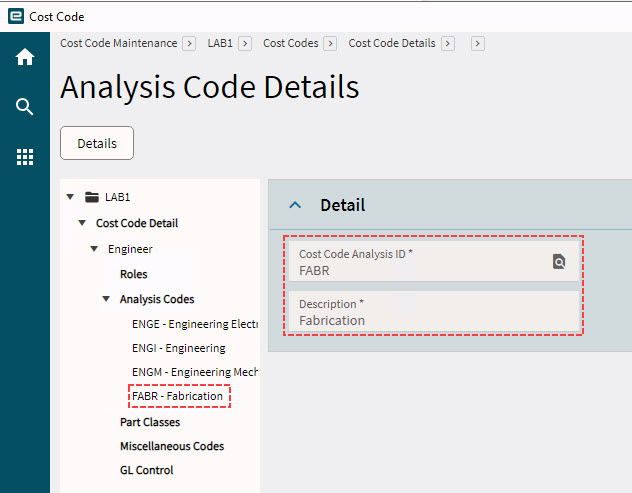
-
Save.
-
Continue to link Analysis Codes to the Cost Code.
Linking a Part Class to a Cost Code
Note that a Part Class can only belong to a single Cost Code.
-
Expand the Cost Code on the Navigation Tree.
-
Click on Part Classes on the Navigation Tree.
-
Select New
on the Standard toolbar.This creates a new Part Class linked to the Cost Code.
-
Select a Part Class from the drop-down list.
The Part Class and Part Class ID fields are populated.
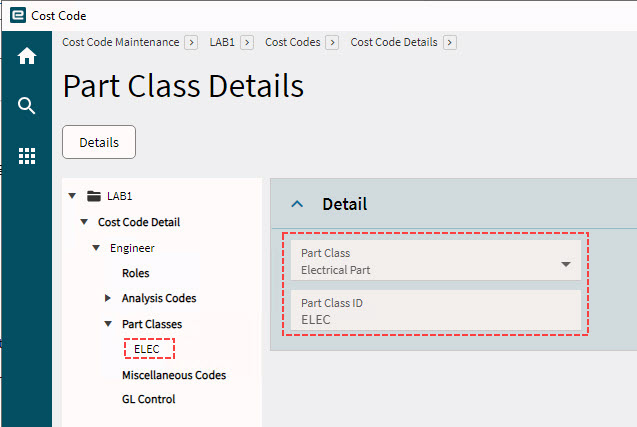
-
Save.
-
Continue to add Part Classes to the Cost Code.
Linking a Miscellaneous Code to a Cost Code
-
Expand the Cost Code on the Navigation Tree.
-
Click on Miscellaneous Codes on the Navigation Tree.
-
Select New
on the Standard toolbar.This creates a new Miscellaneous Code linked to the Cost Code.
-
Search for and select a miscellaneous code from the Pur Misc ID search box.
The Pur Misc ID and Description fields are populated.
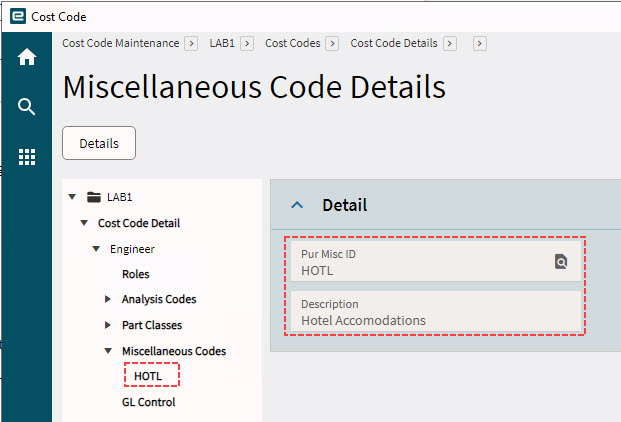
-
Save.
-
Continue to link Miscellaneous Codes to the Cost Code.
Linking a Role to a Cost Code
-
Expand the Cost Code on the Navigation Tree.
-
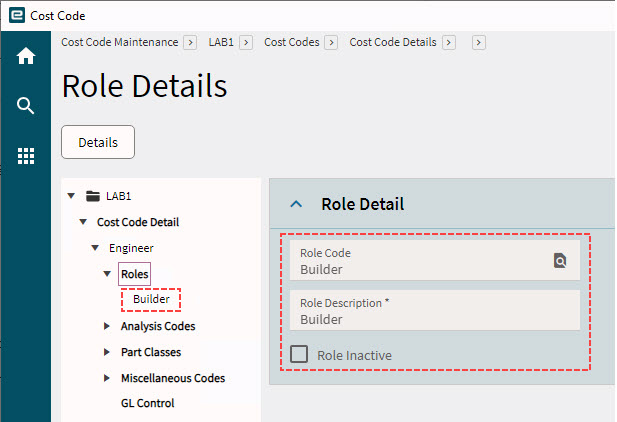
Select Roles on the Navigation Tree.
-
Select New
on the Standard toolbar.This creates a new Role Code linked to the Cost Code.
-
Search for and select a role from the Role Code search box.
The Role Code and Role Description fields are updated.
-
Save.
-
Continue to link Roles to the Cost Code.
Linking a GL Control to a Cost Code
-
Expand the Cost Code on the Navigation Tree.
-
Select GL Control on the Navigation Tree.
-
Expand the GL Control card.
-
Select New
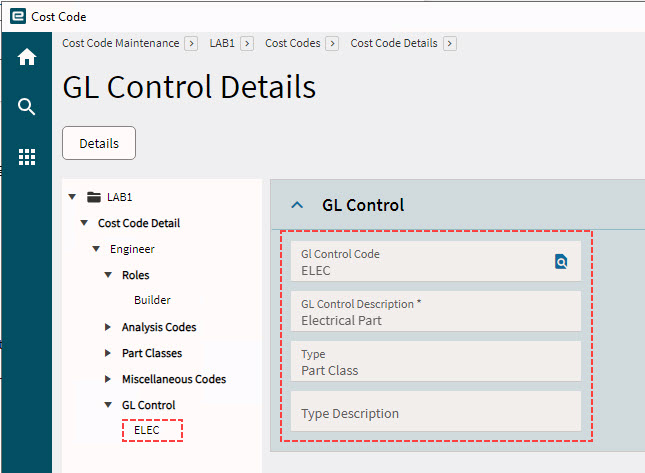
on the Standard toolbar.This creates a new GL Control Code linked to the Cost Code.
-
Search for and select a GL Control from the GL Control Code search box.
The GL Control fields are filled in: GL Control Code GL Control Description Type Type Description
-
Save.
Analysis Codes
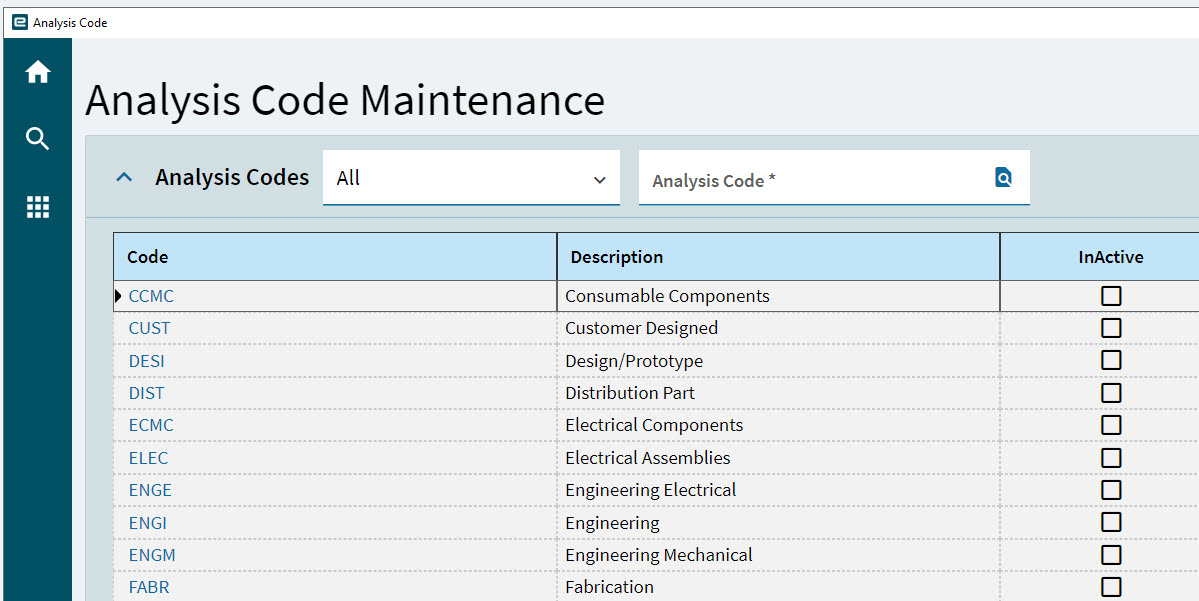
Kinetic Analysis Codes are used to segregate job costs in Projects. Advanced Project Management also uses the standard Kinetic Analysis codes (when they are attached to APM Cost Codes), to gather costs for Projects, so it is important to add/link the appropriate standard Analysis Code(s) to the correct APM Cost Code.
In Advanced Project Management you can add one or more Analysis Codes to an Advanced Project Management Cost Code. To reflect an expense or cost against an APM Cost Code, ensure that you select an Analysis Code linked to that Cost Code when capturing the transaction.
Analysis Codes appear on materials and operations. They can be adjusted on Methods and through to all types of Jobs.
For more details on the Analysis Code definition, see the Kinetic help topic Creating Analysis Codes.
| An Analysis Code can only be linked to one Cost Code. |
- Menu Path to create Epicor / Kinetic Analysis Codes
-
Production Management > Job Management > Setup > Analysis Code.
|
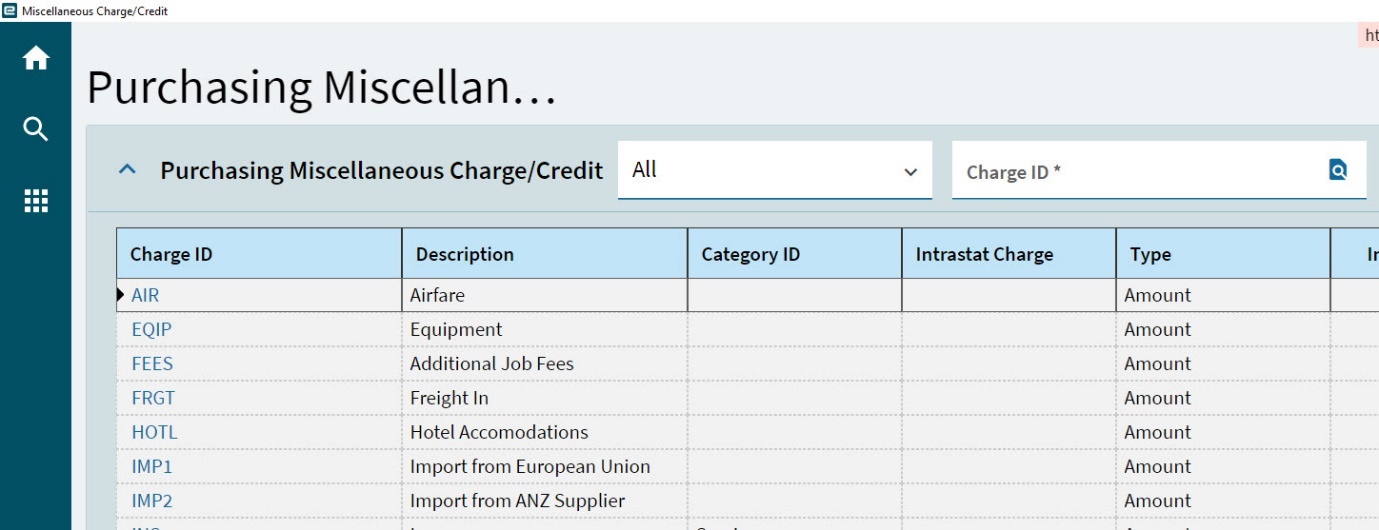
Miscellaneous Charge Codes
Miscellaneous Charge Codes are used for capturing and processing costs that are not based on Material or Labor, but rather Expenses incurred, where it is appropriate to assign these to a job (regardless of type).
For more information on the definition and management of Miscellaneous Charge Codes, see the Kinetic help: Setting Up Miscellaneous Charges.
Consider the following in APM Configuration:
-
A Misc. Charge Code can only be associated with one Cost Code.
-
The Misc. Charge Code may be chargeable to customers and will form part of Time and Material or Cost-plus billing methodologies.
Menu Path to create Kinetic Miscellaneous Charge/Credit Code:
Service Management > Expense Management > Setup > Miscellaneous Charge/Credit.
|