APM Expense Entry
Use APM Expense Entry to capture expenses for an APM Project against a selected phase and cost code.
| After an APM Expense is entered, you can View the Expense in the APM Project. |
|
All other features and functionality in APM Expense Entry can be found in Kinetic’s standard Expense Entry (Service Management > Expense Management > General Operations > Expense Entry). For further information, refer to the standard Kinetic Help topic Entering Expenses in the Kinetic > Service Management > Expense Management help section. |
-
Navigate to Advanced Project Management > Project Accounting > General Operations > APM Expense Entry.
APM Expense Entry opens with an employee selected. Expenses can be captured for any employee with Expense Approval (where the Enter Expenses check box is selected for the Employee record).
-
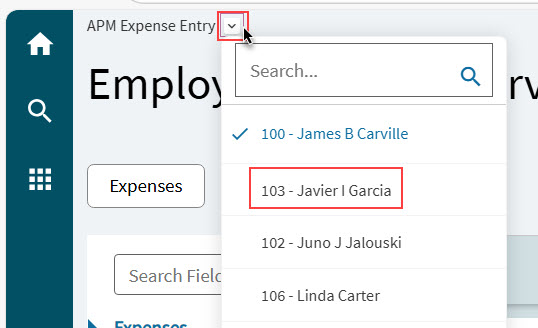
To select a different employee, click the down-arrow next to APM Expense Entry on the breadcrumb at the top of the application, then search for and select an employee from the list.
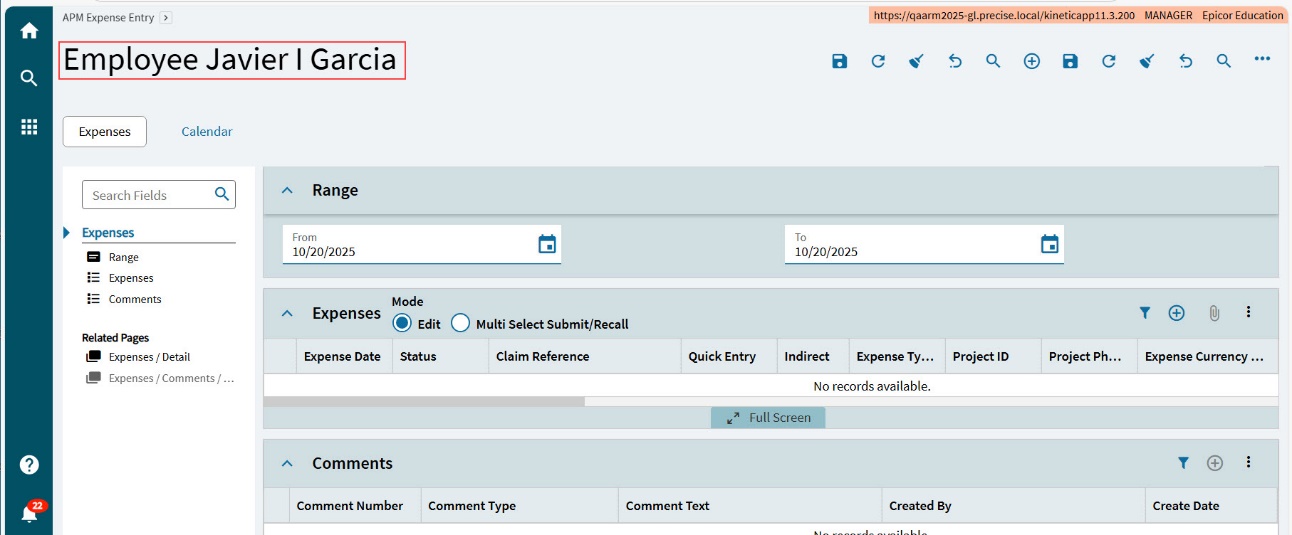
The selected employee name appears in the header for a new expense record.
-
Complete the expense details as you would for a standard Kinetic expense. For an APM Expense, ensure you capture the following fields:
-
Select an Expense Date.
-
Select a Project.
-
Select a WBS Phase. Note that this phase must have an associated released job.
-
Select an Expense Type.
-
Select a Cost Code Detail ID.
-
Enter an Expense Amount.
-
Select a Tax Liability.
-
Select a Payment Method. Depending on the Payment Method, the Reimbursable flag is either selected or cleared. For expenses that are reimbursable, you will need to process an AP Invoice for the expense (using the Generate AP Invoices for Expenses app), and post this (using APM AP Invoice Entry), before the expense can be captured against the project.
-
Select Submit on Save.
-
Select Save
 on the Standard toolbar.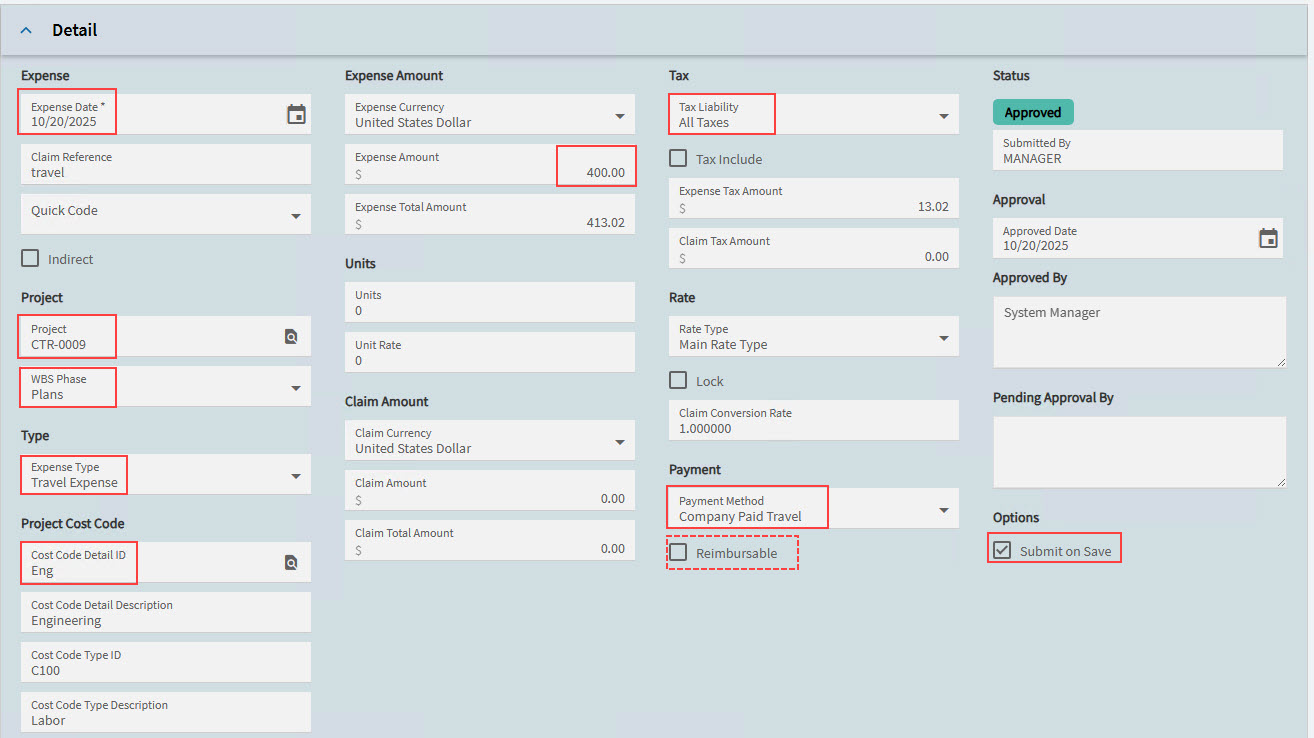
The expense is submitted. If the Employee record has Auto Approve Expenses selected, the expense is approved automatically.
-
Viewing the Expense in the APM Project
To see the expense in the Project:
-
If the expense is reimbursable, process the AP Invoice for the expense, and post the AP Invoice.
-
Run the Capture COS/WIP Activity process for the period (see Capture COS/WIP Activity).
-
In the Project, run Recalculate Analysis.
The expense is added to the Costed value for the Project > Phase > Cost Code.
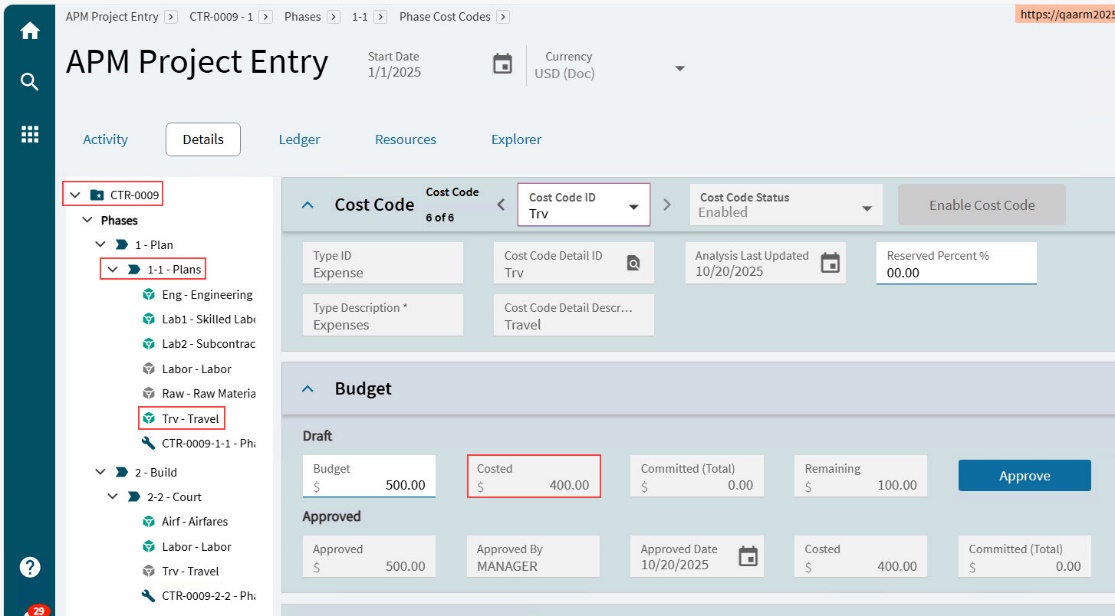
You can also see the Costed and CostWIP values in the Transaction Summaries on the Ledger page for the project.
For reimbursed expenses, the AP Invoice amounts are included in the A/P Analysis section on the Transaction Summaries.