APM Project Accruals Workbench
Use APM Project Accruals Workbench for generating and processing project accruals. You can also use it to filter for various criteria, and then access a specific project accrual, or generate and process multiple project accruals.
-
Navigate to Advanced Project Management > Project Accounting > General Operations > APM Project Accruals Workbench.
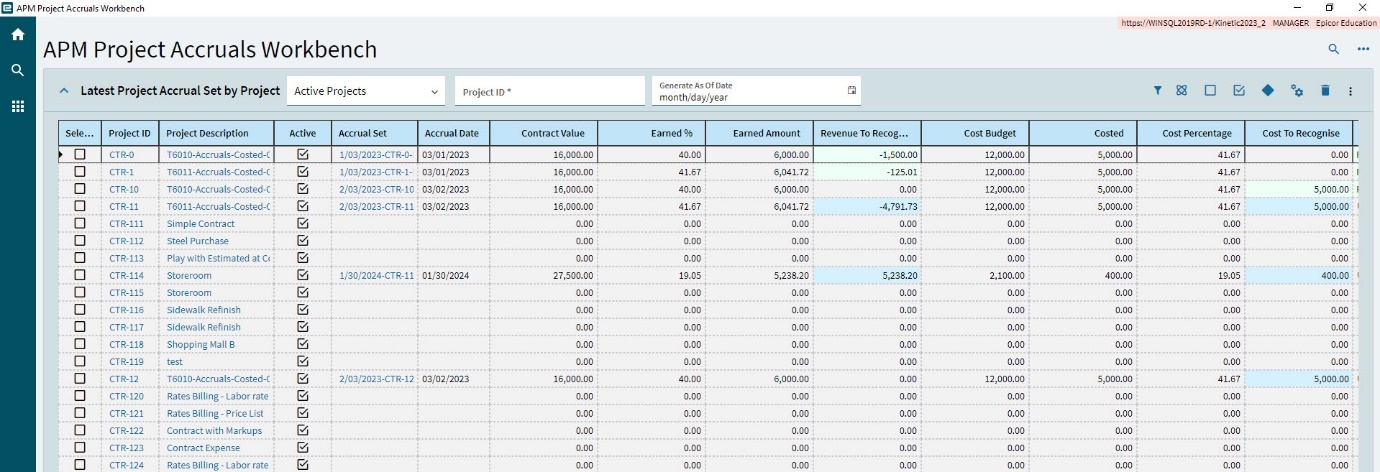
The APM Project Accruals Workbench displays.
Accessing Project Accruals for a Project
To access a project accrual:
-
Select Active Projects or Recent Records from the drop-down.
-
Use the filter button to narrow your selection.

From here, you can generate and process project accruals. For details, see Project Accruals Functions.
Project Accrual Sets for a project appear on the Project Accrual Sets card on the Activity page in APM Project Entry.
Selecting Projects
After filtering for projects, you can select one or more of the projects to generate or process accruals for by selecting the Selected check box.
-
To select all projects in the grid, click Select All
 on the Standard toolbar.
 -
To de-select all projects in the grid, click Deselect All
 on the Standard toolbar.

Processing Selected Projects
With one or more projects selected, you can select Generate Accruals  or Process Accruals
  as a batch. For details on project accrual functions, see Project Accruals Functions.
Generating a Batch of Accrual Sets
-
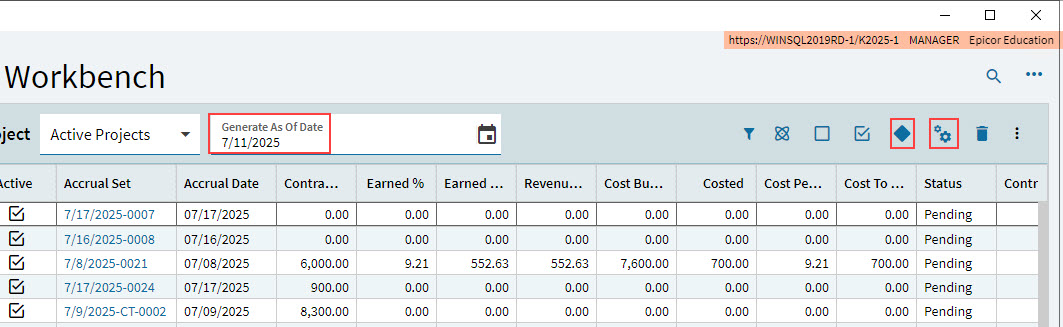
Select one or more projects. Note that unposted accrual sets for the project do not appear in the grid.
-
Select a date in Generate As Of Date.
-
Select Generate Accruals
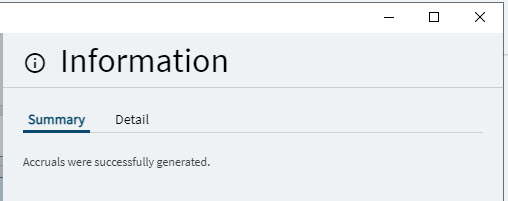
on the Standard toolbar.An Information panel slides out to confirm that the accruals were successfully generated.
-
Select OK to close the Information panel.
Processing a Batch of Accruals
-
Select one or more projects. Note that each project can have a maximum of one unposted accrual set.
-
Select Process Accruals
 on the Standard toolbar.
An Information panel slides out to confirm which projects were submitted for accruals posting.
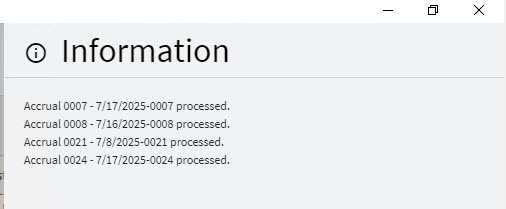
-
Select OK to close the Information panel.
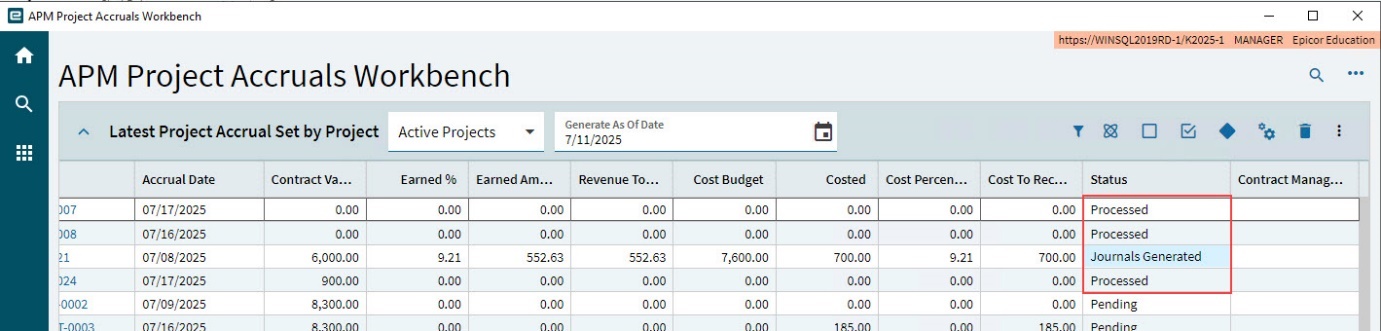
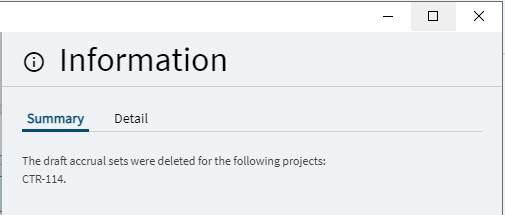
The selected Accrual Sets are posted, the Information panel closes, and the Status displays as Processed, or Journals Generated.

Project Accruals Functions
This section describes how to generate and process Project Accruals for individual projects. Transactions are posted for Cost and Revenue, for the project.
Note that any number of Project Accruals can be generated and processed within a given fiscal period. Project Accruals can also be missed entirely for that period.
For automatic posting, ensure that the Automatic Transaction Posting for Project Accruals GL Journals is selected in APM Project Management Configuration (see Configuration Details).
-
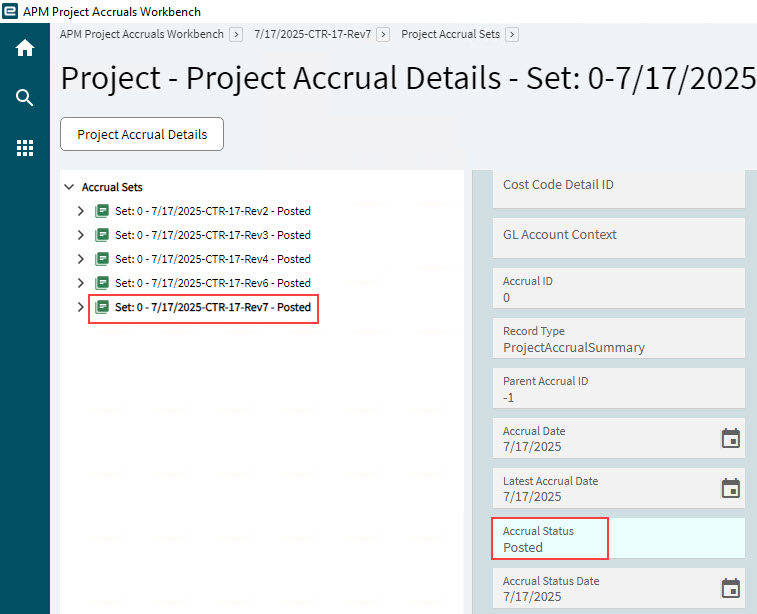
To view Project Accrual Sets, navigate to APM Project Accruals Workbench.
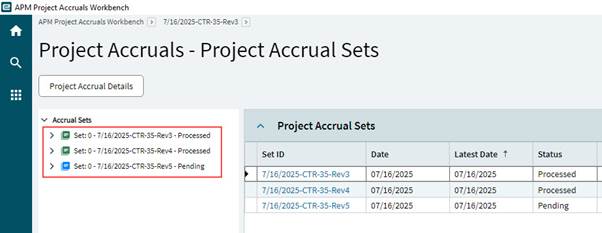
If there are any Accrual Sets for the Project, these are listed on the Navigation Tree.
-
Posted Accrual Sets have a green icon

-
Pending Accrual Sets have a blue icon

Generating Accruals
This function generates a Project Accrual set based on a specific "As of" date for the current project. The As of is the cut-off date for Revenue and Costs.
-
Open Project Accruals Workbench.
-
Select a Project ID in the grid.
This opens the Project Accruals page.
-
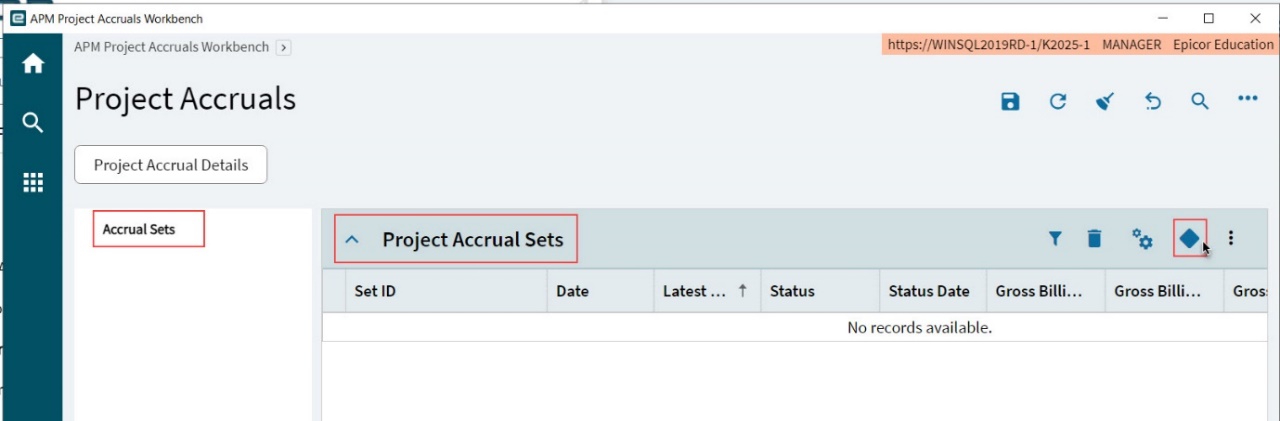
Select Accrual Sets on the Navigation Tree.
-
Expand the Project Accrual Sets card.
-
Select Generate Accruals
.
-
In the Generate APM Project Accruals slide-out panel, choose which Automatic Accrual Options to use:
-
Select Automatic Recalculate Project Analysis Pre Generation Default if you want to recalculate project analysis to run, prior to the Project Accruals Generation (see Running Recalculate Analysis). Choose this option to ensure that all figures reflect the latest values before accruals are created, reducing the need for manual recalculation steps.
-
Select Automatic APM Journals Generation if you want to generate the APM General Ledger Journals at the same time as generating the Project Accruals. Choose this option if you do not need to update the Project Accruals prior to generating journals.
-
Select Generate.
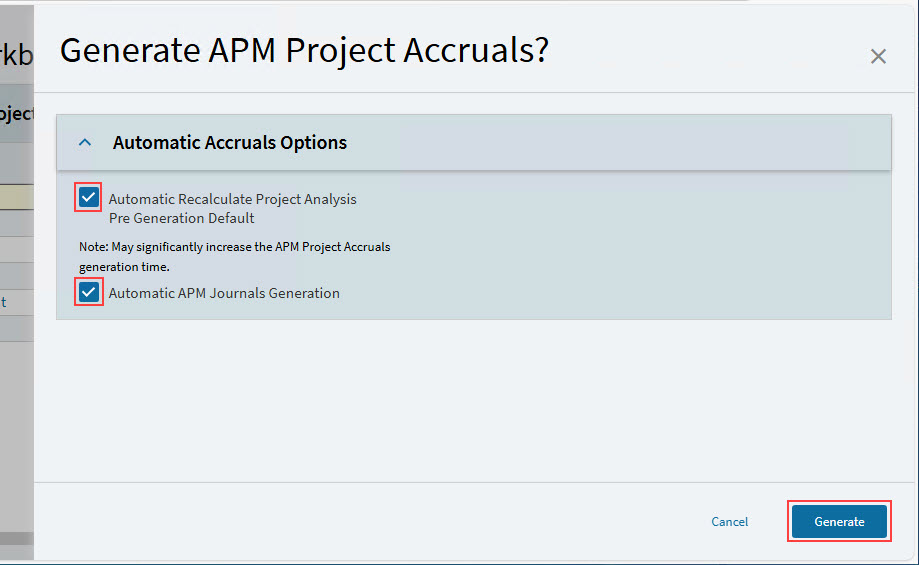
Each of these options is selected/deselected by default, depending on the selections saved in Project Accrual Defaults in APM Configuration. The new accrual set is generated.
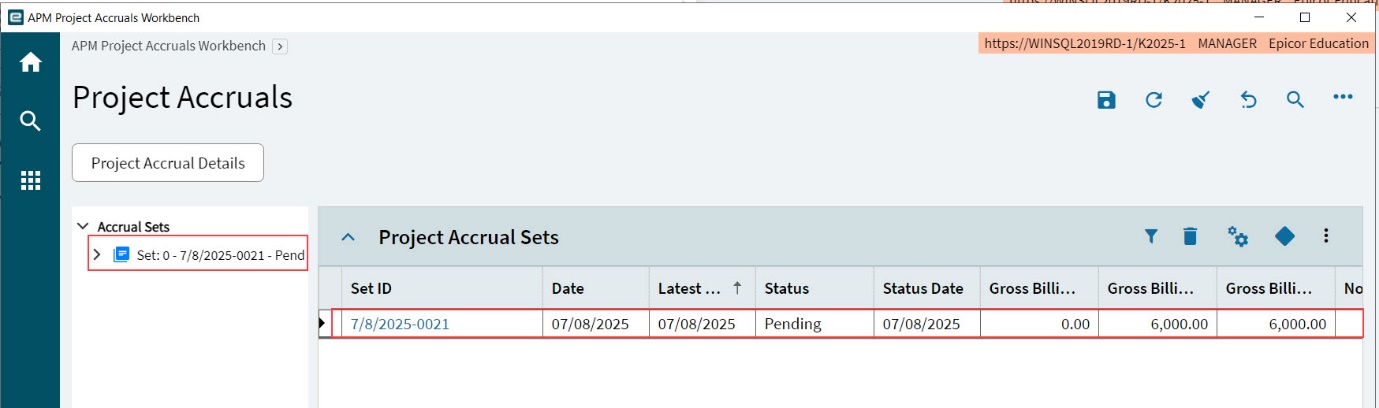
-
| The Cost and Revenue Calculation methods are set for the Accrual Groups, which may differ between WBS Phases within the project. The Cost Calculation methods are used to determine the Cost to Complete (CTC) and Cost at Completion (CAC) for Cost Recognition. The Revenue Cost Formula will determine the Revenue and Cost Recognised. |
Accrual Set Levels
The Navigation Tree on the left allows you to expand the Accrual Set to view the different levels.
 Accrual Set Level
 Accrual Group Level
 Phase Level
 Cost Code Level
 Cost Code GL Control Level
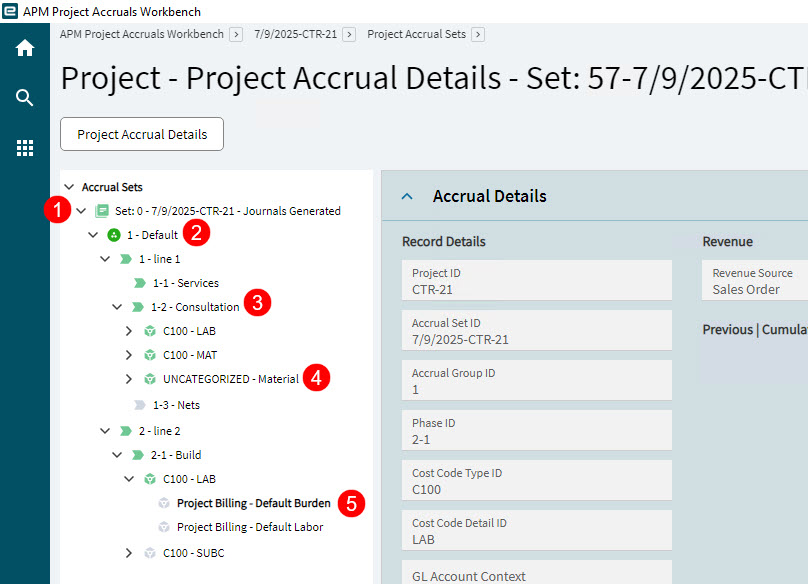
If your organization has GL Controls for Project Billing/Product Group-specific billing that includes GL Accounts for Labor, Burden, Materials and so on, you can select the Project_WBSPhase_CostCode_GLC as the Cost Accrual Level for the Cost Calculation in your Project Accrual Details.
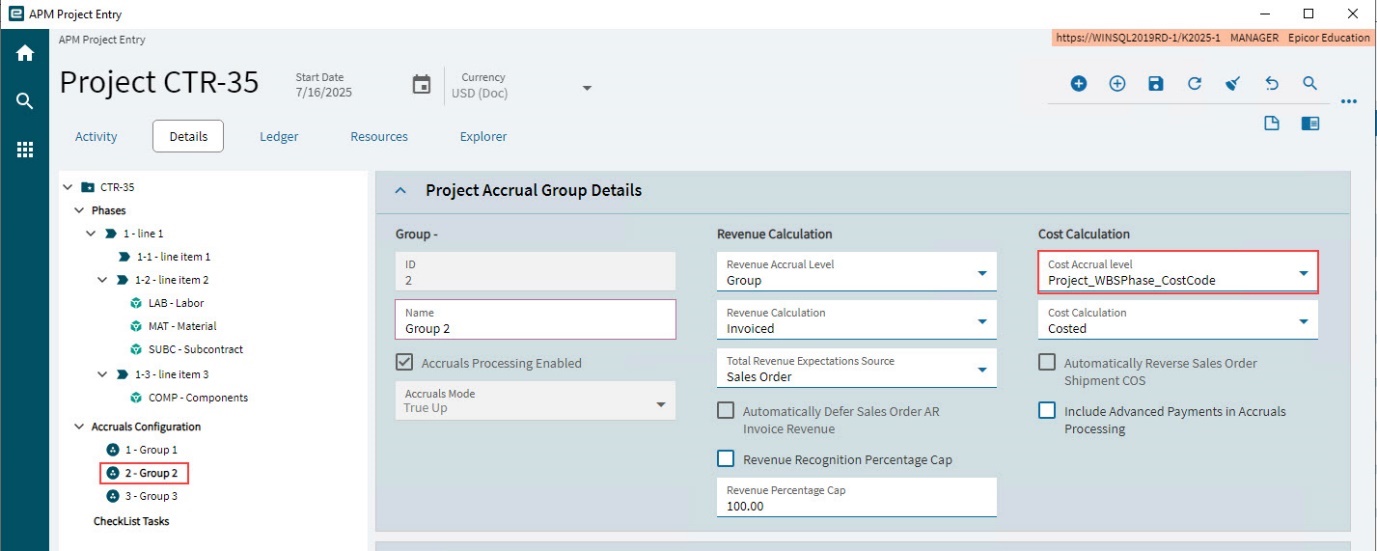
This option calculates and recognizes APM Project Accruals at the level of GL Control Type > GL Control Code > GL Context.
Example
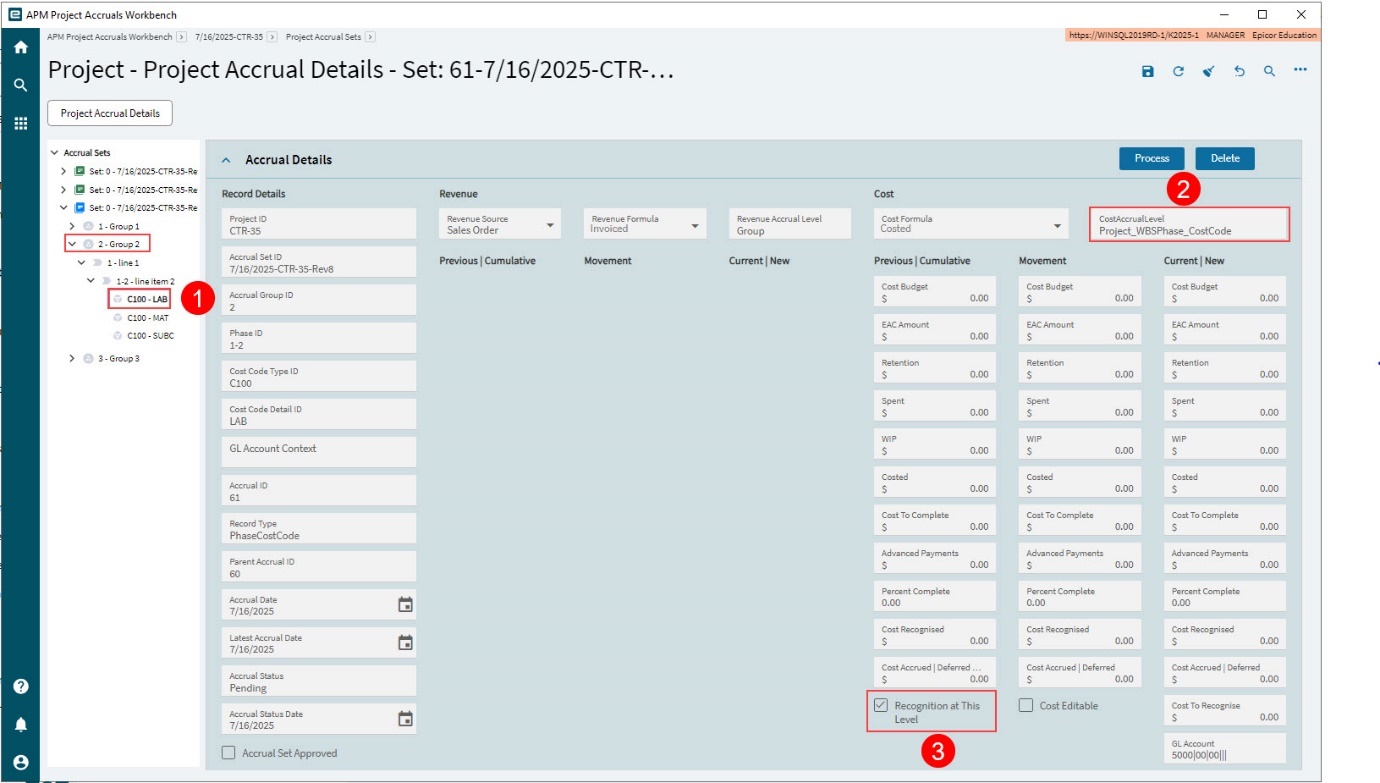
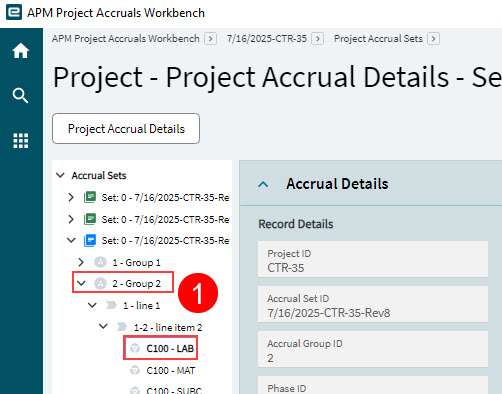
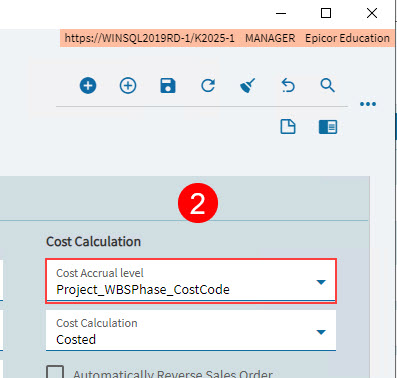
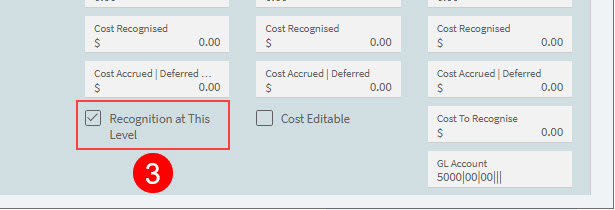
Below is an example of an Accrual Set which is selected at Cost Code level on the Navigation Tree. The Cost Accrual Level matches this with Project_WBSPhase_CostCode so that the Recognition at This Level flag is selected.
|
Figure 1: Project Accrual Details |
|
Figure 2: Detail: Select level from Navigation Tree |
|
Figure 3: Detail: Cost Accrual Level selected |
|
Figure 4: Detail: Recognition at This Level |
Cost Accrual Level Options
The full list of options you can select for the Cost Accrual Level are:
-
Group
-
Project_WBSPhase_CostCode
-
Project_WBSPhase_CostCode_GLC
When Project_WBSPhase_CostCode_GLC is selected, you can select the different GL Account Contexts below the Cost Code, on the Navigation Tree.
Revenue Percentage Cap
The Revenue Percentage Cap default value is set in Project Accrual Defaults in the Revenue Calculations section. You can adjust this value in the Project Accrual Group Details, in the Accruals Configuration for a Project (see Updating Accruals Configuration - Details).
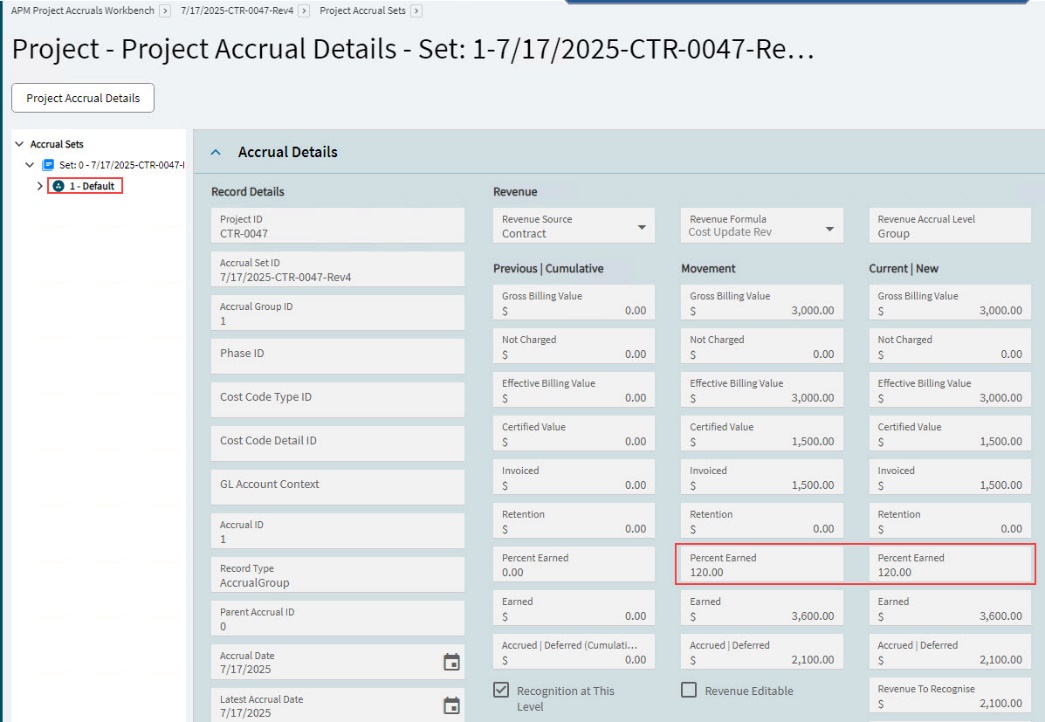
The Percent Earned values in the Accrual Details may not exceed the Revenue Percentage Cap (if this is enabled), even if the calculated Percent Earned values are higher than this.
Consider the following examples:
-
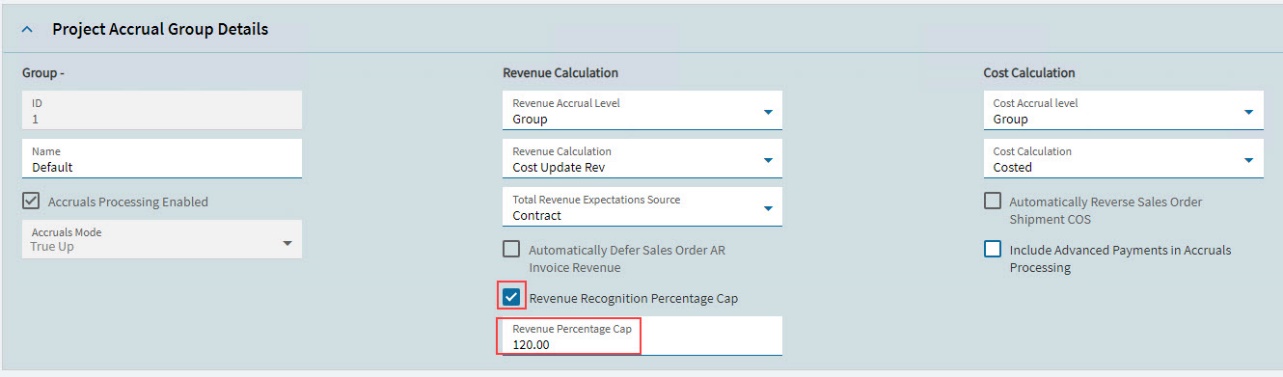
Example 1: Setting the Revenue Percentage Cap to 120.
-
The Revenue Percentage Cap is set at 120, and Revenue Recognition Percentage Cap is enabled.
-
Project Accruals are generated, with a Cost Accrual Level of Group. The Percent Earned is capped at 120.
-
-
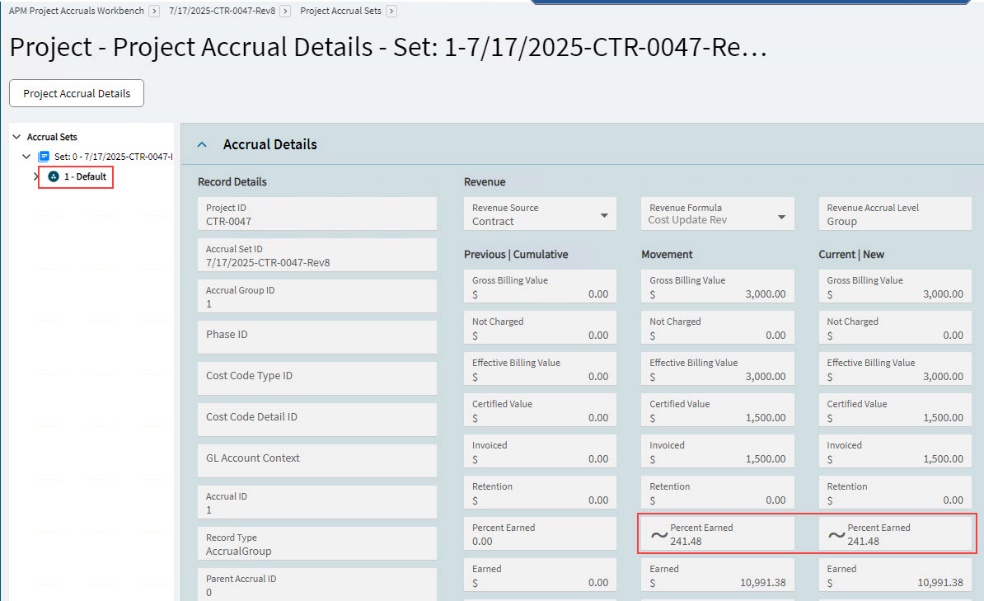
Example 2: Setting the Revenue Percentage Cap to 500.
-
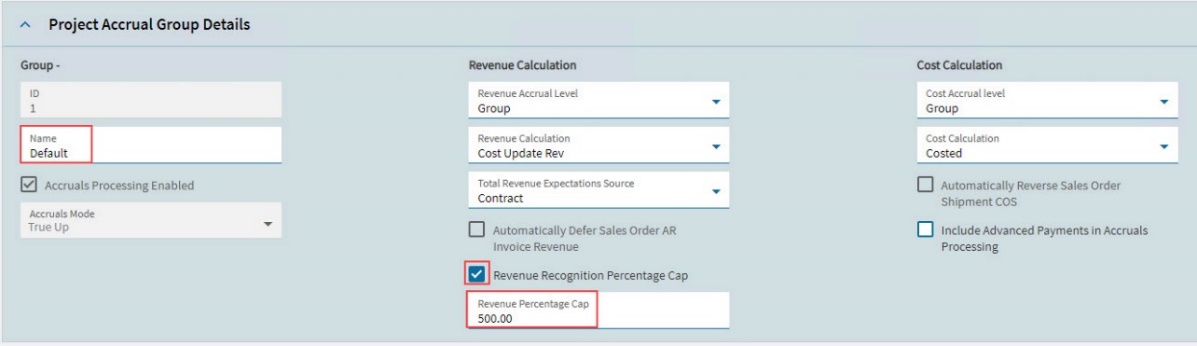
For the same Cost and Budget figures for the Cost Code, a new Accrual Set is generated, but this time with Revenue Percentage Cap set to 500.
-
This time, the Percent Earned of 241.48 is below the Revenue Percentage Cap and is therefore not capped.
-
-
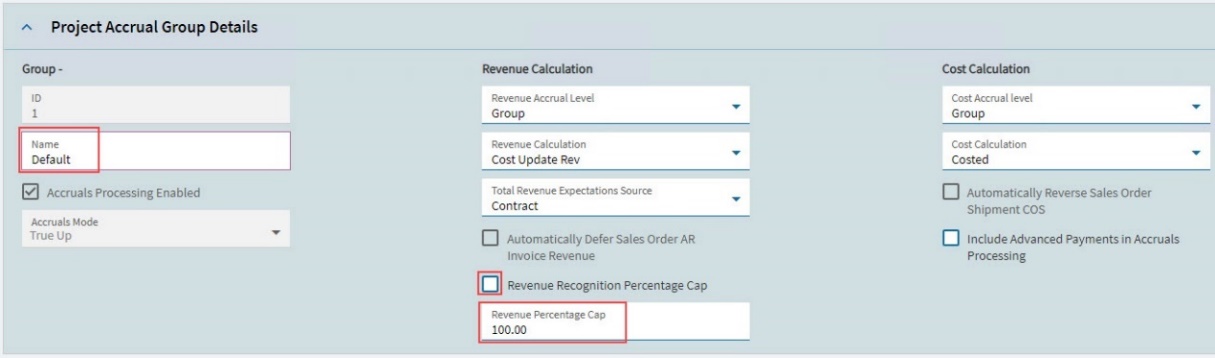
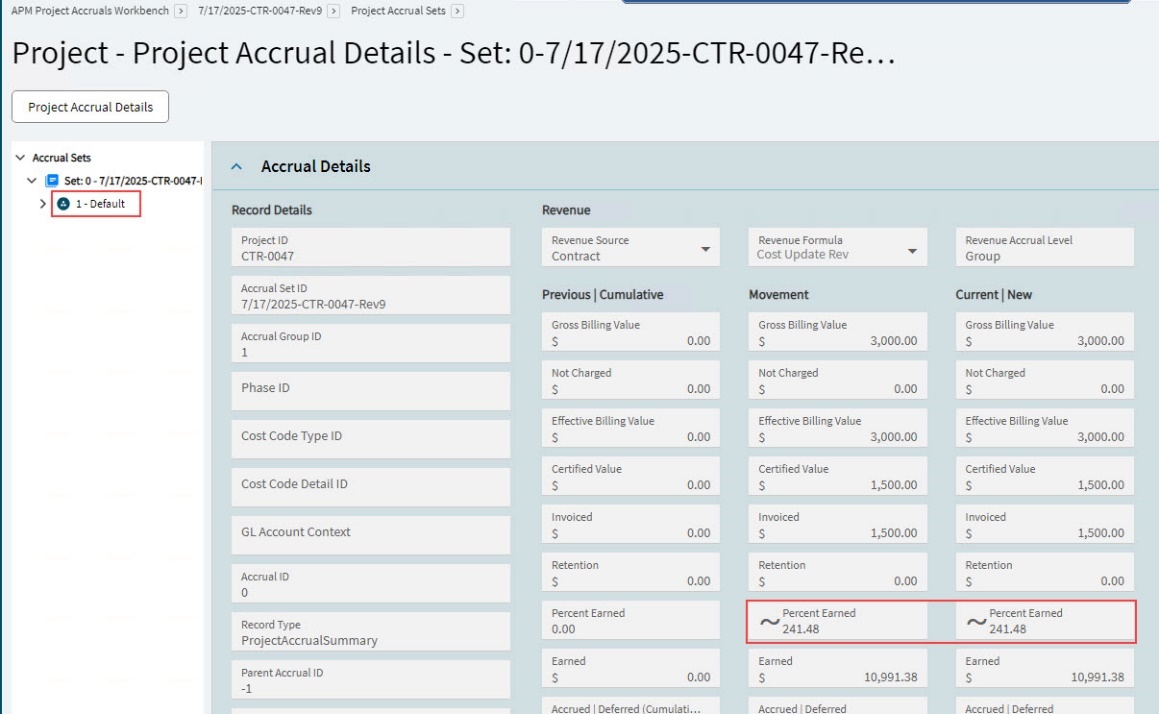
Example 3: Setting the Revenue Percentage Cap to 100 and disabled.
-
In the final example, the Revenue Percentage Cap is set to 100.
-
This time, because the Revenue Recognition Percentage Cap is disabled, the Percent Earned is not capped and is 241.48.
-
APM General Ledger Journals
In Project Accruals Workbench is a second card called APM General Ledger Journals.
The APM General Ledger Journals card displays the APM Project Journals for the selected Accrual Set as well as the GL transactions created during the processing of previous accrual sets.
APM General Ledger Journals
-
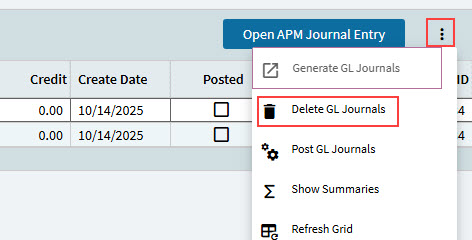
To generate GL Journals, select Generate GL Journals from the menu.
-
Alternatively, if you select Automatic APM Journals Generation when generating the APM Project Accrual, the GL Journals are generated when the accruals are generated. See Generating Accruals.
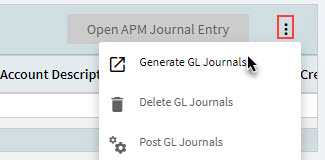
The journals are generated.
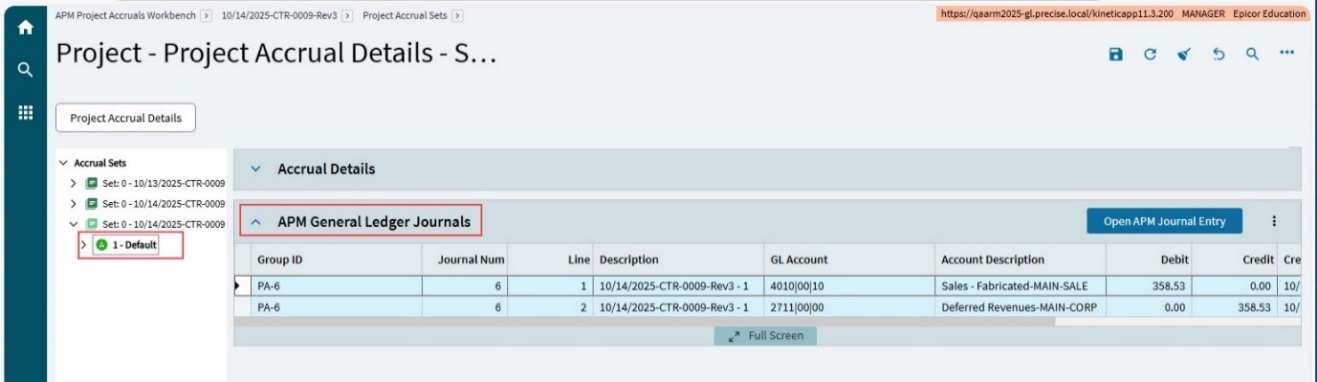
| The GL Account is assigned from the GL Control Code selected in the project. |
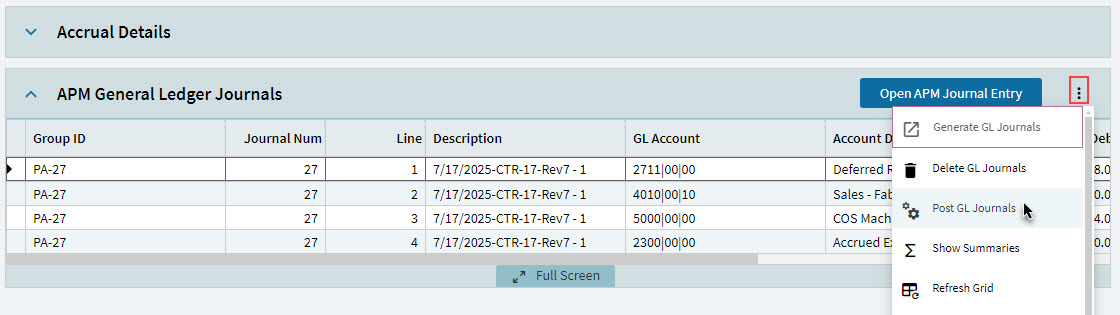
For an Accrual Set with unposted Journal entries, you can open the Journal Entries and post them. Or you can post GL Journals from the menu. See Posting GL Journals from the Menu.
Link to the Journal Entries by clicking Open APM Journal Entry on the card menu bar. The button is greyed out when you select a journal that has already been posted. You can also:
-
Select a Journal Group ID in the grid.
-
Select Open APM Journal Entry.
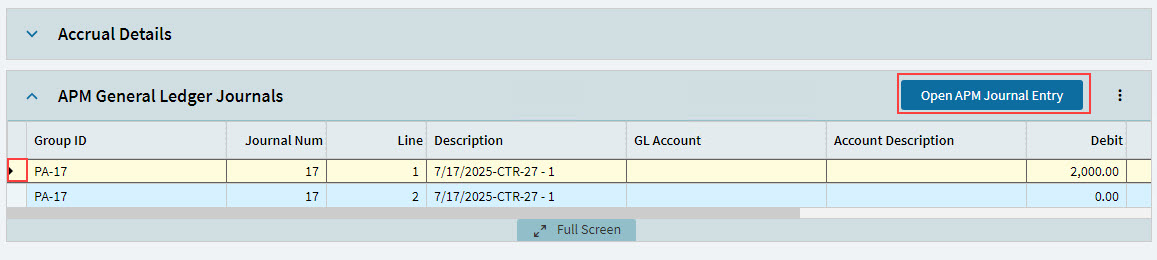
This opens the APM GL Journal Entry for the selected Journal Group ID.
-
From here you can view the Journal and Journal Lines by clicking on the Group ID, or select Post Asynchronous
 from the Overflow menu to post the transaction to the General Ledger.
If Auto Post Accrual GL Journals is selected in APM Configuration, journal records created when Project Accruals are processed get posted automatically.
Processing Accruals
This function finalises and submits the selected unposted accrual set for posting to the General Ledger. Once the Project Accrual set is posted, it cannot be deleted.
| Automatic posting is controlled by the “Project Accruals GL Journals” setting in the Automatic Transaction Posting area of APM Project Management Configuration (see Configuration Details). |
To process a Project Accrual Set:
-
Open Project Accruals Workbench.
-
Select a Project ID on the grid.
This opens the Project Accruals page.
-
Select an Accrual Set on the Navigation Tree. This must be the unprocessed accrual set, with a blue icon.
-
Expand the Project Accrual Sets card.
-
Select Process.
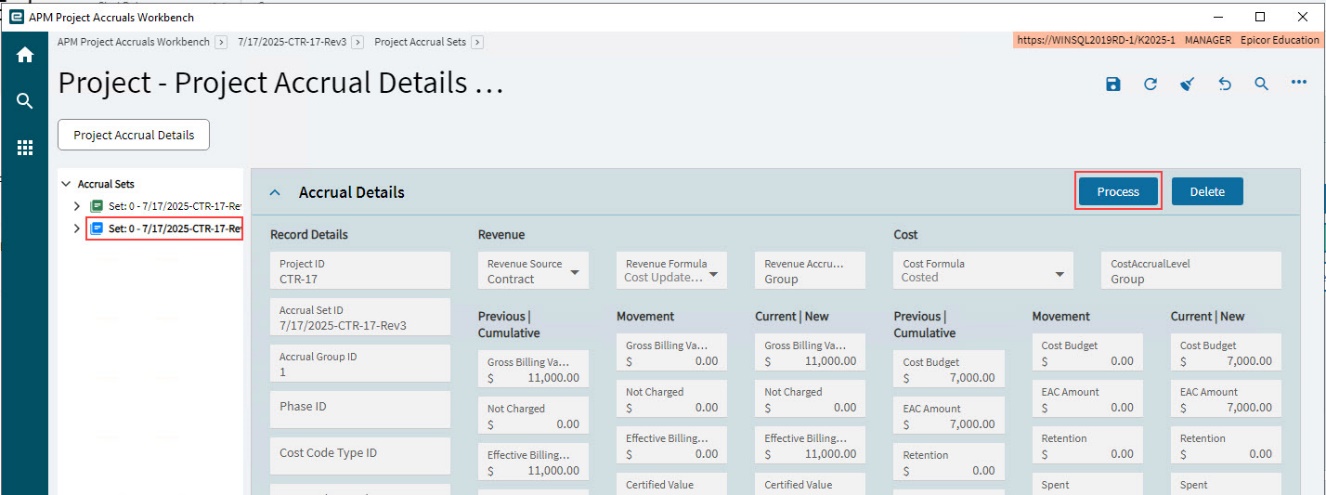
The Process Accruals panel slides out.
-
In the Process Accruals panel, select Yes.
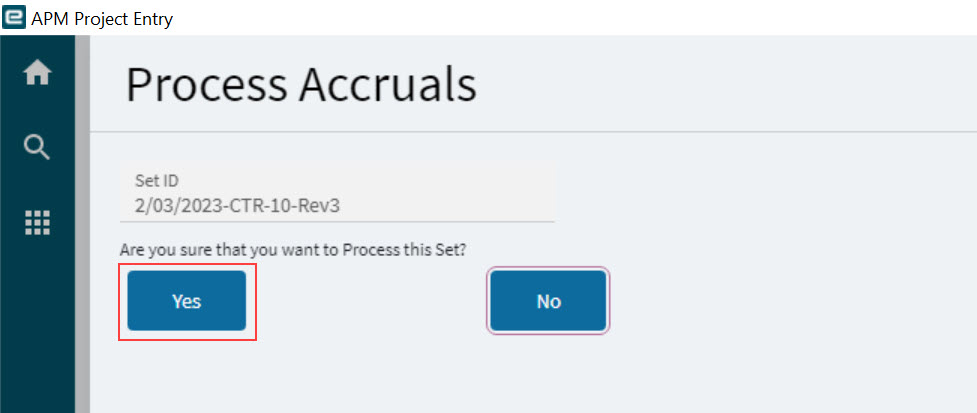
A message pops up when the process has been executed successfully.
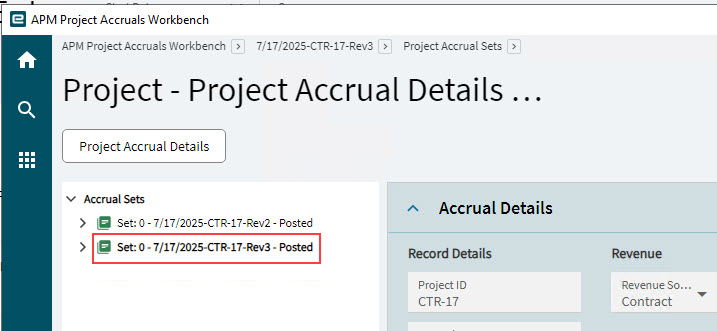
The Accrual Set now shows as posted on the Navigation Tree.
Accrual Status
When a new Accrual Set is generated, the Accrual Status is Pending.
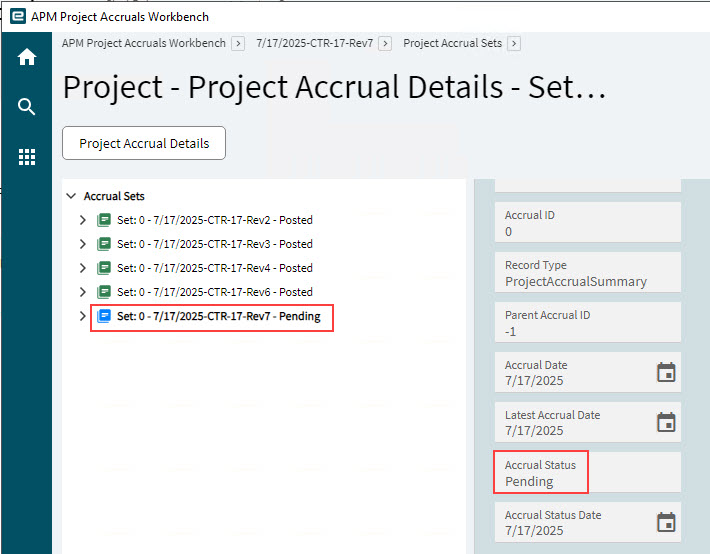
After the Accruals are processed, the Accrual Status is Journals Generated.
| Journals are posted automatically if the flag Auto Post Accrual GL Journals is selected (in APM Configuration Entry). |
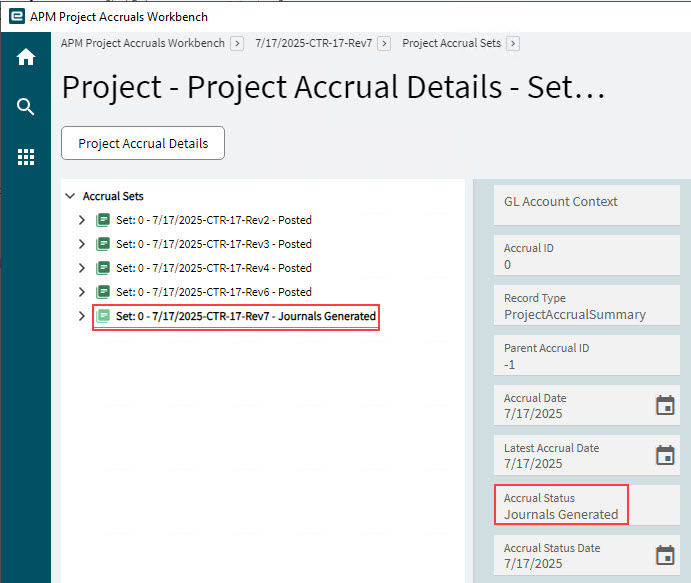
After the journals are posted, the Accrual Status changes to Posted.