Subcontract Operations
You can access most of the subcontract operations from the Overflow  button on the standard menu in Subcontract Entry.
-
Navigate to the Subcontract Entry application (Advanced Project Management > Subcontract Management > General Operations > Subcontract Entry).
-
Open a subcontract.
Mapping Activities
Project, Phase and Cost Code details are mapped to subcontract line items.
Any projects related to the subcontract are available for selection.
When a subcontract order line item is created using Get Details from Project, the Project and Phase are mapped automatically. You will still need to map to a Cost Code in the Project Link section.
Map Activities to Project
-
Select Map Activities to Project from the Overflow
menu. -
In the Map Line Items to Project slide-out screen, select a subcontract line item.
The Project Link screen slides out, for the selected subcontract line item and its parent line.
-
Search for and select a Project. This must be for one of the subcontract’s related projects. See Linked Projects.
-
Select a Phase.
-
Select a Cost Code.
-
Click Close.
The selected Project, Phase and Cost Code are mapped to the subcontract line item.
-
Continue to map a Project, Phase and Cost Code to the remaining subcontract line items in this way.
Revising a Subcontract
To revise a subcontract:
-
Navigate to Subcontract Entry (Advanced Project Management > Subcontract Management > General Operations > Subcontract Entry).
-
Search for and open the subcontract to revise.
-
Select
 Revise Subcontract from the Overflow menu.
 -
In the Revise Subcontract slide-out panel: update the Date if required, add a Revision Reference, select a Reason Code from the drop-down list (this populates the Reason Description field).
-
Add a Note to give some context to the revision.
-
Select Revise Subcontract.
A new revision of the subcontract is created. The Revision number increments by one with each new revision, and the Revision Status is Draft. Note that the Status has not changed.
Activating a Revision
This action sets the Revision Status of the current revision of the subcontract to Active. If there is a prior revision with the Active status, this will get a new status of Obsolete.
To activate the current revision of a subcontract:
-
Select Activate Revision from the Overflow
menu.
Changing the Subcontract Status
The subcontract status shows the stage of the current revision of a subcontract (see Subcontract Status).
To change the subcontract status, first ensure that the Revision Status is Active. Next:
-
Select
Change Subcontract Status from the Overflow menu. -
In the Change Subcontract Status slide-out panel:
-
Select the Next Status. The available options depend on the Current Status.
-
The current date is inserted into the Date field and cannot be updated.
-
Optionally capture Notes.
-
Click Change Status.
-
The Status updates.
Cancelling a Subcontract
Use the Cancel Subcontract function to cancel the subcontract directly, as an alternative to selecting the Cancelled option in the Change Subcontract Status function.
-
Select
Cancel Subcontract from the Overflow menu. -
In the Cancel Subcontract slide-out panel:
-
Select a Date.
-
Select a Reason from the drop-down list. This updates the Reason Description.
-
Optionally capture Notes.
-
Click Change Status.
-
The subcontract Status updates to Cancelled.
Adding a Project to a Subcontract
You can add multiple projects to a subcontract.
-
Select Add Project from the Overflow
menu. -
In the Search slide-out panel, search for and select a project. Click OK.
The selected project is added to the subcontract, and appears on the Linked Projects card, on the Related page.
Note that a project is also added to a subcontract if you select it when you get line items from the project (see Get Details from Project).
Releasing Subcontract Retentions
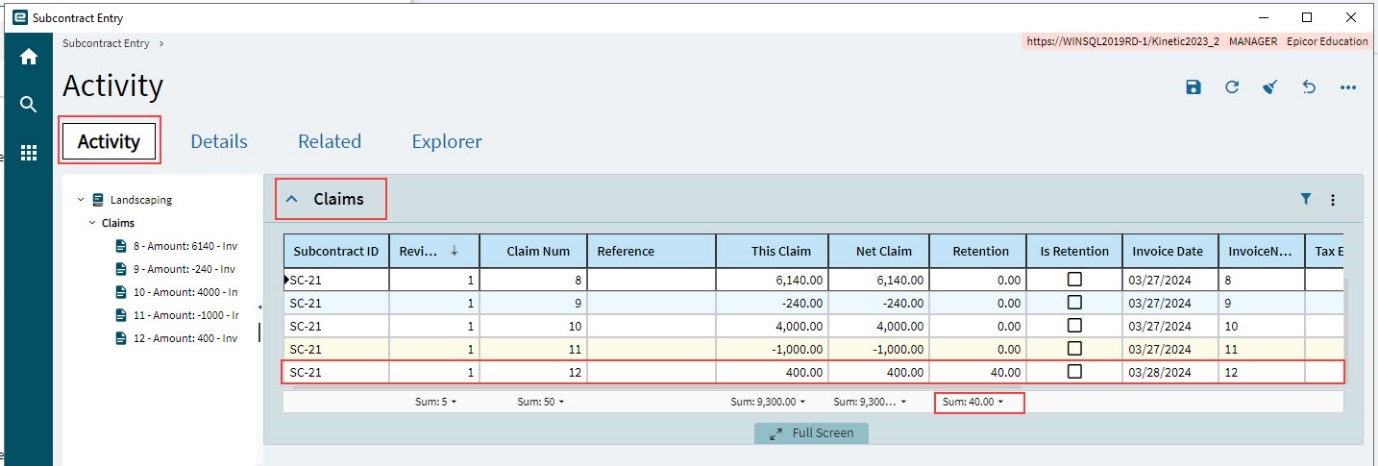
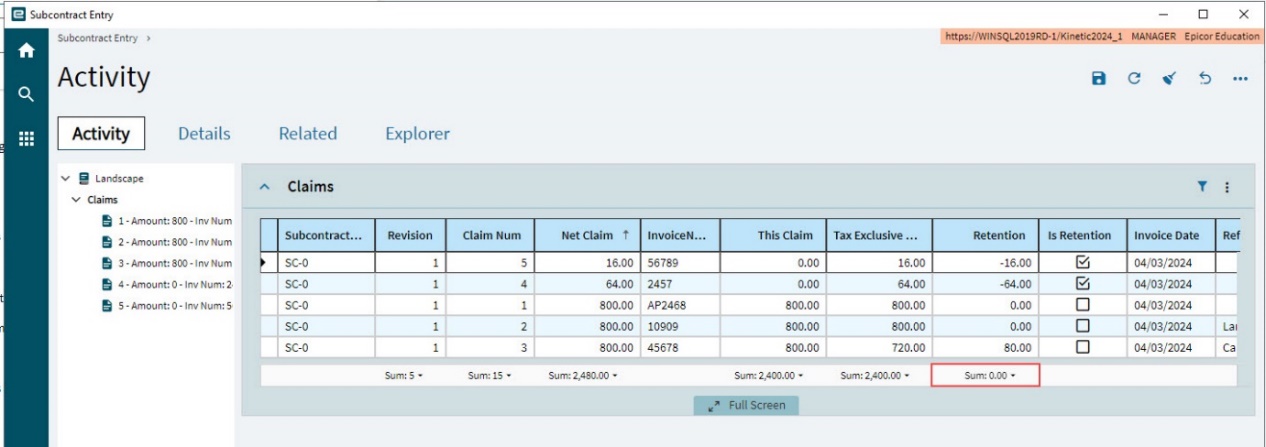
Subcontract Claim Retention amounts are displayed on the Activity page in Subcontract Entry.
Subcontract Claims will have a retention value if this was set up in the Subcontract Claim.
The retention value appears in the claim line that have retentions, on the Claims card.
The Sum of the Retention Values is the total that can be released.
| You can only release subcontract retentions if there are no existing open claims for a selected subcontract and claim configuration combination. |
To release subcontract retentions:
-
Open Subcontract Entry and select a subcontract.
-
Select
Release Subcontract Retentions from the Overflow menu.The Release Subcontract Retentions panel slides open.
-
In Release Subcontract Retentions:
-
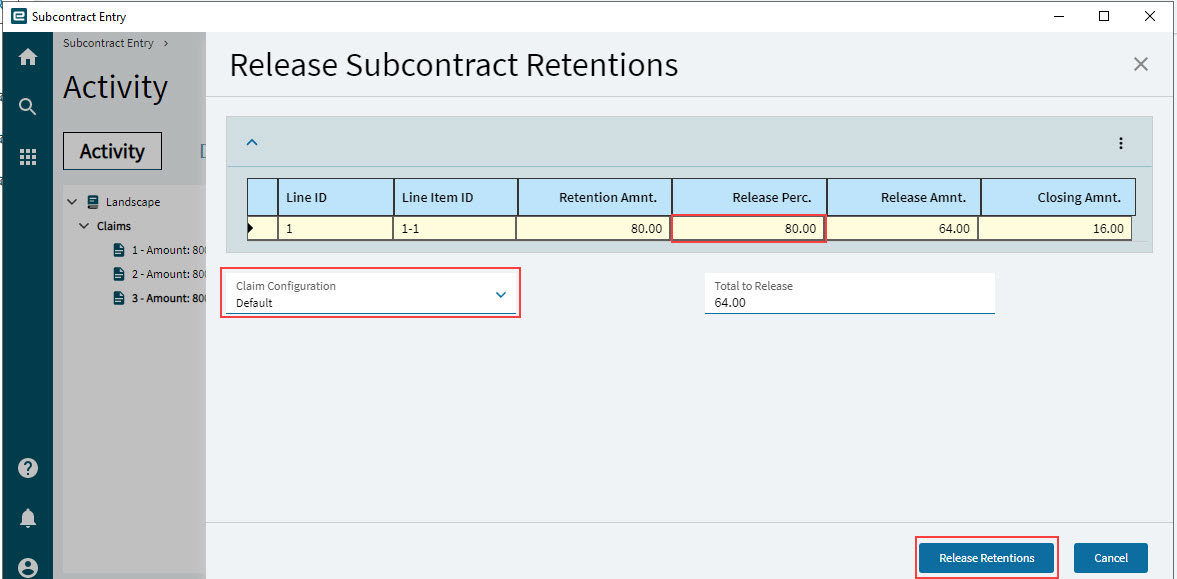
Select a Claim Configuration. The grid displays subcontract lines for the selected Claim and Claim Configuration where there is a Retention Amnt.
-
Update the Release Perc or Release Amnt if releasing less than the total or keep the default amount which is equal to the full Retention Amount. The Closing Amnt is updated. The Total to Release is updated. This is the amount that will be released.
-
Click Release Retentions.
-
-
Open the Claim Num in Subcontract Claim Entry.
-
Process the Subcontract Claim Entry (see Processing Subcontract Claims and Retentions).
-
After processing the Subcontract Claim, refresh Subcontract Entry to see the released Retention on the Activity page.
Note how the sum of Retention amounts has decreased, while the sum of the Net Claim amounts has increased. Retentions, such as Claim Num 4 in the example below, appear as a negative value.
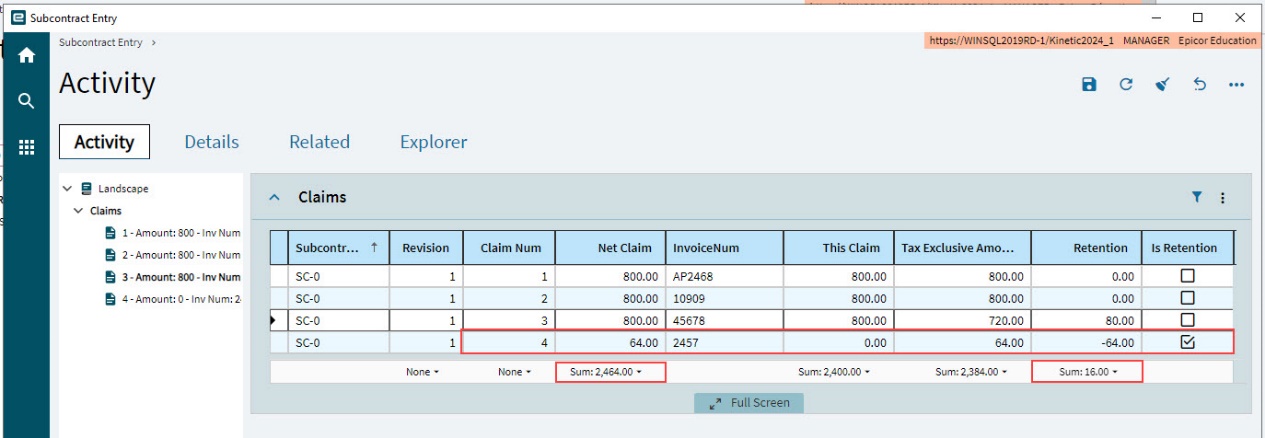
You can continue to release subcontract retentions in this manner, until the sum of Retention values is zero.
Holding the Subcontract
Select the Hold check box if you want to stop this subcontract from being invoiced.
-
Open the Details page.
-
Select the subcontract node at the top of the Navigation Tree.
-
Select the Hold check box in the Subcontract Detail section.
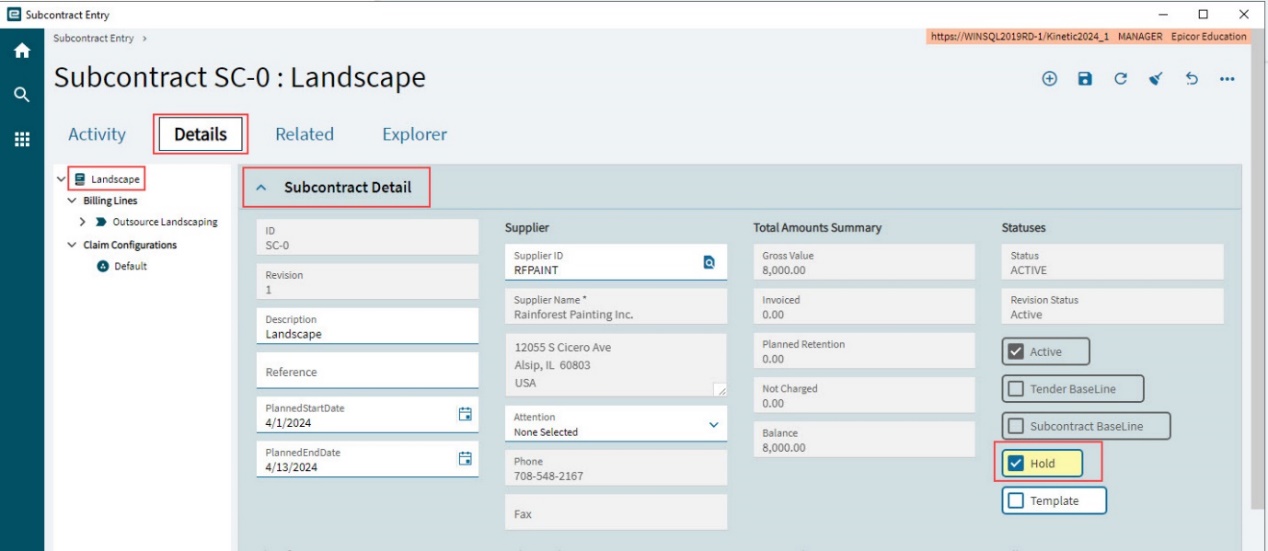
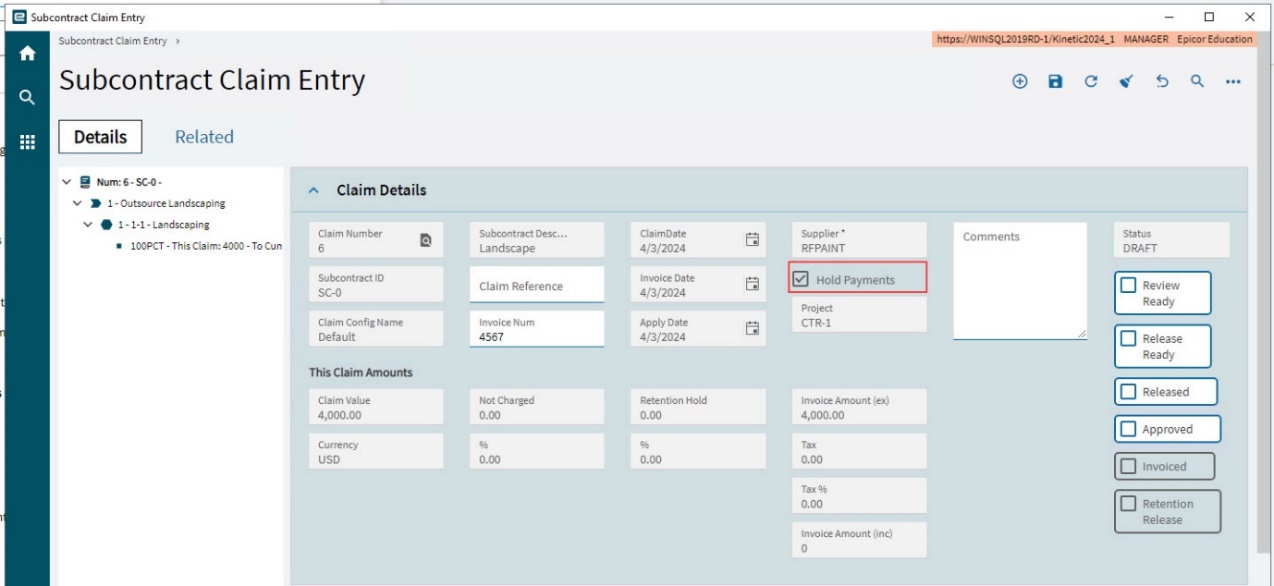
If you open a new Subcontract Claim for a Subcontract that is on hold, you will get a message to say that the claim will be on hold. The new Subcontract Claim has a Hold Payments check box (selected).