Labor Rate
The Administrator can set up Labor Rate templates for sets of Labor Rates that are used frequently in Contracts.
Labor Rate templates keep your Labor Rates consistent and provide a quick and easy way to set up Labor Rates for any contract that includes the Rates Billing Type.
APM allows for the creation of predefined Labor rate cards, for both Time & Material and Cost-Plus billing methodologies, for contract line items using the Rates Billing Type.
This allows for a rate card to be created for a customer, or for a particular industry or project profile.
Labor Rate Maintenance
Use Labor Rate Maintenance to create a Labor Rate then add Roles to it.
- Menu Path
-
Advanced Project Management > Contract Management > Setup > Labor Rate
Adding a New Labor Rate
-
Navigate to Labor Rate Maintenance.
-
Select New
 on the Standard toolbar.
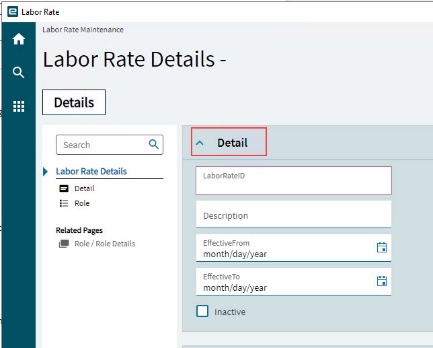
The Details page opens, with the Detail card expanded.
-
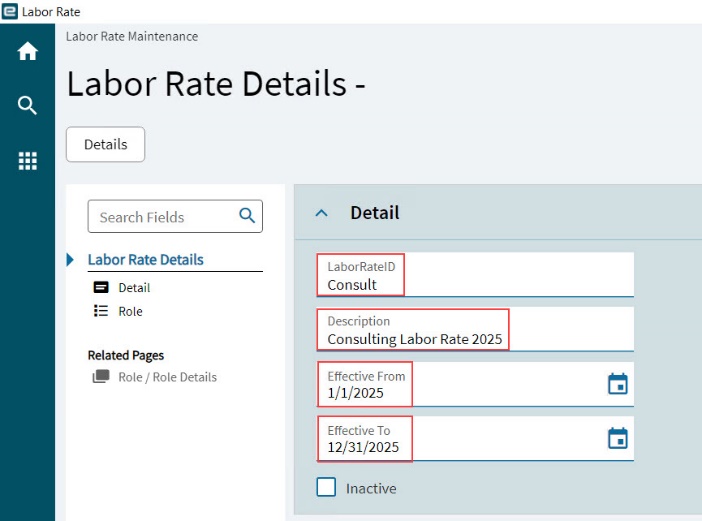
Enter a LaborRateID for the new Labor Rate.
-
Enter a Description.
-
Select an Effective From and Effective To date.
-
Select Save
 on the Standard toolbar.
Adding a Role
Add a set of Roles to the Labor Rate. These roles must already exist in standard Kinetic.
-
Select the Labor Rate.
-
Select Role on the Navigation Tree.
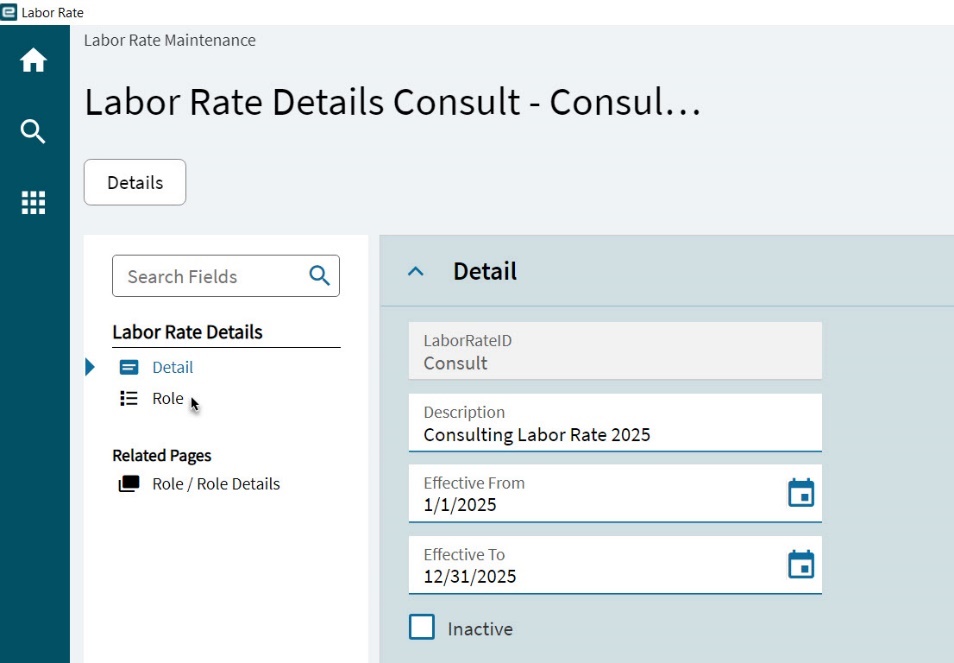
This opens the Role card.
-
Select New
on the Role toolbar.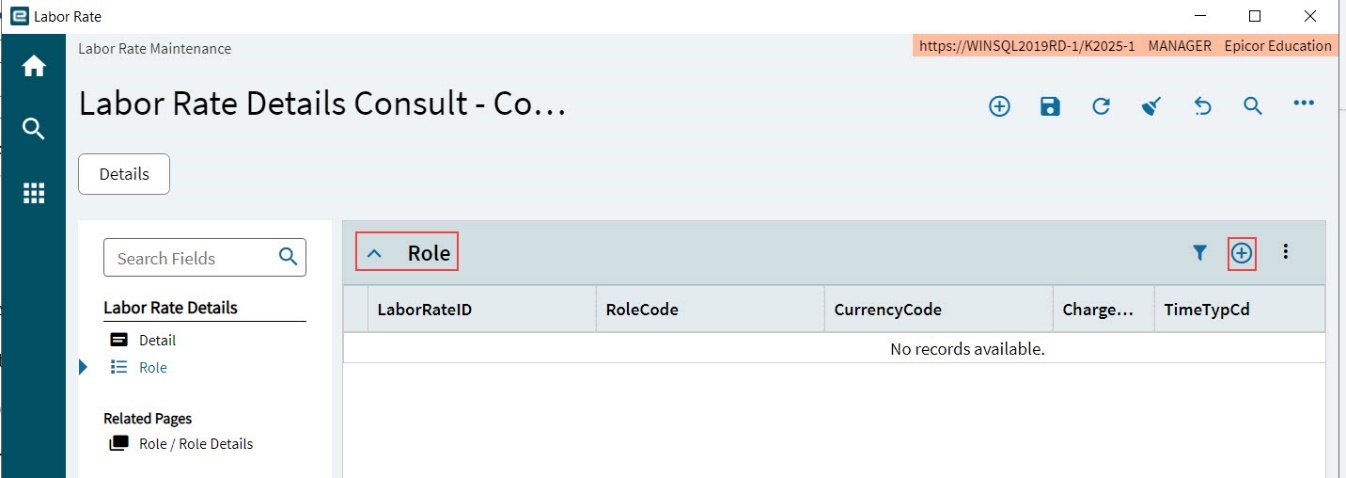
A Search panel slides out for the Role.
-
Search for and select a Role.
-
Select OK.
A Search panel slides out for the Time Type.
-
Search for and select a Time Type Code.
-
Select OK.
A new Role record is created with the LaborRateID and RoleCode populated from the selected Role, and the TimeTypeCd populated from the selected Time Type Code.
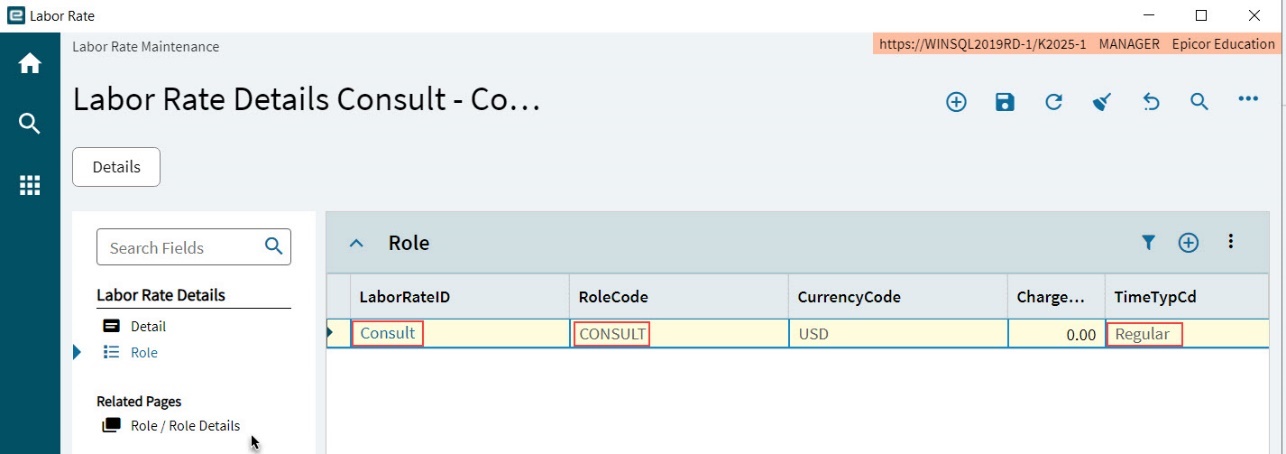
-
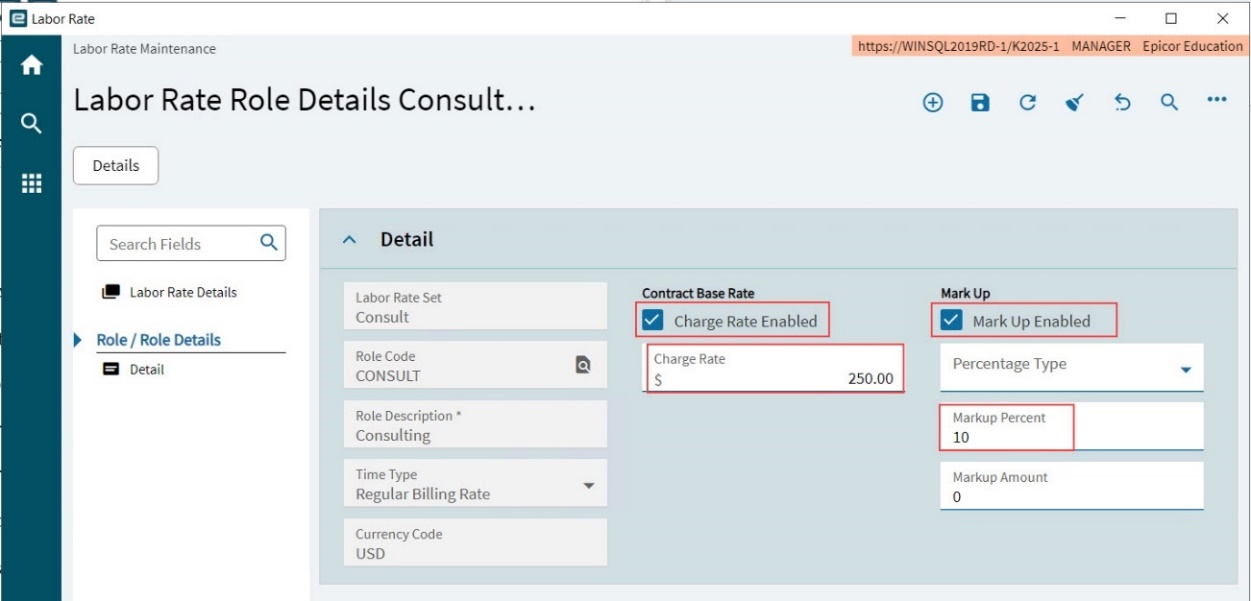
Select Role / Role Details on the Navigation Tree. This opens the Detail card with the Role Details.
-
Complete the Labor Rate Details:
-
To enter a Contract Base Rate, select Charge Rate Enabled and then enter a Charge Rate amount.
-
To enter a Mark Up, select Mark Up Enabled. Select a Percentage Type and then enter a Markup Percent and/or Markup Amount.
-
Select Save
on the Standard toolbar.
-
-
Select Detail on the Navigation Tree to return to the Labor Rate.
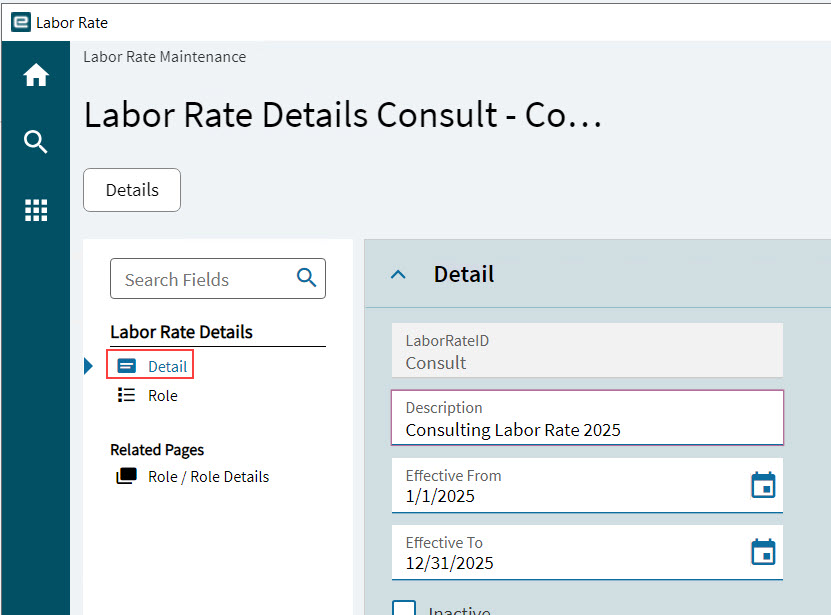
-
Continue to add Roles until there is a full set, suitable to use within a Contract.
Example of Labor Rates
The example below shows a typical configuration for a customer-specific set of Labor Rates that can be applied to individual Contracts or to Contract Templates.
|
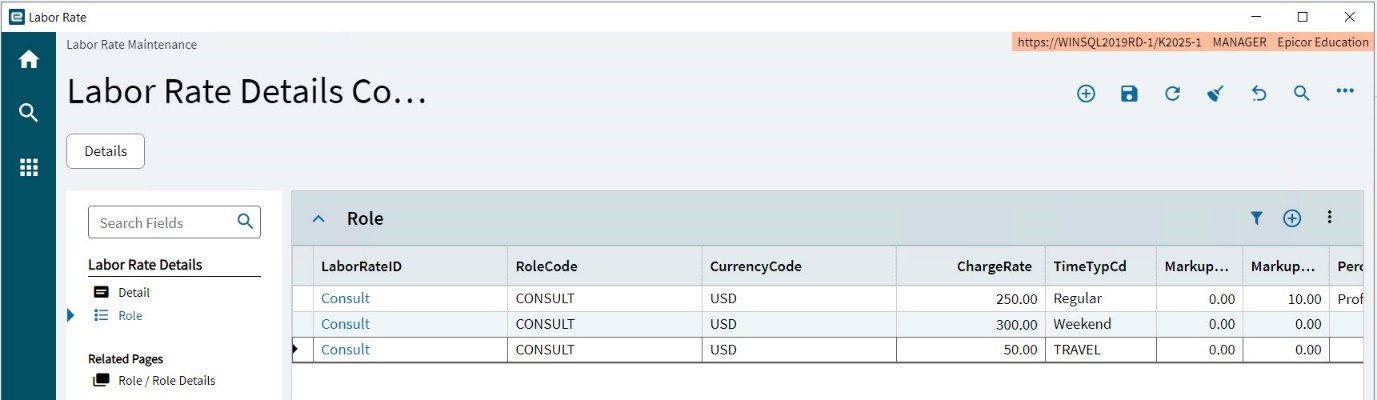
Using Labor Rates in a Contract
Labor Rates can be added to a Contract in Contract Entry. Within the Contract, the rates can be adjusted if required.
See Rates Billing Type, for details on using Labor rates within a Contract.