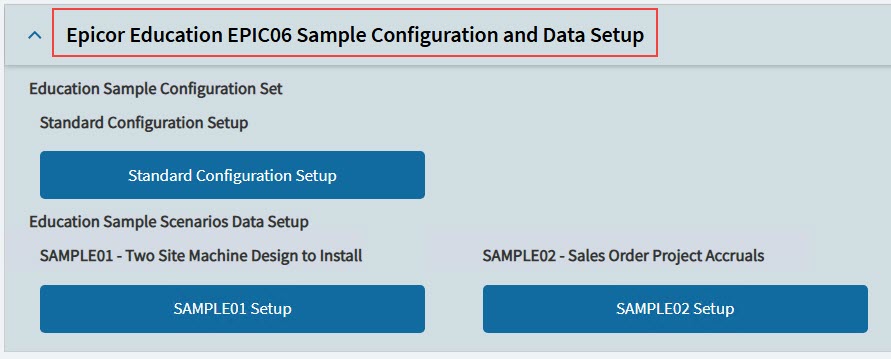
APM Configuration Entry
|
You can navigate to APM Configuration from the Contract Management, Project Accounting or Subcontract Management modules:
|
The defaults configured here are applied to any Projects, Contracts or Subcontracts created in Advanced Project Management.
Project Accrual Defaults
Use this card to update the Project Accrual Defaults.
The selection of Calculation Method will impact the determination of Cost to Complete (CTC) and Cost at Completion (CAC). These will in turn determine the calculation for Revenue and Cost Recognised, taking into consideration the Revenue Cost Formula.
-
Navigate to Advanced Project Management Configuration.
-
Expand the Project Accrual Defaults card on the Details page in Advanced Project Management Configuration.
-
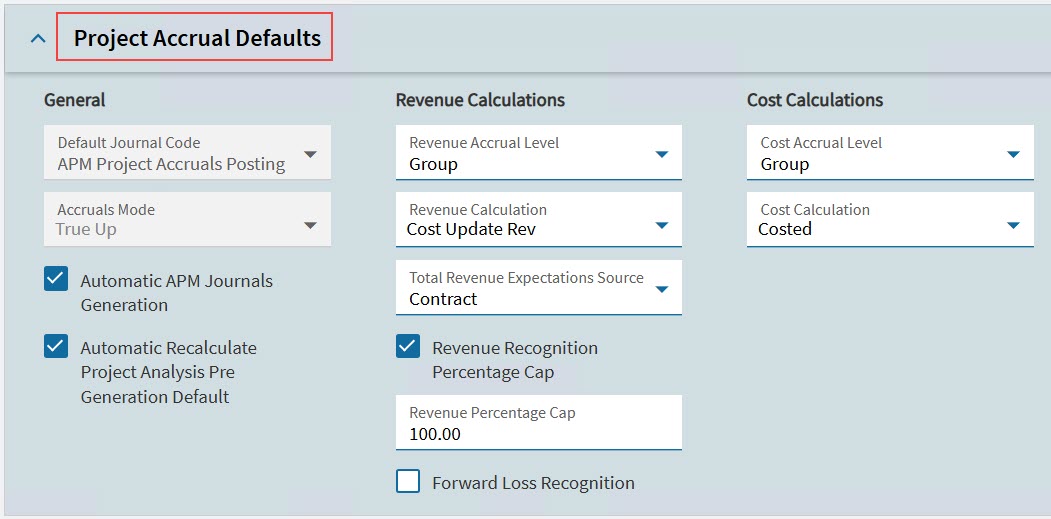
Update the settings to set defaults for individual projects. The settings below are recommended for most organizations.
| Setting | Details |
|---|---|
Accruals Mode |
Determines the transaction mode for accrual processing. This is currently set to ‘True Up’.
|
Automatic Recalculate Project Analysis Pre Generation Default |
Select Automatic Recalculate Project Analysis Pre Generation Default if you want Recalculate Project Analysis to run immediately prior to the Project Accruals Generation (see Running Recalculate Analysis). Choose this option to ensure that all figures for the selected projects reflect the latest values before accruals are created, reducing the need for manual recalculation steps. Note: You may still select/de-select this option when generating project accruals. Note: Having this selected could significantly increase the time needed to generate Project Accruals. |
Automatic APM Journals Generation |
Select Automatic APM Journals Generation if you want to generate the APM General Ledger Journals at the same time as generating the Project Accruals. This streamlines accurate and up-to-date financial data during APM Project Accrual generation. Note that you may still select/de-select this option when generating project accruals. |
Revenue Calculations |
|
Revenue Accrual Level |
Specifies the revenue recognition accrual level when Project Accruals is run. This is set to Group and may not be updated. |
Revenue Calculation |
Select option from drop-down list.
|
Total Revenue Expectations Source |
The source for the Total Contract / Order Amount value for APM Project Accruals. Available options are Sales Order and Contract. |
Revenue Recognition Percentage Cap |
When this is selected, the revenue Percent Earned figure is capped to that of the defined cap value when APM Accruals are generated. This setting does not limit or prevent users from manually overwriting the Percent Earned value beyond the cap. |
Revenue Percentage Cap |
When the Revenue Recognition Percentage Cap option is enabled, this value is used to limit the Percent Earned figure the system can populate during the Generate Accruals processes. It does not limit or prevent users from manually overwriting the Percent Earned value beyond the cap. The value must be 100% or higher. |
Forward Loss Recognition |
Enables/disables Forward Loss Recognition functionality. |
Cost Calculations |
|
Cost Accrual Level |
Select option from drop-down list.
Specifies the default cost recognition accrual level when Project Accruals is run. |
Cost Calculation |
Select option from drop-down list.
|
Configuration Details
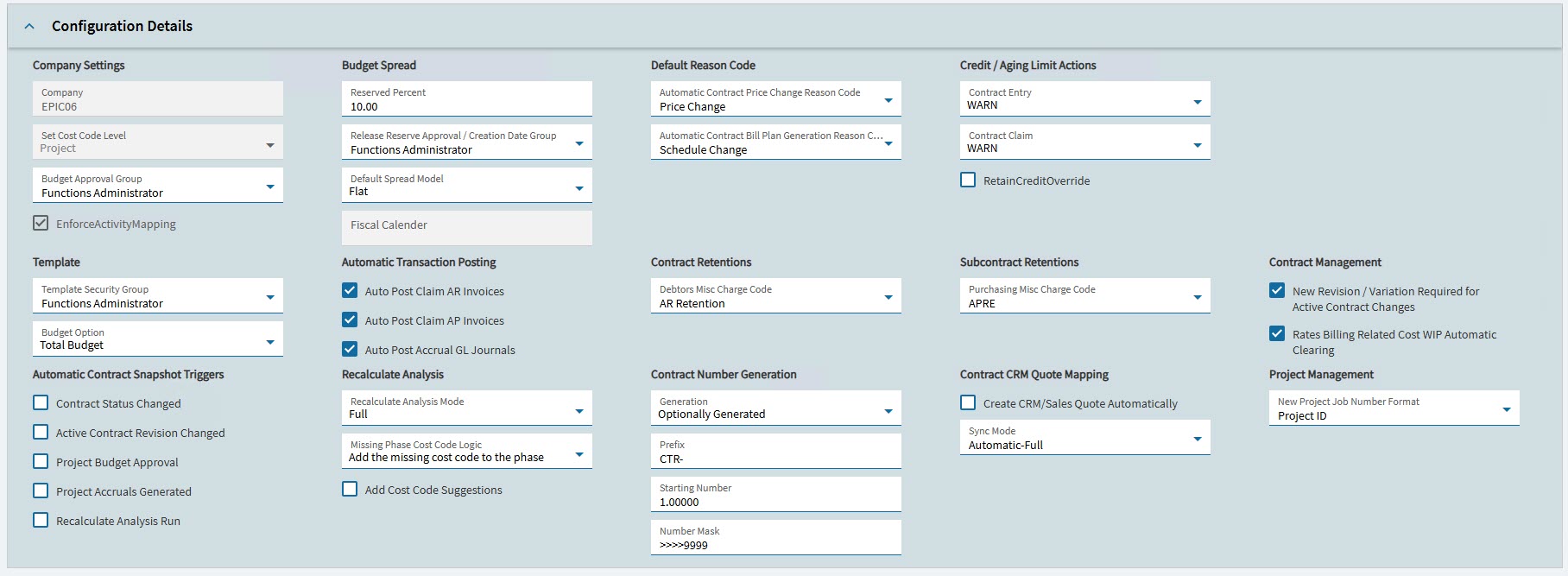
Use the card Configuration Details to set up defaults and settings for the APM modules.
-
Navigate to Advanced Project Management Configuration.
-
Expand the Configuration Details card on the Details page in Advanced Project Management Configuration.
-
Update the settings, as required, based on the explanations given in the following table:
| Setting | Details |
|---|---|
Company Settings
|
|
Company |
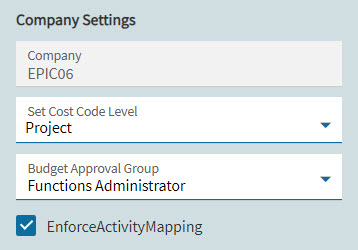
The current company. Read-only. |
Set Cost Code Level |
|
Budget Approval Group |
This is required for Project budget approval. The drop-down contains pre-configured Security Groups from standard Kinetic. Users assigned to the selected group can approve Project Budgets. |
Enforce Activity Mapping |
Select this if all Activities are required to be mapped to the Project. If all modules are licensed, this should be selected. When this is selected, the Contract Line Item and Subcontract Line Item must be mapped to Project/Phase and/or Cost Code. |
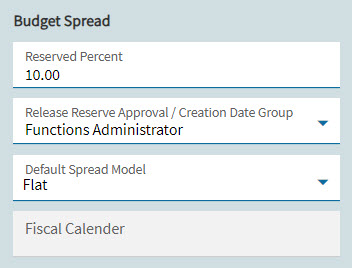
Budget Spread
|
|
Reserved Percent |
Defines the default Budget Reserve % when Budget Spread is run. When the Budget Spread is calculated on the Project, a percentage of the total Contract is reserved, and not included in the budget spread calculation. When the Project Phase Cost Code is created, the Budget Reserve % defined here will be applied if the Reserved Percent at the Cost Code Maintenance> Cost Code> Detail level has not been specifically defined. See also: Budget Option in the Template section. |
Release Reserve Approval / Creation Date Group |
The drop-down contains pre-configured Security Groups from standard Kinetic. Users assigned to the selected group can approve the release of Reserved amounts on a Project. |
Default Spread Model |
Currently only Flat is available. Once the Budget Spread has been calculated in a Project the amount for any Fiscal Period can be overwritten. Other options may be added here in the future. |
Fiscal Calendar |
The Fiscal Calendar of the currently selected Company is used for generating periods in Budget Spread. |
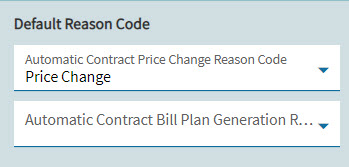
Default Reason Code
|
|
Automatic Contract Price Change Reason Code |
Select the appropriate Reason Code. This specifies the default Contract Revision reason code when the Contract Price Change program is run. |
Automatic Contract Bill Plan Generation Reason Code |
Select the appropriate Reason Code. This specifies the default Contract Revision reason code when the Generate Bill Plan program is run. |
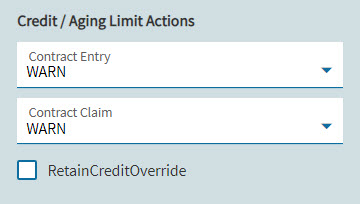
Credit / Aging Limit Actions
|
|
Contract Entry |
Select either WARN or STOP. If you select WARN a warning message will be displayed on the Contract Entry when it is opened if the Customer is at or above their Credit Limit. If you select STOP then no further changes can be made to the Contract until the Customer is taken off Credit Hold. |
Contract Claim |
Select either WARN or STOP. If you select WARN a warning message will be displayed on the Contract Claim when it is opened if the Customer is at or above their Credit Limit. If you select STOP then no further lines can be added to the Claim until the Customer is taken off Credit Hold. |
Retain Credit Override |
Switch the Standard Epicor setting for [Sales Order] Credit / Aging Limit Actions on or off. It affects Sales Orders only, so there is no impact on Contract or Contract Claim when it is selected/cleared. |
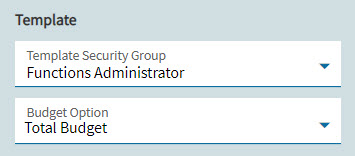
Template
|
|
Template Security Group |
The drop-down contains pre-configured Security Groups from standard Kinetic. Users assigned to the selected group can create and maintain APM Templates. |
Budget Option |
Select Total Budget or Budget Excl. Reserve. If you select Total Budget, the Total Budget is used in the Budget Spread calculation. If you select Budget Excl. Reserve, then the Budget Spread calculation will use the Total Budget less the Reserved % when running the calculations. This amount is then spread evenly between the specified Fiscal Periods. |
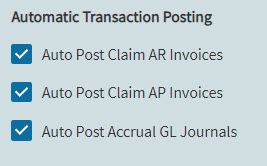
Automatic Transaction Posting The Administrator can control which processes will have automatic posting of transactions, by selecting or clearing the respective Automatic Transaction Posting check boxes.
|
|
Auto Post Claim AR Invoices |
When selected, invoices generated from Contract Claim Entry will be posted automatically. |
Auto Post Claim AP Invoices |
When selected, invoices generated from Subcontract Claim Entry will be posted automatically. |
Auto Post Accrual GL Journals |
When selected, journal records created when Project Accruals are processed will be posted automatically. |
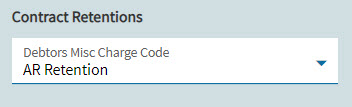
Contract Retentions These should be set up in standard Kinetic for Retentions. The selected code is used by APM for Contract Retentions.
|
|
Debtors Misc Charge Code |
Select option from drop-down list. Specifies the AR Misc Charge Code when contract retentions are deducted. |
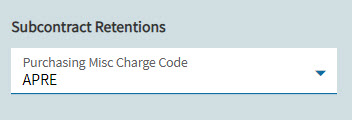
Subcontract Retentions These should be set up in standard Kinetic for Retentions. The selected code is used by APM for Subcontract Retentions.
|
|
Purchasing Misc Charge Code |
Select option from drop-down list. Specifies the Purchasing Misc Charge Code when subcontract retentions are deducted. |
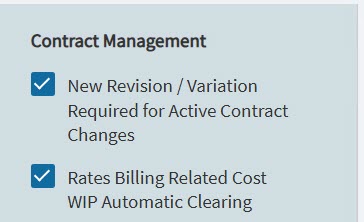
Contract Management
|
|
New Revision / Variation Required for Active Contract Changes |
Select if a new revision number and contract variation is required, each time an active contract undergoes changes. |
Enables automatic Part Tran Cost Clearing transaction creation functionality. Enabled: |
|
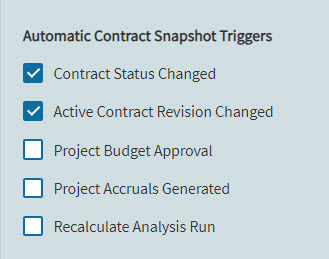
Automatic Contract Snapshot Triggers Set event triggers for automatic snapshots, such as when a contract status is updated. See Creating a Snapshot.
|
|
Contract Status Changed |
If this trigger is selected, a new snapshot is created for a contract each time its status changes. |
Active Contract Revision Changed |
If this trigger is selected, a new snapshot is created when an active contract revision is changed. |
Project Budget Approval |
If this trigger is selected, a new snapshot is created when project budget is approved. |
Project Accruals Generated |
If this trigger is selected, a new snapshot is created for a contract whenever project accruals are generated for the related project. |
Recalculate Analysis Run |
If this trigger is selected, a new snapshot is created for a contract whenever project analysis is run for the related project. |
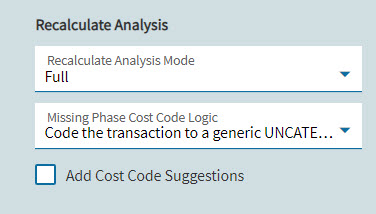
Recalculate Analysis These settings determine behaviours while Recalculate Analysis runs.
|
|
Recalculate Analysis Mode |
Note that you can change the default setting when running Recalculate Analysis in Mass Project Recalculate Analysis. |
Missing Phase Cost Code Logic |
This defines the logic used when quote items or job materials/ operations are linked to an APM Project before the relevant project phase has matching Cost Codes. Choose from the following options:
|
Add Cost Code Suggestions |
Select this check box to insert Cost Codes to the project phase based on planned or released job materials/operations or values from quotes. The Cost Codes are added before there are any transactions. Subsequent transactions will map to these cost codes. |
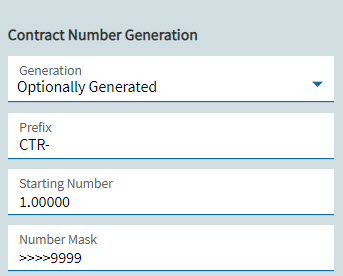
Contract Number Generation
These are the defaults for defining how a contract number is generated. Note that you can change the default settings in Contract Type. |
|
Generation |
|
Prefix |
Used as the prefix for a system-generated Contract Number. The default prefix is 'CTR-'. |
Starting Number |
System-generated Contract Numbers start at this number, then increment by 1 for each new Contract Number. The default is 0. |
Number Mask |
The number mask to apply for automatically generated contract numbers. The following characters are permitted: '9' for a required/populated number. '>' for an optional number. The default value is '>>>>9999'. |
| Setting | Details |
|---|---|
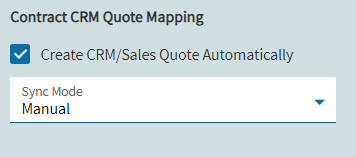
Contract CRM Quote Mapping
Note that you can adjust these settings when you create a new contract. |
|
Create CRM/Sales Quote Automatically |
Note that you can change this setting at the Contract Type level. See Contract Creation - Quote Integration in Contract Type. |
Sync Mode |
|
Project Management
|
|
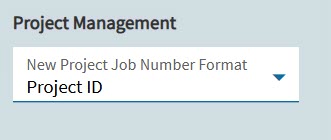
New Project Job Number Format |
|
Advanced GL Control Settings
This card displays the advanced GL Control Settings. These settings apply to Project Accruals generation, as well as Contract Claims.
These settings are read-only.
| Explanation | Setting and Value |
|---|---|
Revenue |
|
GL Control Type Reference. First, second and third GL Control Types, respectively, to look up for each level of the hierarchy, to find an appropriate GL Control with both Revenue WIP and Sales Revenue GL Accounts populated for APM Project Accrual processing. Options are:
Product Group option: the relevant GL Control for the linked Contract Line Item (for a Contract Total Revenue Expectations Source), or for the linked Sales Order Line Product (for a Sales Order Total Revenue Expectations Source). |
GL Control Source Type 1 Value: Advanced Projects |
GL Control Source Type 2 Value: Project Billing |
|
GL Control Source Type 3 Value: None |
|
GL Control Source. Controls the order in which the GL Controls are looked up for the Contract Claim and Accrual generation processes. Options are:
|
GL Control Source 1 Value: Project Phase |
GL Control Source 2 Value: Contract_Line_LineItem |
|
GL Control Source 3 Value: Project_Phase_ParentLevels |
|
GL Control Source 4 Value: Contract_Line_ParentLevels |
|
GL Control Source 5 Value: Project |
|
GL Control Source 6 Value: Contract |
|
GL Control Source 7 Value: Company Configuration |
|
GL Control Source 8 Value: None |
|
GL Control Source 9 Value: None |
|
GL Control Source 10 Value: None |
|
Cost |
|
GL Control Type Reference. First, second and third GL Control Types, respectively, to look up for each level of the hierarchy, to find an appropriate GL Control with both Revenue WIP and Sales Revenue GL Accounts populated for APM Project Accrual processing. Options are:
Product Group option: the relevant GL Control for the linked Contract Line Item (for a Contract Total Revenue Expectations Source), or for the linked Sales Order Line Product (for a Sales Order Total Revenue Expectations Source). |
GL Control Source Type 1 Value: Advanced Projects |
GL Control Source Type 2 Value: Project Billing |
|
GL Control Source Type 3 Value: None |
|
GL Control Source. Controls the order in which the GL Controls are looked up for the Contract Claim and Accrual generation processes. Options are:
|
GL Control Source 1 Value: Project_Phase_CostCode |
GL Control Source 2 Value: Project_Phase |
|
GL Control Source 3 Value: Contract_Line_LineItem |
|
GL Control Source 4 Value: Project_Phase_ParentLevels |
|
GL Control Source 5 Value: Contract_Line_ParentLevels |
|
GL Control Source 6 Value: Project_ |
|
GL Control Source 7 Value: Contract |
|
GL Control Source 8 Value: Company Configuration |
|
GL Control Source 9 Value: None |
|
GL Control Source 10 Value: None |
|
GL Control Source 11 Value: None |
|
GL Control Source 12 Value: None |
|
Bulk Processes
Use the Bulk Processes to perform mass calculations, when required.
| The buttons on this card are only enabled for a Kinetic user with appropriate security privileges. |
-
Navigate to Advanced Project Management Configuration.
-
Expand the Bulk Processes card on the Details page in Advanced Project Management Configuration.
-
In the Recalculate Analysis section, click Recalculate All Projects to perform Recalculate Analysis for all projects.
Only perform this step if it is necessary to update the Project Ledger for all projects. -
In the Contract Claims section, click Mass Claim Figure Recalculation to populate new Contract Claim fields and update values.
This process may take several minutes to run depending on the number of claims and system performance. If the process is interrupted or does not complete successfully, it can be safely re-run.