Subcontract Claim Entry
To make a payment to a supplier (subcontractor), first enter and approve a subcontract claim (see Entering a Subcontract Claim) then generate an AP Invoice (still in Subcontract Claim Entry), using the invoice number supplied by the supplier.
If there is a retention on a subcontract, this is processed separately using Release the Subcontract Retention (see Releasing Subcontract Retentions) before raising another invoice for the retention.
Committed values from a Subcontract are included in Committed (Total) for related projects, in APM Project Entry for the Cost Code Budget. See Budget for a Cost Code.
Prerequisites
-
Only subcontracts that have the Active Status are available for subcontract claim creation.
-
The subcontract must be linked to an active Project. Each subcontract line item must be linked to a Project > Phase > Cost Code.
-
The subcontract must have line items with a value to bill. You can keep claiming against the subcontract until all values are fully paid.
-
You cannot create a subcontract claim while an open subcontract claim already exists for the subcontract/claim configuration combination.
Multi-Currency
Multi-currency functionality allows for a subcontract to be paid in more than one currency, with separate currencies used in separate subcontract line items. For example, products and materials can be paid in Euros, while services are paid in the local currency.
The currency for a line item is set by a Claim Configuration which is set up within the subcontract and then selected for a line item. The Claim Configuration has a Currency portion which controls how the Base Unit Value is calculated on the subcontract line item and which Currency Code appears in the Subcontract Claim and resulting AP Invoice.
Subcontract Claiming and Billing Types
For Subcontract Line Items using the Progress or Quantity billing type, you can claim amounts against these subcontract line items until there is nothing left to claim.
| The Rates billing type is not available in subcontracts. |
Processing Subcontract Claims and Retentions
If a Subcontract Claim has a Retention amount, you need to first process the main Subcontract Claim, then separately process the Retention amount.
For Subcontract Claims that are not Retentions:
-
Enter a subcontract claim (see Entering a Subcontract Claim).
-
Optionally calculate the tax (see Tax Calculation).
-
Print the claim for the supplier to review (see Claim Document Generation/Printing).
-
Release and Approve the Subcontract Claim (see Submission and Approval).
-
Create an AP Invoice from the Subcontract Claim (see Generate an AP Invoice).
-
See how the subcontract claim and AP Invoice appear in the Subcontract, the AP Invoice Tracker, and the Project (see Viewing the Subcontract Claim, Invoice and Cost).
For Subcontract Claims that are Retentions:
-
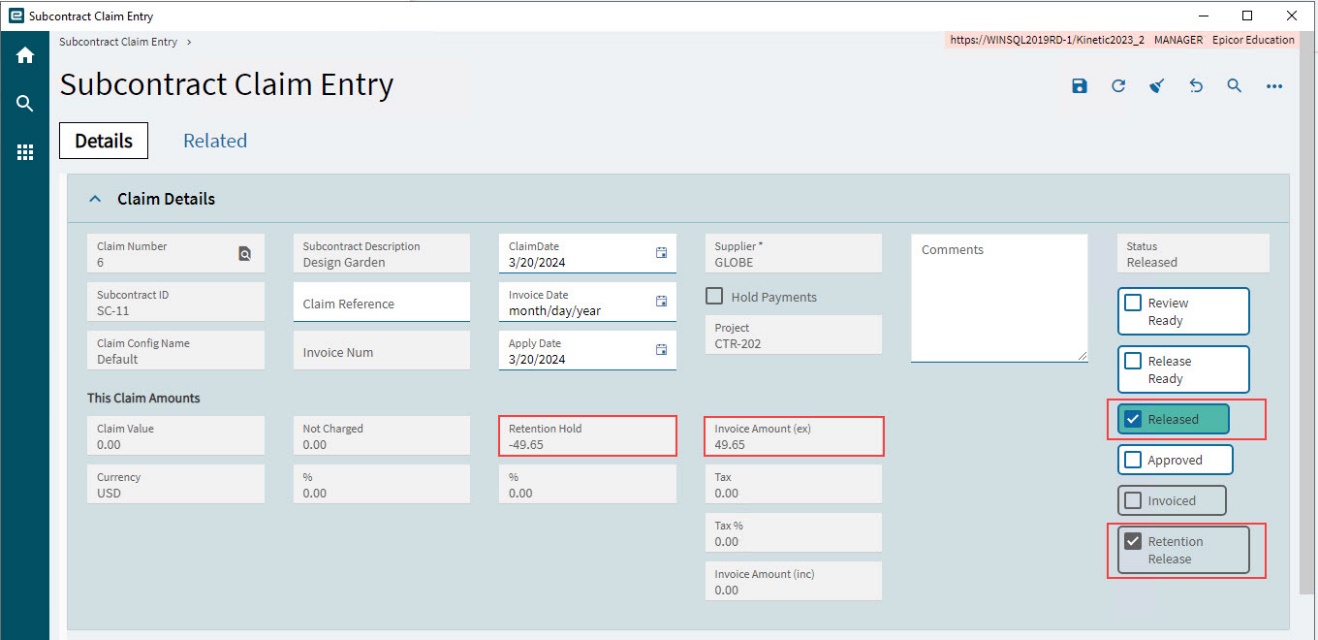
Release the Subcontract Retention from Subcontract Entry (see Releasing Subcontract Retentions), choosing a Retention Release amount. This creates a subcontract claim, flagged as a Retention Release, and with the Released Status set.
-
Calculate the tax (see Tax Calculation).
-
Print the claim retention for the Supplier to review (see Claim Document Generation/Printing).
-
Approve the Subcontract Claim Retention (see Submission and Approval).
-
Create an AP Invoice from the Contract Claim Retention (see Generate an AP Invoice).
-
See how the Subcontract Claim and AP Invoice appear in the Contract, the AP Invoice Tracker, and the Project (see Viewing the Subcontract Claim, Invoice and Cost).
Opening a Subcontract Claim
Open the Subcontract Claim in Subcontract Claim Entry:
-
Open Subcontract Claim Entry.
-
Filter the grid using the Claim Num.
-
Select the Claim Num in the results grid. This opens the Subcontract Claim.
Entering a Subcontract Claim
-
Navigate to Subcontract Claim Entry (Advanced Project Management > Subcontract Management > General Operations > Subcontract Claim Entry).
-
Select
 Get Details from Subcontract from the Overflow
  menu.
menu. -
Search for and select the Subcontract ID, then select OK.
-
Select a Claim Config from the drop-down list.
-
Select a Claim Date.
-
Select OK.
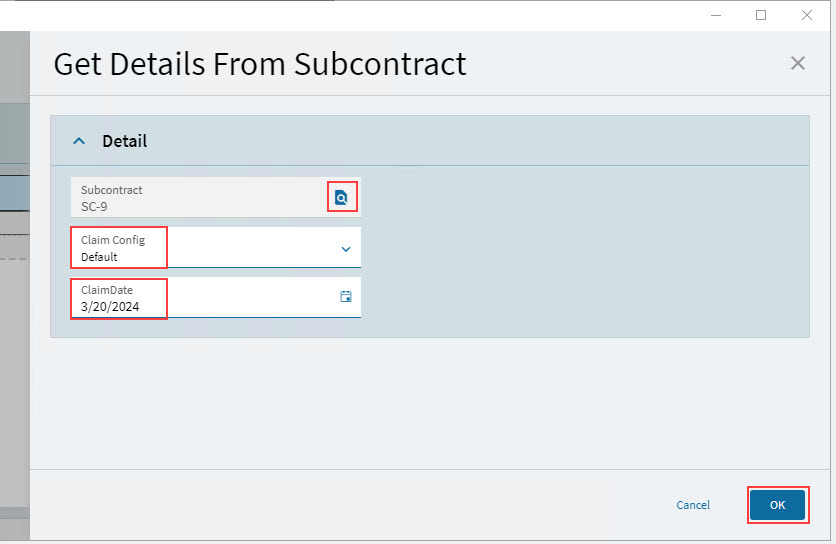
A new subcontract claim is created.
Subcontract Claim Details
-
Open the Details page.
-
Select the subcontract claim number at the top of the Navigation Tree.
-
Expand the Claim Details card.
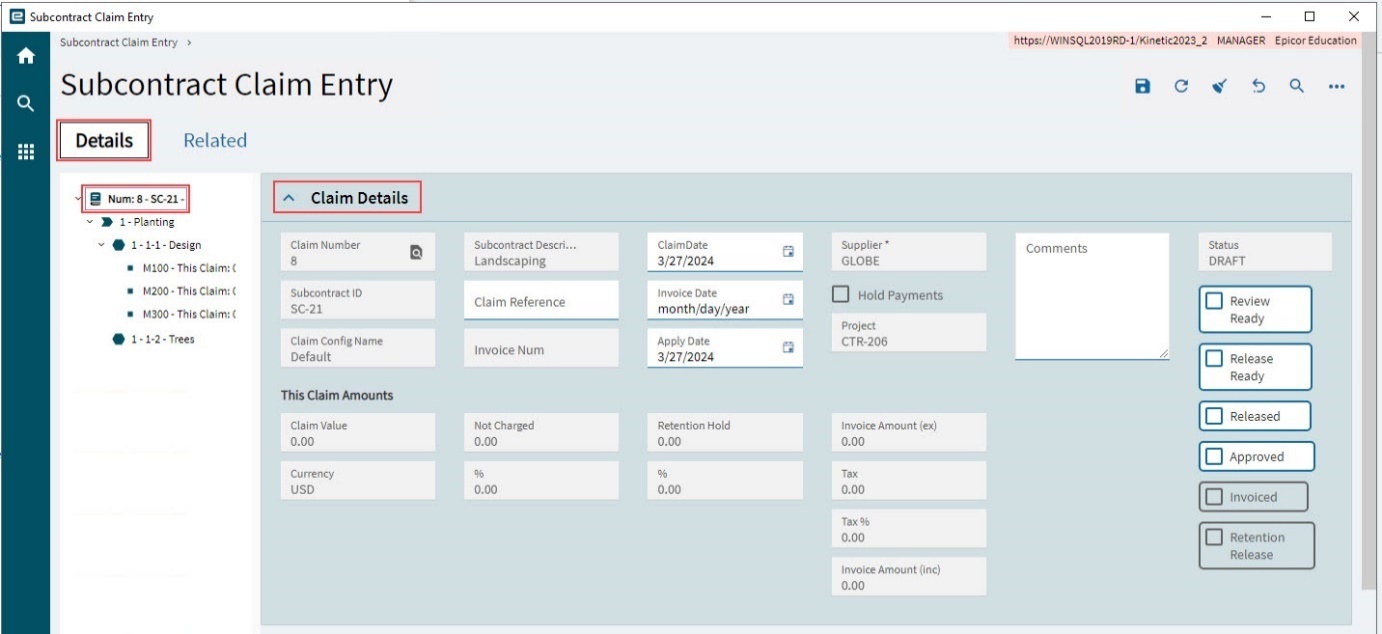
The subcontract details and linked project details populate the subcontract claim as described below:
Claim Details
The Claim Details are populated as follows:

| Claim Number |
The claim number assigned by the system. |
| Subcontract ID |
The Contract Claim is for this Subcontract. |
| Claim Config Name |
The Claim Configuration selected when the subcontract claim was created. Line items from the subcontract with this claim configuration are pulled into the subcontract claim. |
| Subcontract Description |
The description for the selected subcontract. |
| Claim Reference |
Optionally enter a reference for the claim. |
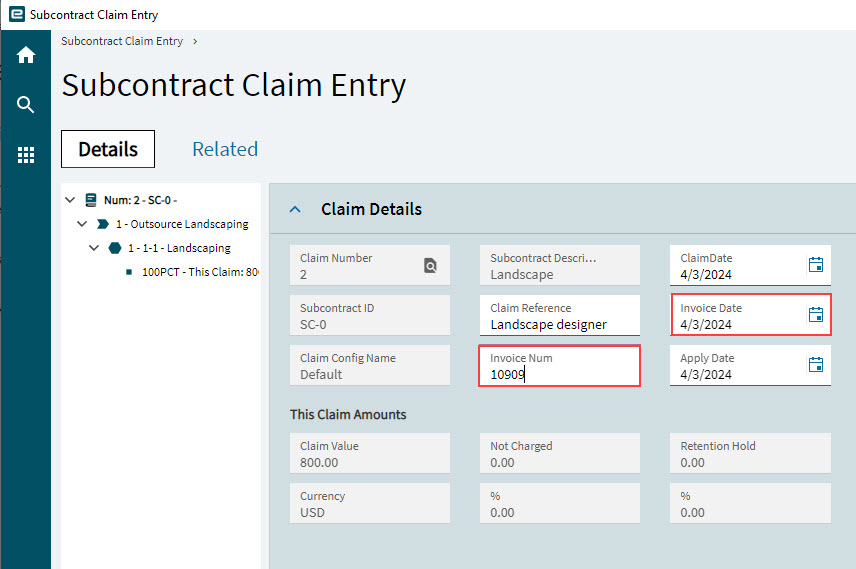
| Invoice Num |
Enter the invoice number given by the Supplier, when you create an invoice from this claim. |
| Claim Date |
The date selected when the claim was created. |
| Invoice Date |
Enter an Invoice Date when you create an invoice from the claim. |
| Apply Date |
The date that the claim invoice is to be applied. Defaults to the Claim Date. |
| Supplier |
The subcontract supplier. |
| Hold Payments |
If the supplier has ‘Hold Payments’ selected, this check box is selected. This indicates that payments to this supplier are on hold. |
| Project |
The primary project linked to the subcontract. |
| Comments |
Enter comments relating to the subcontract claim, for example: feedback and queries from the supplier, claim progress, or important notes relating to the claim. The Comment on the Claim Details appears on the Comments card in APM AP Invoice Tracker. |
Status and Checklist
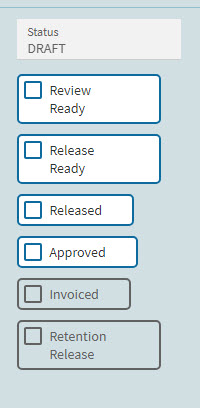
Work through the claim and view the current claim status using the check boxes in the Status section:
|
| Status |
For a new subcontract claim, this is DRAFT. Thereafter it moves through Released, Approved, Invoiced. |
| Review Ready |
Select when the claim is ready to review. |
| Release Ready |
Select when this claim is ready to release to the supplier. |
| Released |
Select when this claim is ready to be submitted for the supplier to review and approve. At Release stage, you may select Print Claim from the Overflow menu and the claim printed will be an “application” in nature. |
| Approved |
Indicates the approval status of the subcontract claim. After a claim has been released and when the supplier has approved the claim value, the claim will be updated and approved. Once a claim is approved, it is ready for an AP Invoice to be generated. |
| Invoiced |
When selected, indicates that the claim has been posted into the Accounts Payable module. The Invoice number from that module will populate within the Invoice number field. |
| Retention Release |
Indicates the claim is a retention release. Retention release will produce a subcontract claim so that a separate AP Invoice can be raised. |
This Claim Amounts
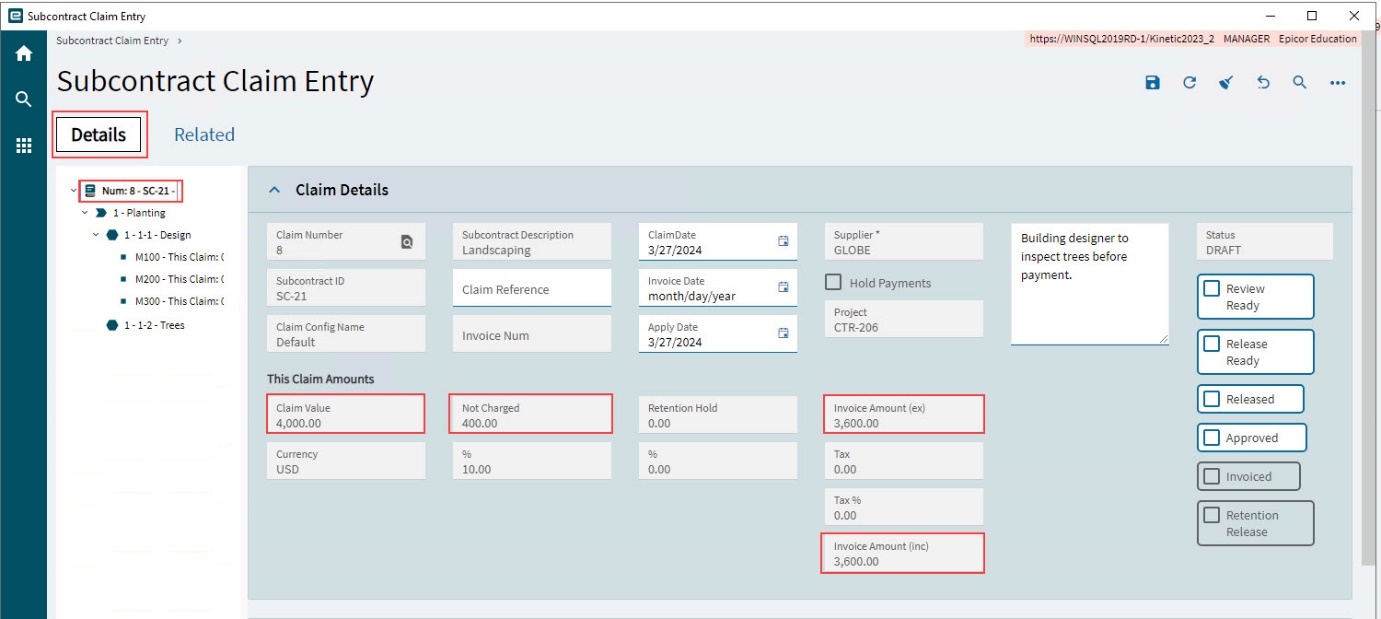
The values shown on This Claim Amounts on the Claim Details card are the sum of the values on each claim line for the subcontract claim and therefore start as zero. As you update the claim line values, these values will update.
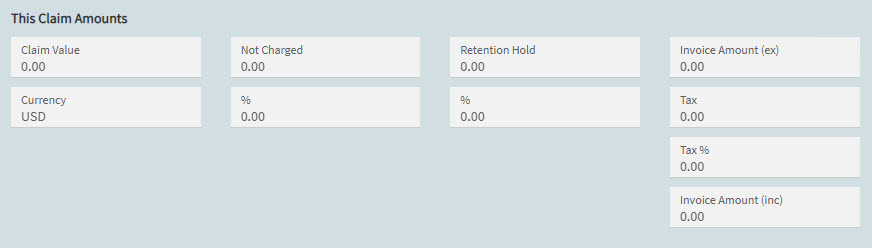
The values are:
| Claim Value and Currency |
The sum of claim values for each claim line in this subcontract claim. The Currency is from the Subcontract Details, or from the Claim Configuration if there is an Overwrite for Currency. |
| Not Charged |
The value Not Charged expressed as an amount and as a percentage (%). The amount is the sum of the Not Charged amounts from the individual Claim Line amounts. |
| Retention Hold |
The value held in retention, expressed as an amount and as a percentage (%). The amount is the sum of the Retention Hold amounts from the individual Claim Line amounts. |
| Invoice Amount (ex) |
The amount less tax that appears on the invoice. This is the sum of the Invoice (ex) from the individual Claim Line amounts. |
| Tax |
The tax amount that appears on the invoice. This can be calculated before the Invoice is generated (select Calculate Tax from the Overflow menu). |
| Tax % |
The tax portion as a percentage of the Invoice Amount (inc). |
| Invoice Amount (inc) |
The full invoice amount, including tax. |
See how to update the value of the different claim lines, depending on the different billing types used:
-
For Progress billing, see Editing Claim Line Item Details for Progress Billing.
-
For Quantity billing, see Editing Claim Line Item Details for Quantity Billing.
When all the claim lines have been updated for the subcontract claim, the remaining claim details can be completed before the subcontract claim is ready to be submitted to the supplier.
Billing and Shipping
-
Still on the Details page, expand the Billing and Shipping card.
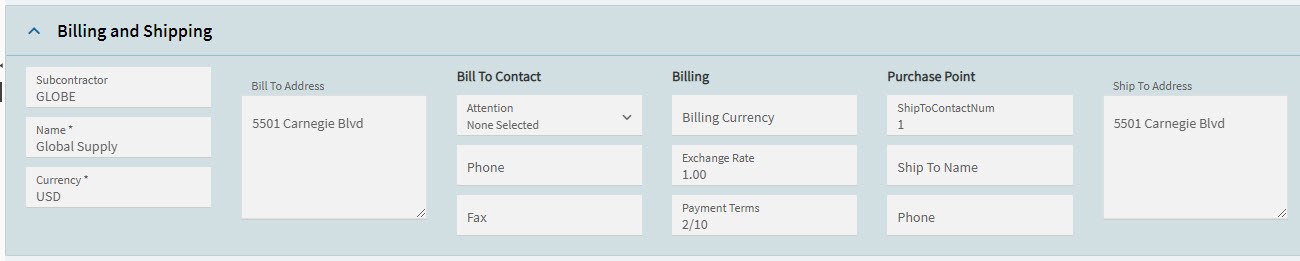
The Billing and Shipping card is populated as follows:
| Subcontractor |
The supplier from the subcontract. |
| Name |
The name of the supplier. |
| Currency |
The currency selected on the supplier record. |
| Bill To Address |
The address of the supplier. |
| Bill To Contact |
These details are from the Supplier’s details (Attention, Phone, Fax). If the Claim Configuration has different details under Bill To, then these will be used instead. |
| Billing |
Billing Currency and Exchange Rate fields are set by the selected Claim Configuration’s Currency fields if there is a Currency Overwrite or otherwise the base currency of the subcontract is used (which is the currency on the subcontract supplier’s billing information). The selected Claim Configuration’s Terms appear in the Payment Terms. |
| Purchase Point |
The Purchase Point details are taken from the subcontract. |
Subcontract Claim Line Details
-
Navigate through the subcontract claim lines, using the Navigation Tree.
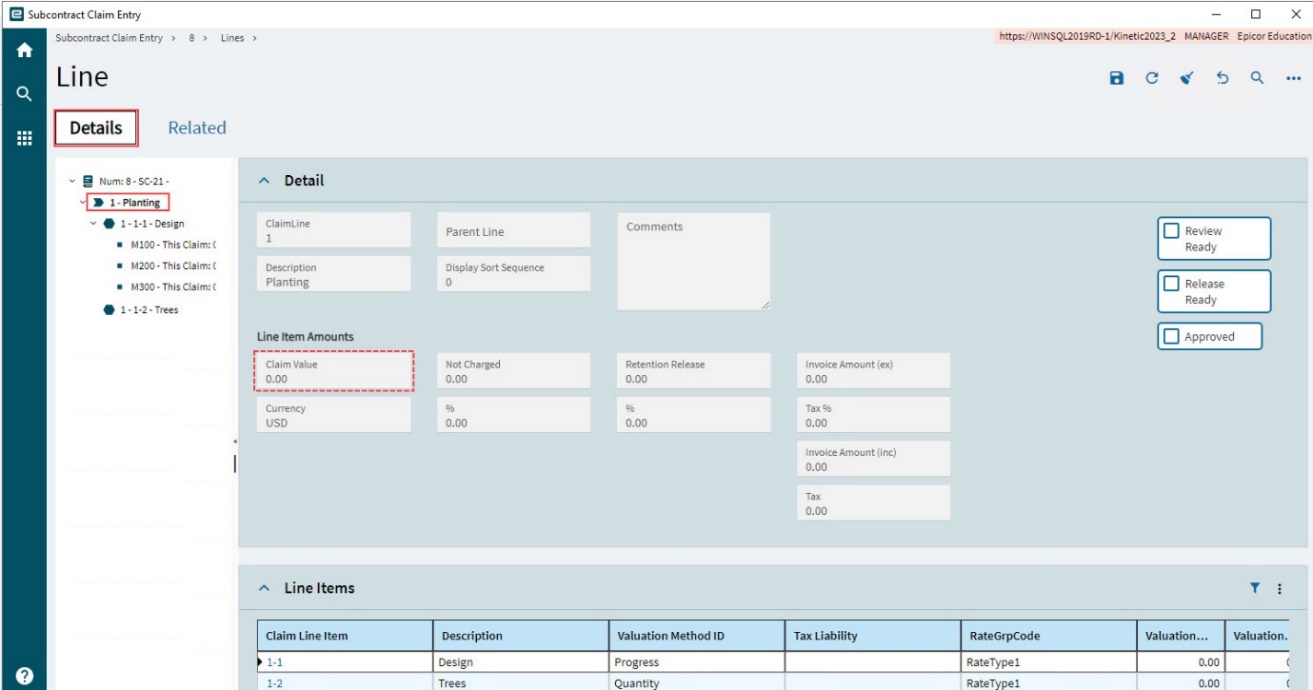
The value in Claim Value is the sum of This Claim Value for all Subcontract Claim Line Items beneath the Claim Line.
Subcontract Claim Line Item Details
Review and edit each of the Subcontract Claim Line Items, prior to releasing the Subcontract Claim.
Line Item
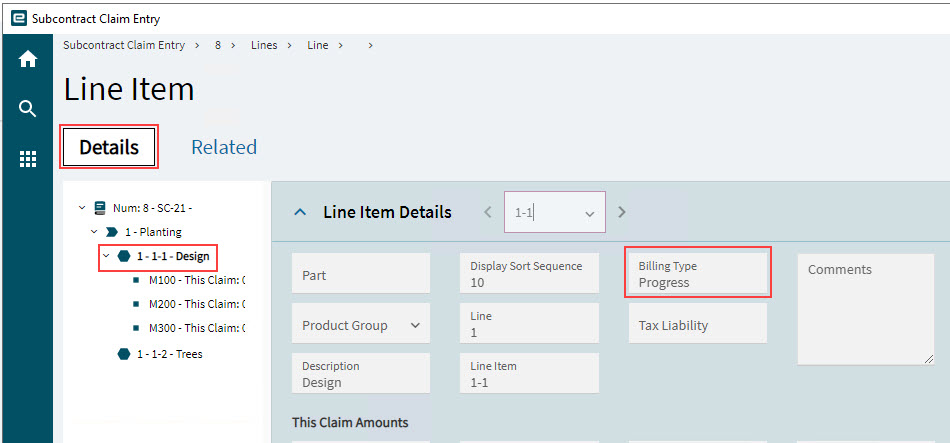
The Subcontract Claim Line Item differs according to its Billing Type, which originates from the corresponding Subcontract Line Item.
Details
Billing Type is from the corresponding Subcontract Line Item. Tax Liability is from the corresponding Subcontract Line Item.
Editing Claim Line Item Details for Quantity Billing
Select a claim line item on the Navigation Tree. Below is an example of a claim line item using the Quantity Billing Type.
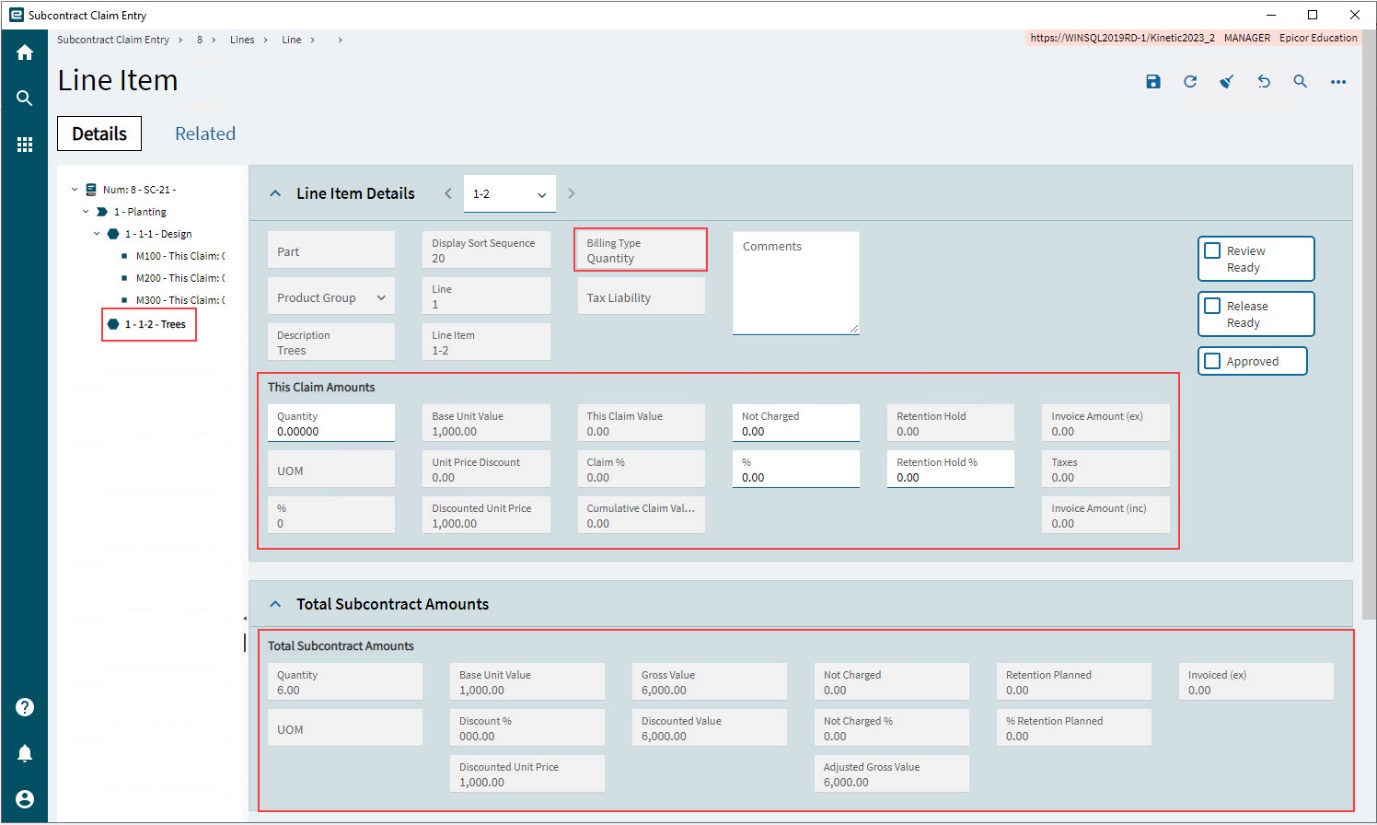
The Total Subcontract Amounts card shows details from the corresponding Subcontract Line Item, such as the Quantity, Base Unit Value, Discount Unit Price and Retention Planned.
-
Refer to the values in Total Subcontract Amounts when updating the values in This Claim Amounts.
-
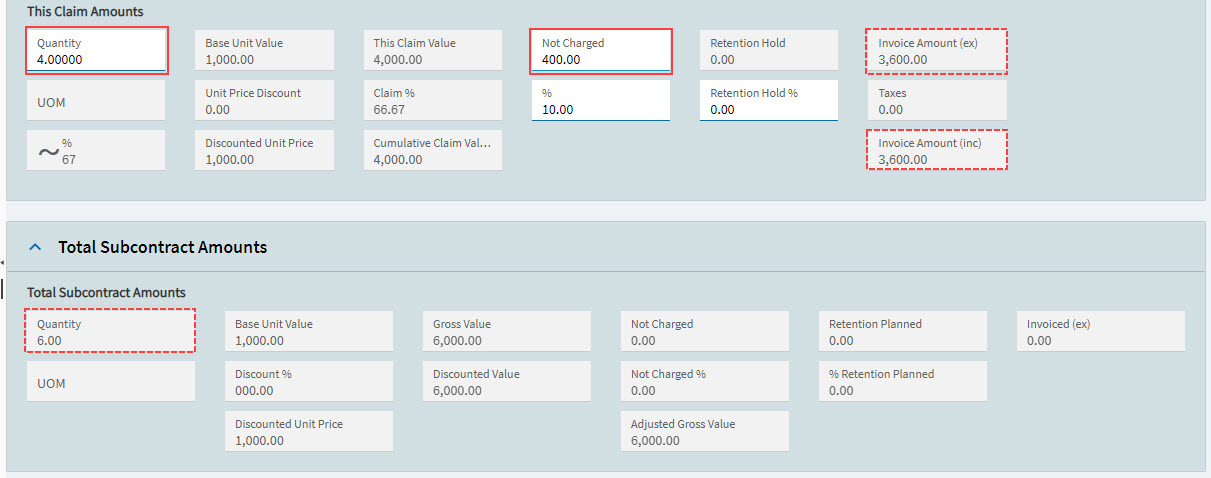
To adjust the claim amount for this Claim Line Item, update the following in This Claim Amounts:
-
Enter a Quantity, which can be part or all of the Quantity in Total Subcontract Amounts.
-
Enter a Not Charged value or percent, if applicable.
-
Optionally, adjust the Retention Hold %.
-
Select Save
 on the Standard toolbar.
-
The values in This Claim Amounts adjust:
-
This Claim Value is the Quantity multiplied by the Discounted Unit Price.
-
Not Charged % is Not Charged as a percentage of This Claim Value.
-
Retention Hold is (This Claim Value less Not Charged) multiplied by Retention Hold %.
-
The Invoice Amount (ex) is This Claim Value less Not Charged less Retention Hold.
The saved values roll up into the Claim Value for the Claim Line, which in turn roll up into the Claim Value at the Claim level. The other values are rolled up too.
Each value in This Claim Amounts is also expressed as a percentage of the Claim Value.
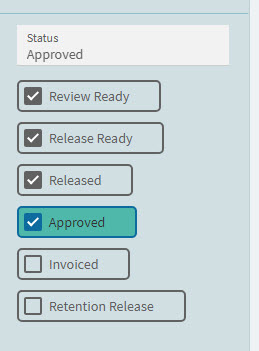
You can optionally review this line item, going through the check boxes as follows:
-
Select Review Ready when all the amounts are captured, and the line item is ready for a review.
-
Select Release Ready when the line item has passed review and is ready to be released with the other line items, to the supplier.
-
Select Approved when the supplier has approved this line item.
-
Save.
Unit Price Discount
A Claim Line for Quantity Billing Type gets its discount from the Unit Price Discount on the Subcontract Line Item. This is the only discount that can be applied for a Claim Line of this type.
Cancelling a Quantity Billing Claim Line Item
After you have completed a subcontract claim, you can go back and cancel it, in part or in full.
To cancel a Claim Line Item for a Quantity Billing Type, enter a negative value in the Quantity field, and then process the claim as normal. This does not need to be the full quantity that was originally claimed but should not exceed this. Check the Invoiced Qty in the Total Subcontract Amounts to see what quantity has been invoiced to date.
In the section This Claim Amounts:
-
This Claim Value is the Quantity multiplied by the Base Unit Value.
-
Cumulative Claim Value is the value claimed minus This Claim Value.
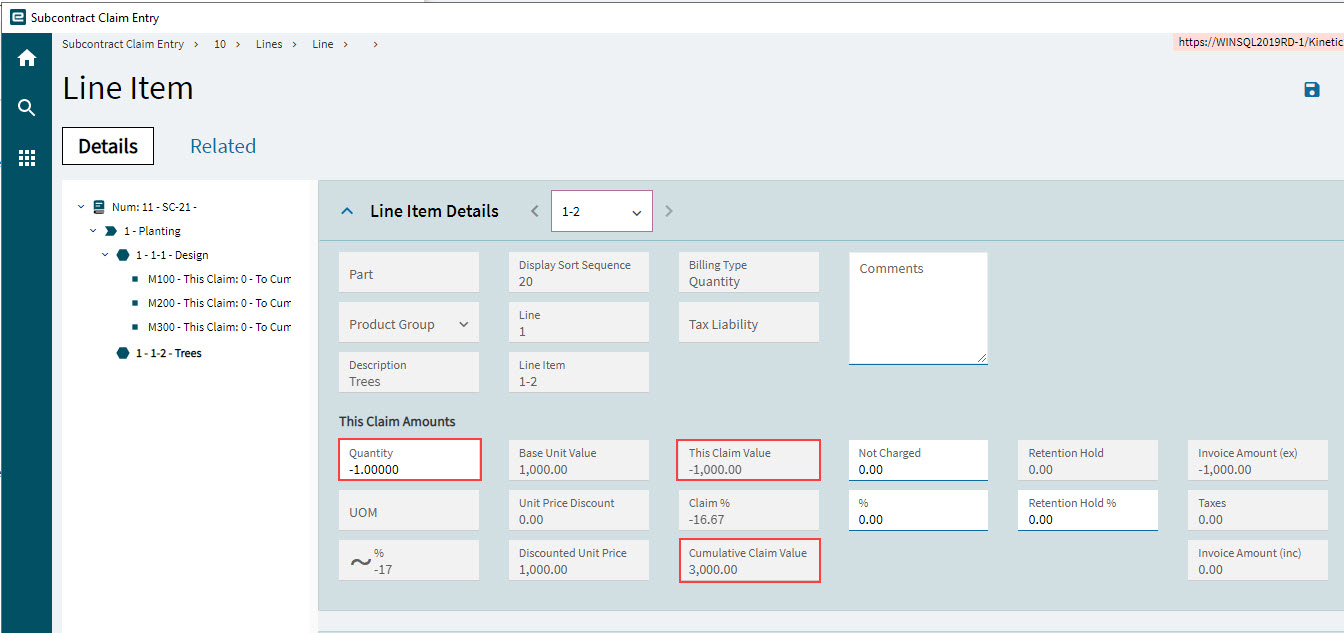
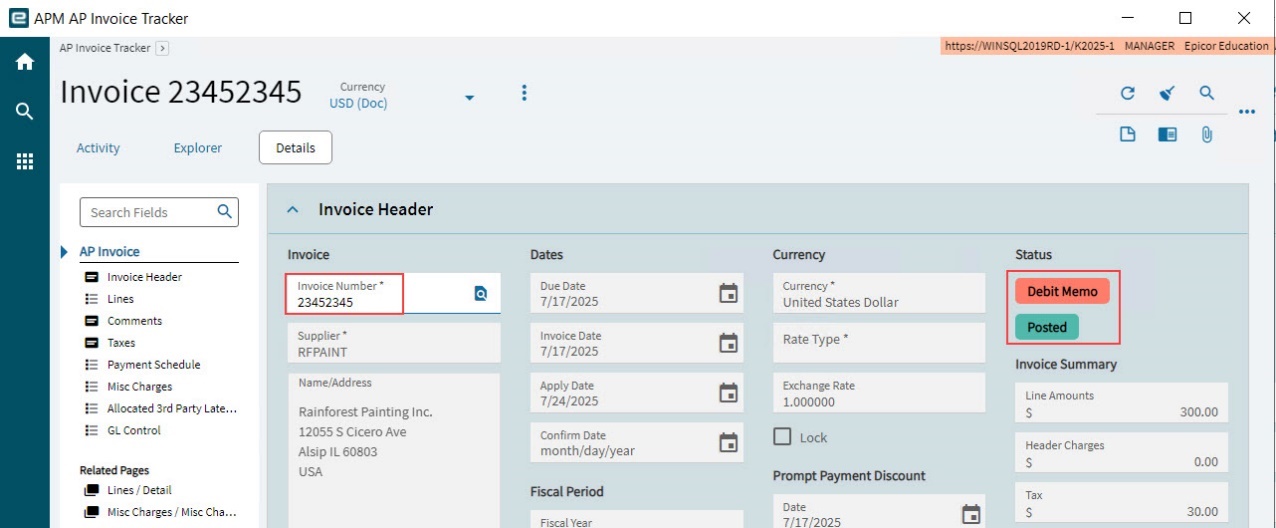
A Debit Memo will be posted if the Invoice Amount for the Claim is less than zero. You can view this on the APM AP Invoice Tracker.
Editing Claim Line Item Details for Progress Billing
To update a claim line item from a Progress Billing contract line item:
-
Select the claim line item on the Navigation Tree.
-
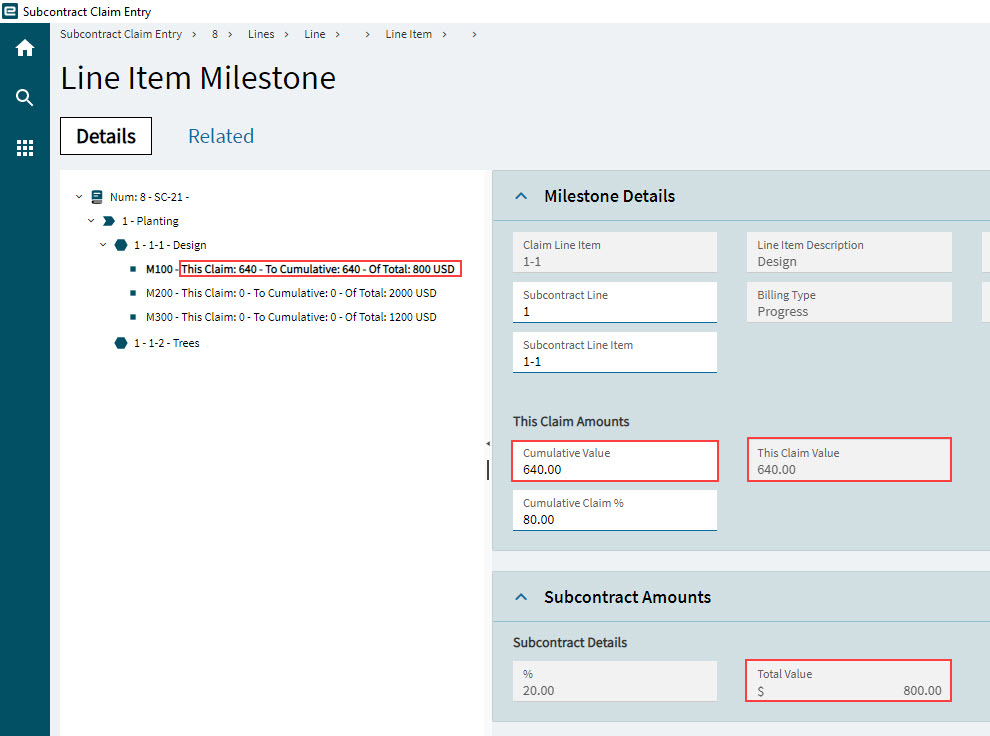
Work through each milestone for the claim line item. See Editing a Progress Milestone.
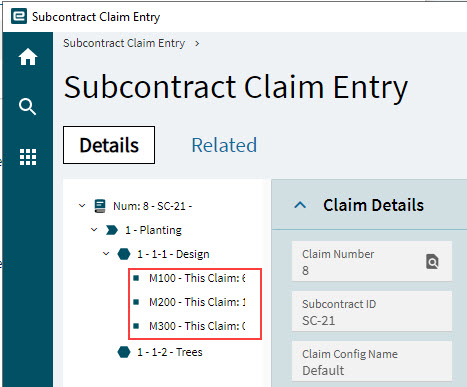
The milestones on the Navigation Tree update to show the different Claim Values for each milestone, as well as each milestone’s Total Value.
-
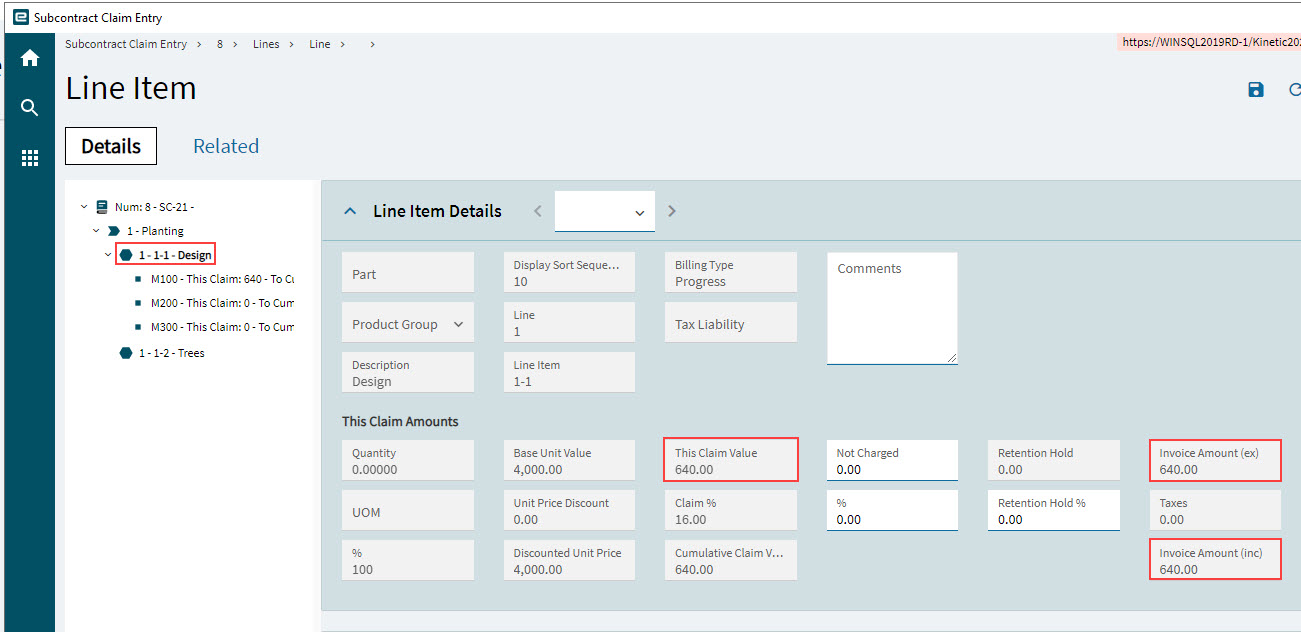
Select the Line Item on the Navigation Tree.
The Line Item Details displays the updated values for This Claim Amounts.
-
Update Not Charged if you are not going to charge a portion of this claim value for the line item, for any reason. You can update Not Charged value or %.
-
Update Retention Hold % if there is to be a retention for this Line Item.
-
Save.
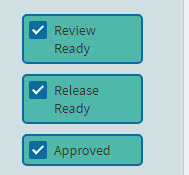
| Alternatively, select the check boxes at the claim line level or at the claim level. |
Editing a Progress Milestone
There will be one or more Milestones, depending on the Milestone Set selected in the associated Subcontract Line Item. For each Milestone, determine the percentage complete and update the Cumulative Claim % (or update the Cumulative Value) in the This Claim Amounts section, accordingly. The percentages for the different milestones could vary, depending on the actual progress of this contract line. For example, the first milestone out of three milestones could be 100.00 Cumulative Claim %, with 0.00 Cumulative Claim % for the remaining milestones. Or each milestone could be 25.00 Cumulative Claim %, and so on.
-
Navigate through the Milestones on the Navigation Tree.
|
For each Milestone:
-
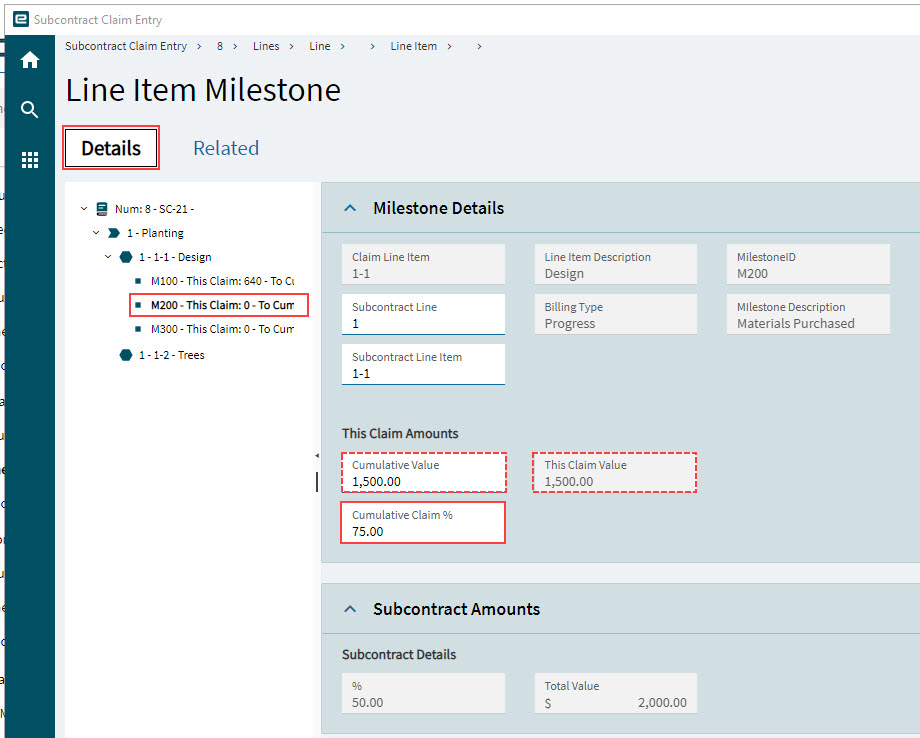
Select a milestone from the Navigation Tree
This opens the Milestone Details card.
-
Enter a Cumulative Claim % if you want to claim for this milestone in this Subcontract Claim. The Cumulative Claim % is the percentage of the Total Value. This amount (cumulative % of the Total Value) is calculated and displayed in This Claim Value. Total Value is the Discounted Value of the contract line item for the selected milestone (Discounted Value multiplied by the % for that milestone).
-
Select Save
on the Standard toolbar.This updates the Cumulative Value and This Claim Value.
-
Continue updating the Cumulative Claim % or Cumulative Value for each milestone for the line item.
Subcontract Amounts
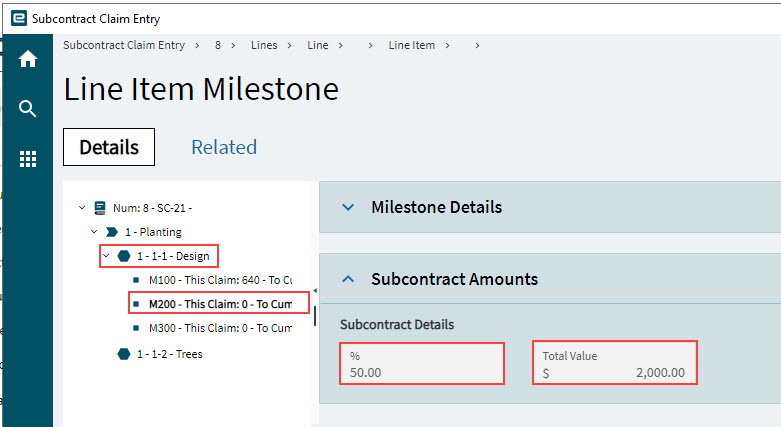
Expand the Subcontract Amounts card to see the value of the selected milestone.
-
The % shows the milestone percentage (of the line item).
-
The Total Value shows the value of the milestone (the milestone percent of the subcontract line item value).
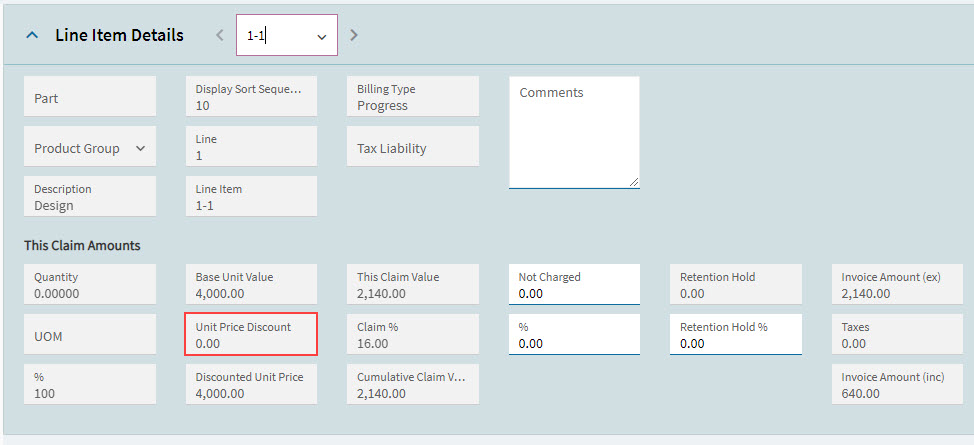
Unit Price Discount
A Subcontract Claim’s Line Item for Progress Billing Type gets its discount from the Discount % on the corresponding Subcontract Line Item.
This is the only discount that can be applied for a Claim Line of this type.
Cancelling a Progress Billing Claim Line Item
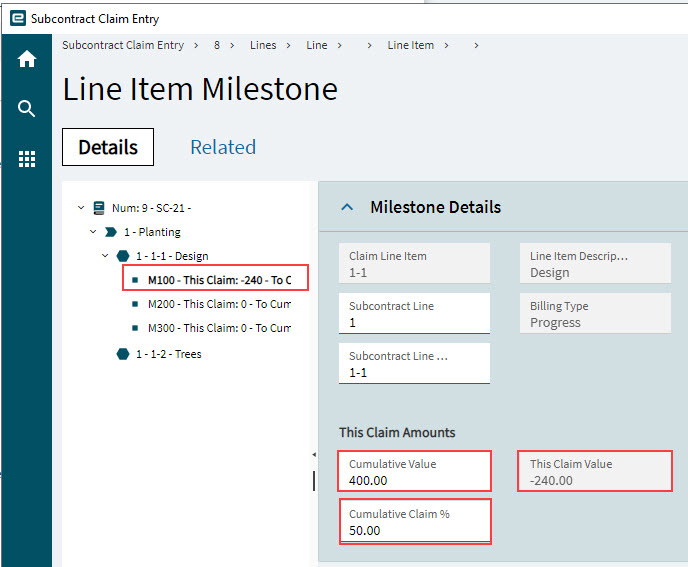
To cancel a Claim Line Item of Progress Billing Type, overwrite the Cumulative Claim % with a lower value, and then process the claim as normal. This does not need to be the full quantity that was originally claimed. For example, if the Cumulative Claim % was 20%, change it to 15% in a new Subcontract Claim.
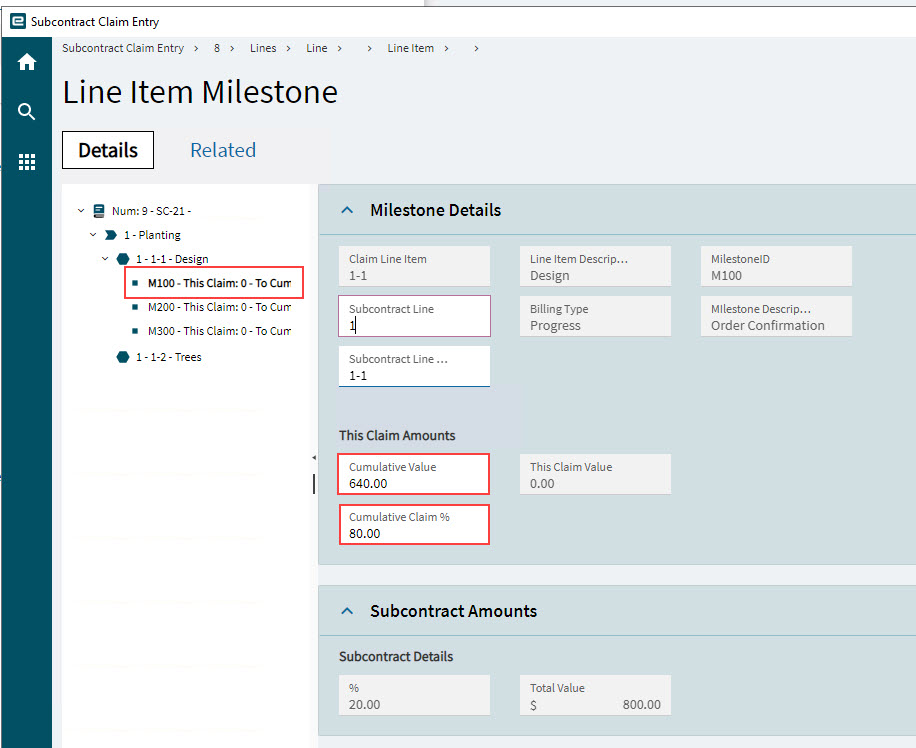
If cancelling/reversing a subcontract claim for a particular Milestone M100 for a subcontract line item, on a subcontract:
-
Add a new Subcontract Claim for the same subcontract/claim configuration combination as used for the original contract claim.
-
Select a milestone on the Navigation Tree.
The Cumulative Value and Cumulative Claim % that have been claimed to this point appear for Milestone M100, in the This Claim Amounts section.
-
Update the Cumulative Claim % to what it should have been when the claim was first generated. If this is lower than the current value, then this will result in a cancellation. In the example below, the This Claim Value shows a negative value when the Cumulative Claim % is lower than before.
-
Save the Claim Line, and finish processing the Subcontract Claim as usual (see Processing Subcontract Claims and Retentions).
Note that the Claim displays as a negative value, on the Claims card on the Activity page of the Subcontract.
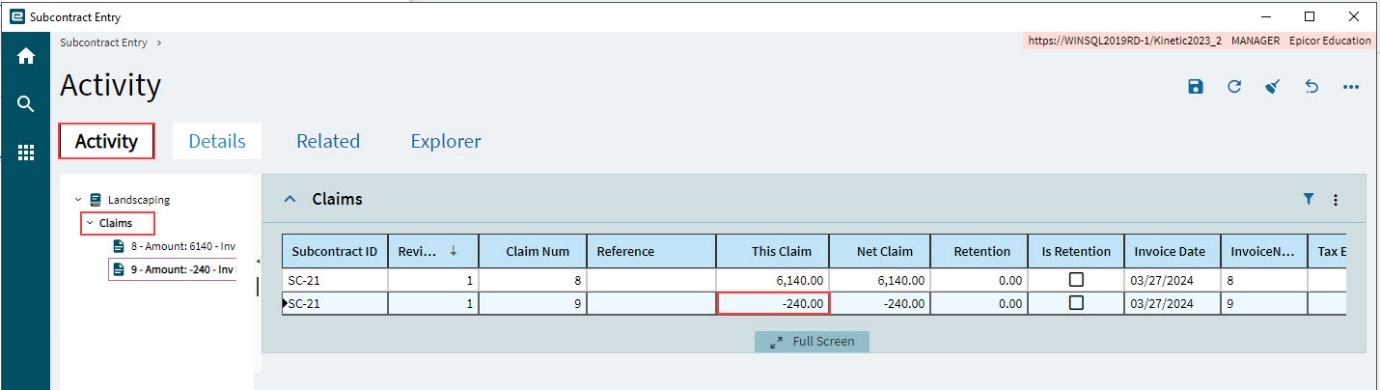
For cancellations, a Debit Memo is generated to make the adjustment. You can view this on the APM AP Invoice Tracker.
Tax Lines
Tax Lines are created for each Line Item on a Subcontract Claim, where there is a Claim Value (This Claim Value), and where the Line Item has a Tax Liability with Tax Types (the Tax Liability is selected in the corresponding Line Item on the Subcontract).
Tax Lines are generated when you run Tax Calculation (see Tax Calculation), or when you create the invoice (see Generate an AP Invoice).
A tax line is created for each Tax Type associated with Tax Liability. The Taxable Amount is the Invoice Amount (ex) for the Line Item, and the Percent is the percent for the Tax Type.
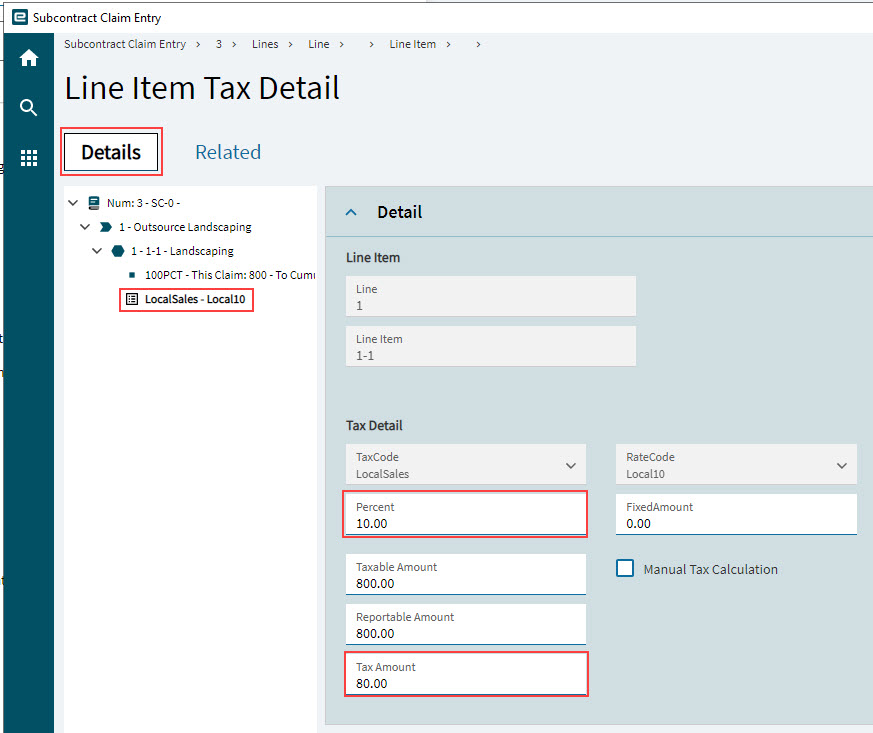
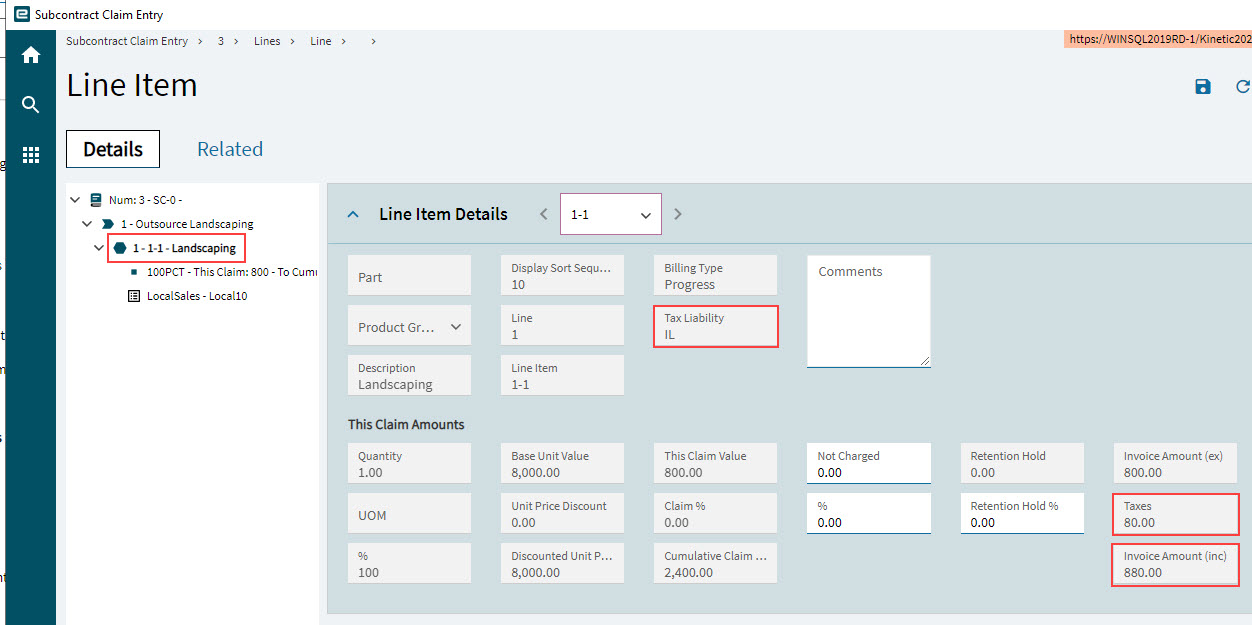
The sum of the Tax Amount for the different Tax Lines appears as the Taxes amount on the Line Item Detail. This is added to Invoice Amount (ex) to calculate Invoice Amount (inc).
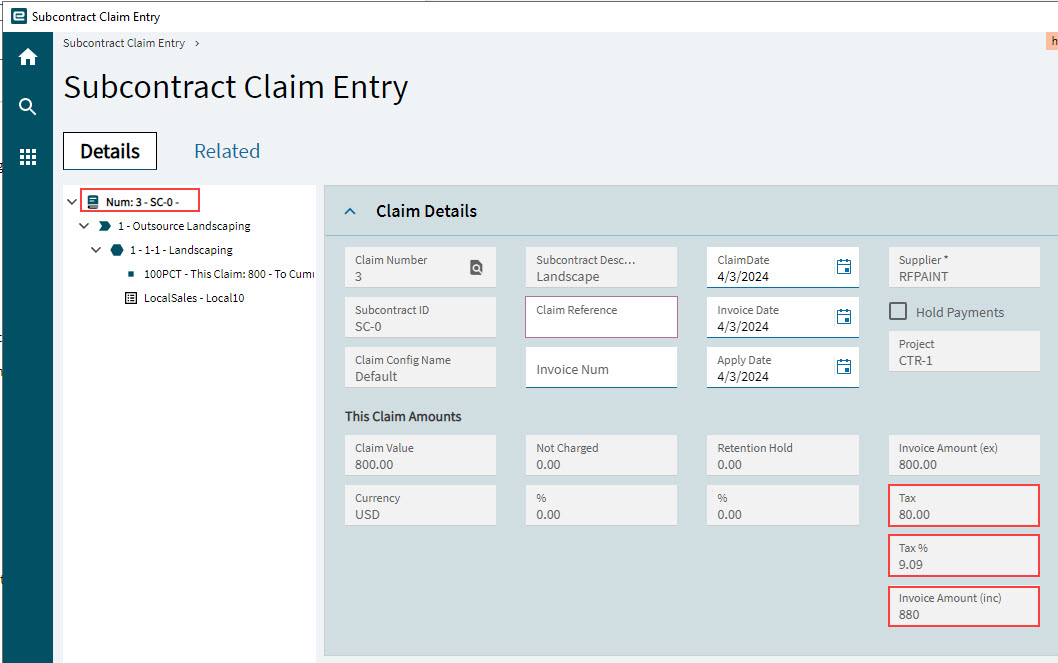
On the Claim Details page, the Tax is the sum of Taxes from the Line Items. Tax % is the Tax amount expressed as a percentage of the Invoice Amount (inc).
Retentions
Claim retentions apply to both billing types. This is the agreed amount/percentage retained by the supplier (subcontractor) until specific conditions are met, as part of the subcontract terms.
When the retention conditions are met, the retention can be released, and the supplier can invoice for this portion of the claim.
Claim Retention
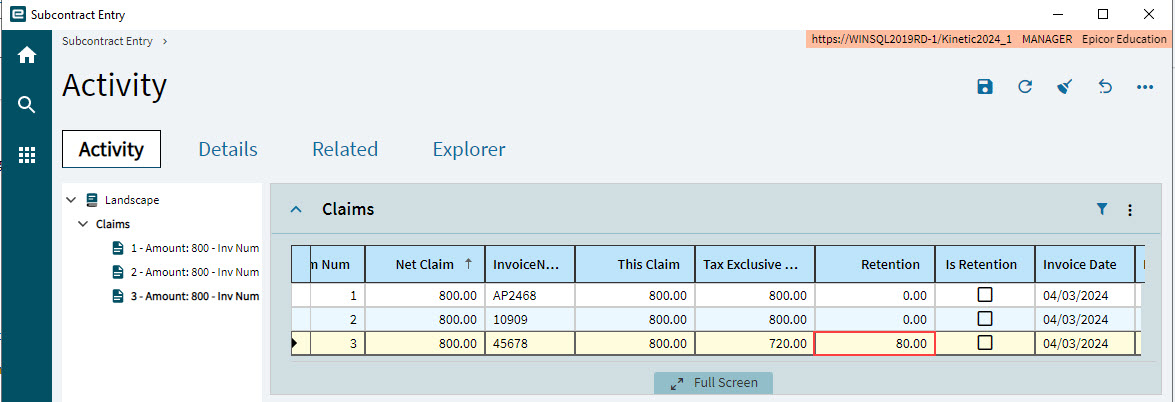
Claim Retentions appear on the Claims card on the Activity page of the Subcontract. See Viewing Subcontract Claims.
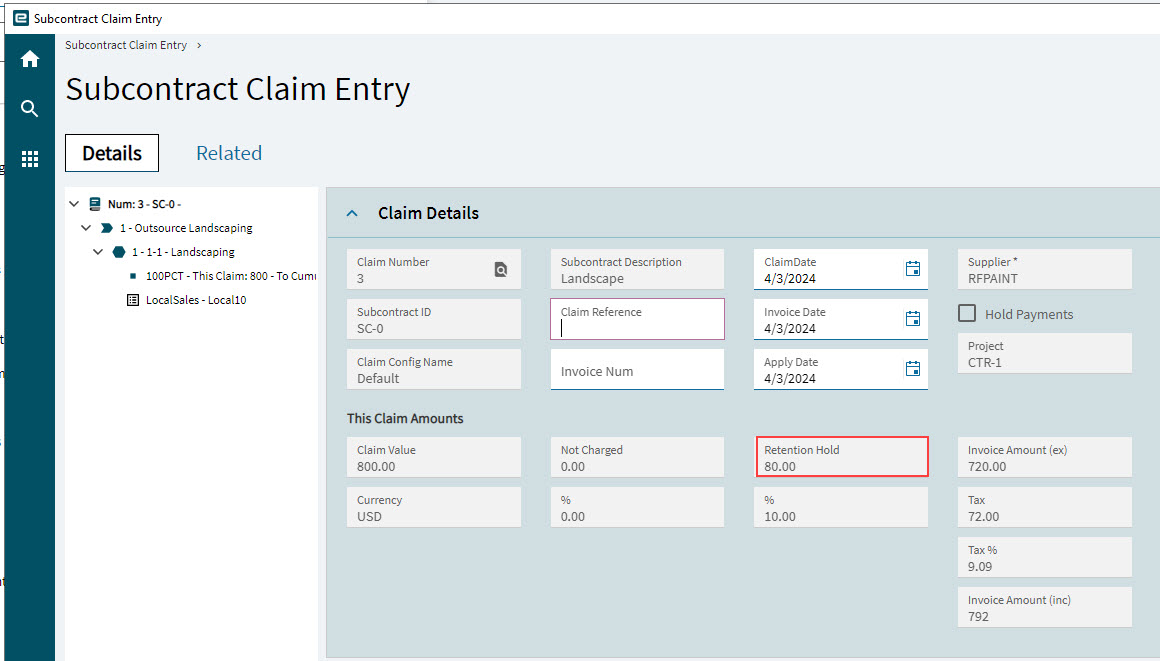
If a Subcontract Claim has a Retention Amount, this appears in the Retention column. Claim Retentions are flagged in the Is Retention column.
The example below shows a claim with a Retention Hold of 80.00.
After the AP Invoice is posted, this appears on the Claims on the Activity page of Subcontract Entry.
Releasing Retention Claim
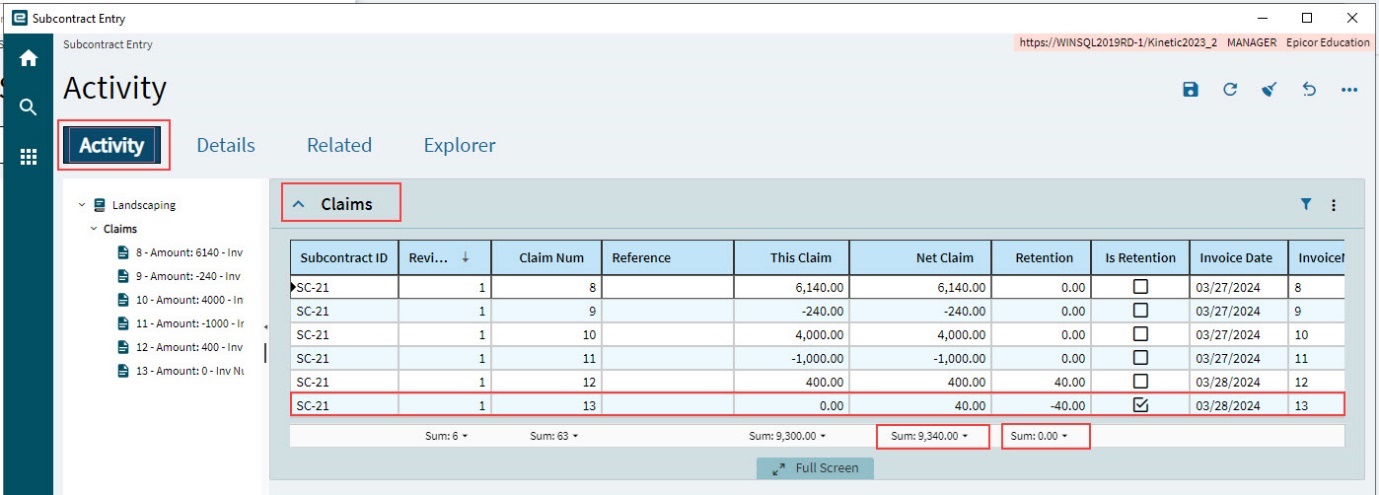
The Retention Claim is released from Subcontract Entry and then approved and invoiced from Subcontract Claims Entry.
See Releasing Subcontract Retentions (in Subcontract Entry) and Processing Subcontract Claims and Retentions (in Subcontract Claim Entry).
After it is released and invoiced, you can view it on the Claims card in Subcontract Entry, with the Is Retention check box selected.
Tax Calculation
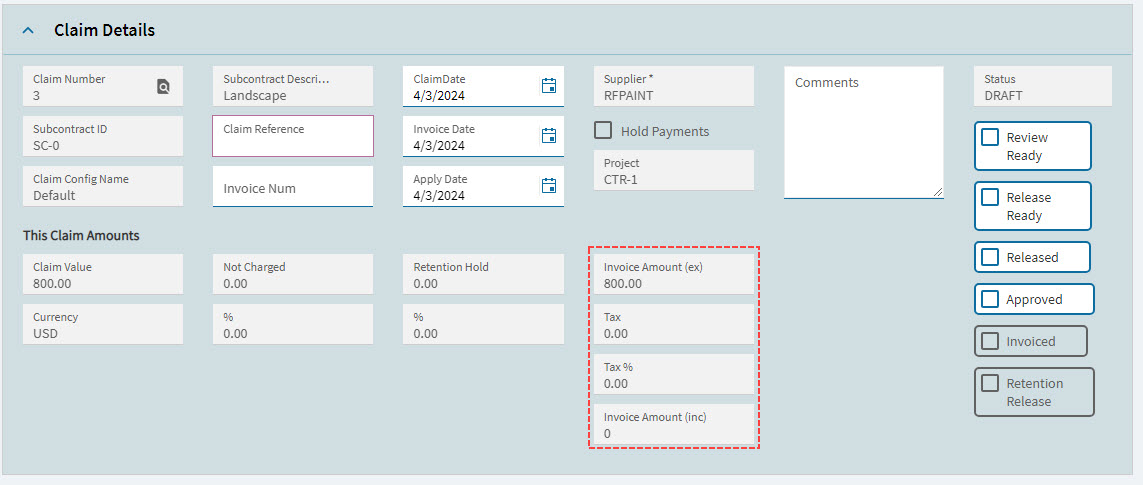
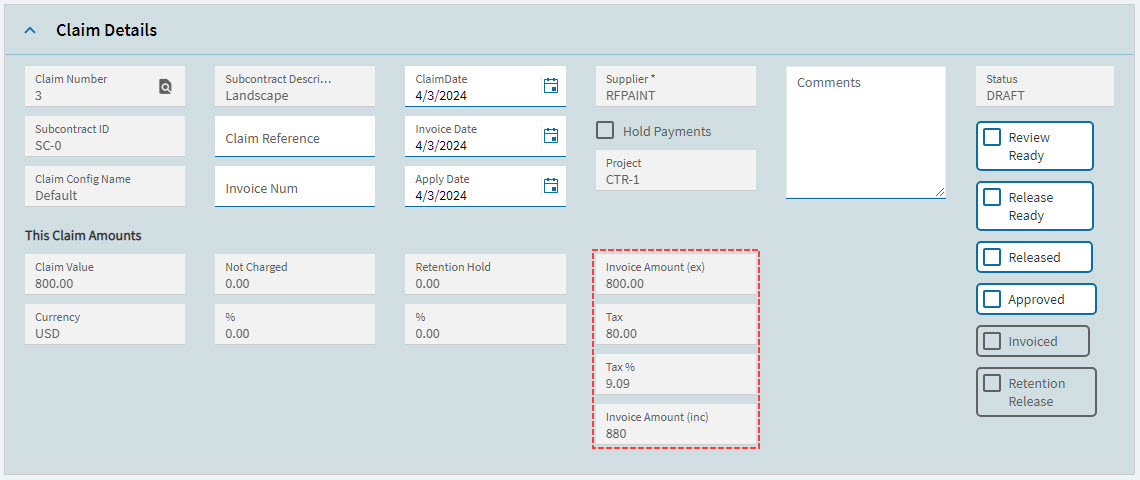
Before submitting the subcontract claim or claim retention to the supplier, calculate the tax.
-
Select Calculate Tax from the Overflow
menu. Wait for the tax to be calculated.
| The Calculate Tax process is included when an invoice is generated, regardless of whether you execute it manually in this step. |
|
Figure 12: Subcontract Claim Invoice Amounts Before Tax Calculation |
|
Figure 13: Subcontract Claim Invoice Amounts After Tax Calculation |
Claim Document Generation/Printing
After calculating the tax, you can generate and print the claim or claim retention. Note that you can do this without first calculating the tax portion, if you don’t want to show tax on the subcontract claim report.
-
Select Print Claim from the Overflow
menu. -
Keep the selected values.
-
Select the Print Preview
 button on the menu bar.
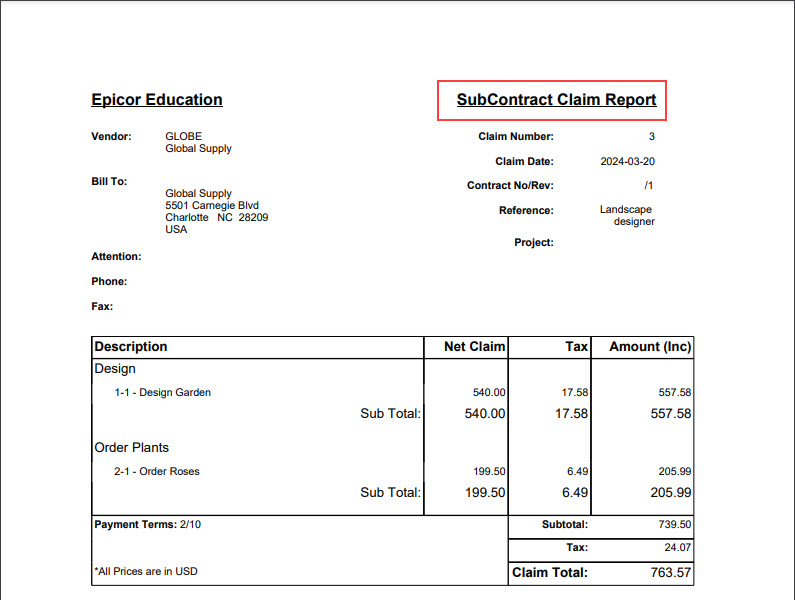
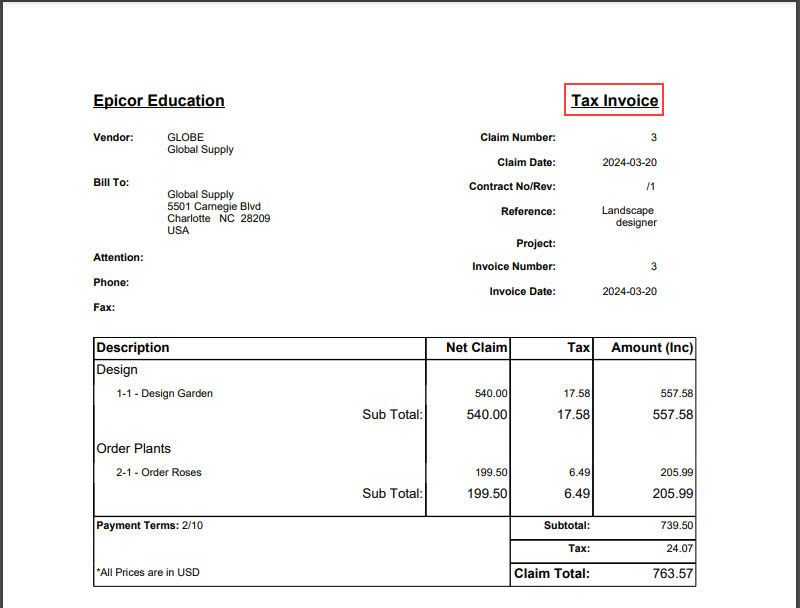
If the subcontract claim has already been invoiced, the report header is Tax Invoice, otherwise it is Subcontract Claim Report.
|
|
Figure 14 Subcontract Claim |
|
|
|
Figure 15 Tax Invoice |
Submission and Approval
When the subcontract claim report is ready to be submitted to the supplier for approval:
-
Select Released on the Subcontract Claim Entry Claim Details card, to indicate that the claim has been released to the supplier.
For released Subcontract Retentions, the Released check box is already selected. -
Send the subcontract claim report to the supplier, for approval.
If the supplier has any disputes, you can adjust the subcontract claim until an agreement is reached, and the supplier is ready to approve it. After each adjustment, recalculate the tax, and regenerate the Subcontract Claim Report. When the supplier has approved the claim:
-
Select Approved on the Claim Details card.
The subcontract claim is now ready for invoicing.
Generate an AP Invoice
| There must be Subcontract Claim Line Items to be invoiced. |
To generate an AP invoice for a subcontract claim:
-
Select the Details page and select the claim node on the Navigation Tree.
-
Enter the Invoice Num provided on the supplier’s invoice.
-
Select an Invoice Date from the date picker.
-
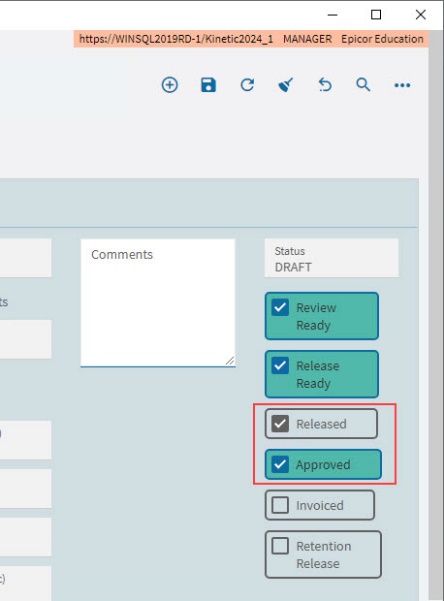
Select Released and Approved on the Claim Details card on the Details page.
-
Select Save
on the Standard toolbar. -
Select Create Invoice From Claim from the Overflow
menu. -
Select Yes to Please confirm invoice creation and posting to Epicor in the pop-up dialog.
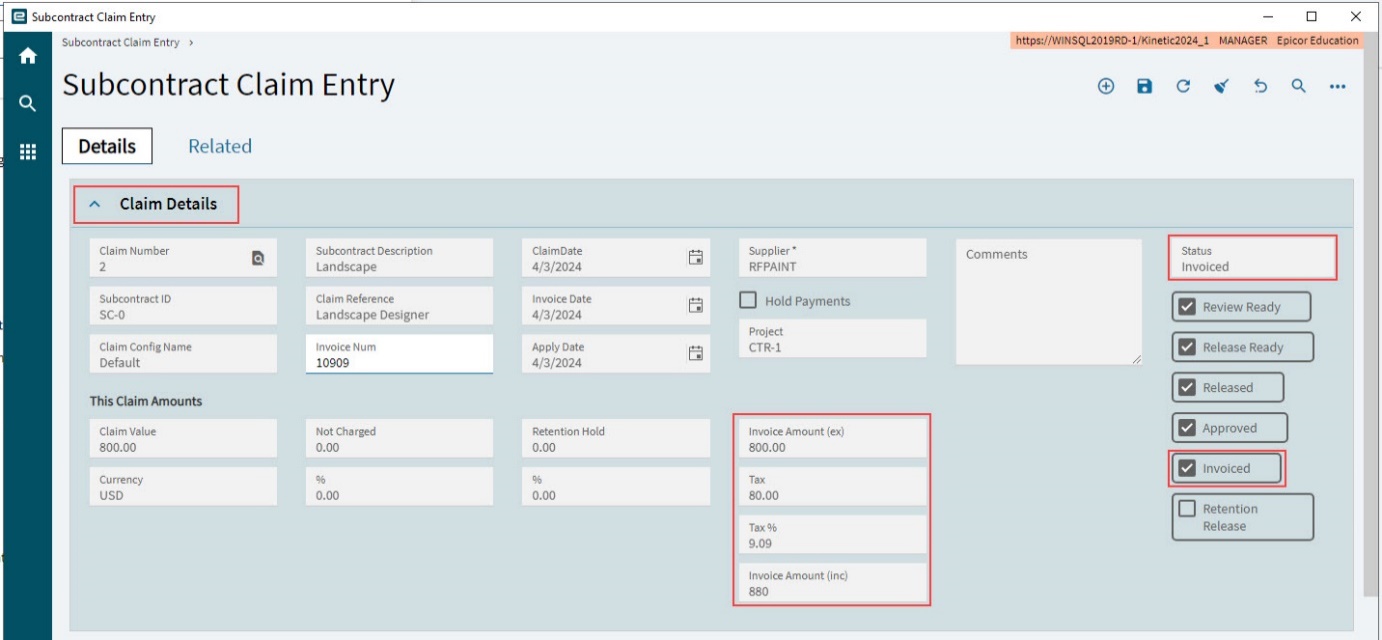
The subcontract claim is invoiced. On the Claim Entry card, note the following:
-
The Invoiced check box is selected, indicating that the subcontract claim has been invoiced.
-
The Status shows Invoiced.
-
The Claim Amounts are updated.
-
The Invoice Date is updated.
Deleting an Open Subcontract Claim
If you need to make a lot of changes to a Subcontract Claim that has not yet been invoiced, you can delete it and then add it again.
To delete a Subcontract Claim:
-
Open the Subcontract Claim in Subcontract Claim Entry.
-
Ensure the Status is Draft, Released, or Approved.
-
Select the Subcontract Claim on the Navigation Tree.
-
Select Delete Subcontract Claim from the Overflow
menu, or right-click on the
Subcontract Claim on the Navigation Tree and select Delete Subcontract Claim from the pop-up menu.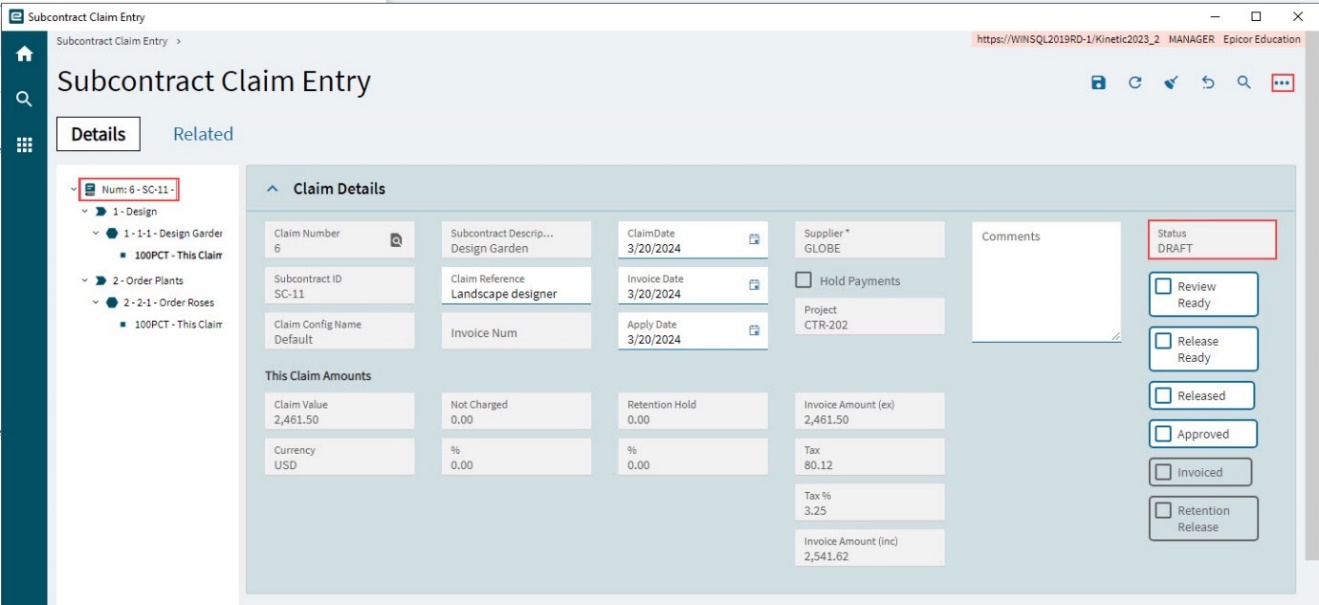
-
Click YES in the Delete Confirmation dialog box.
Viewing the Subcontract Claim, Invoice and Cost
View the AP Invoice in APM AP Invoice Tracker
-
View the AP Invoice details in APM AP Invoice Tracker (see APM AP Invoice Tracker).
View the Subcontract Claims in Subcontract Entry
-
Open the subcontract that this claim relates to (see Subcontract Entry).
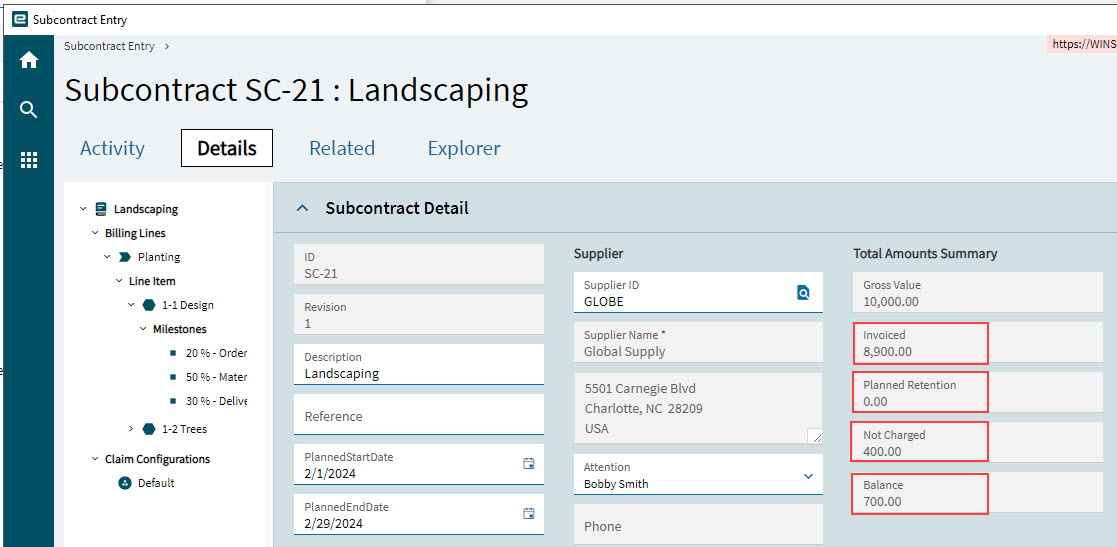
The Subcontract Detail card on the Details page displays updated values for:
- Invoiced
-
The sum of invoiced amounts for all claims against this subcontract
- Planned Retention
-
The sum of all outstanding retention amounts for all claims against this subcontract
- Not Charged
-
The sum of Not Charged amounts for all claims against this subcontract
- Balance
-
The Gross Value less Invoiced, Planned Retention and Not Charged
View the Subcontract Claims in Project
| The AP Invoice must be posted for it to be viewed within APM Projects. Automatic posting is controlled by the “AutoPostClaimAPInvoices” setting in the Automatic Transaction Posting area of APM Project Management Configuration (see Configuration Details). To post manually, use APM AP Invoice Entry. |
You can see the costs from the subcontract claim in the related Project.
-
Open the related Project in APM Project Entry.
-
Run Recalculate Analysis to bring in the A/P transaction. See Running Recalculate Analysis.
-
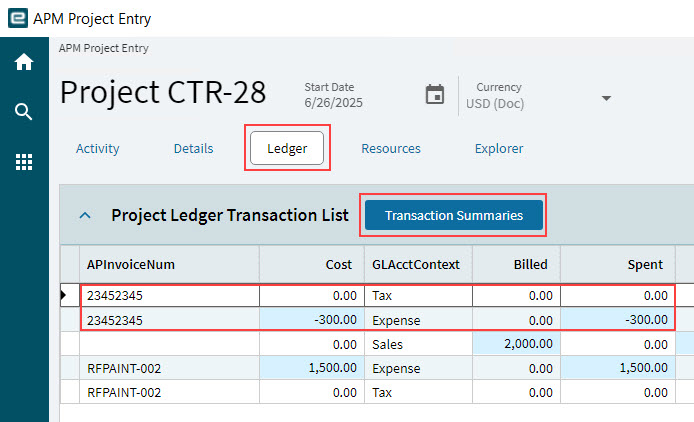
Refresh the Project. On the Ledger page, click Transaction Summaries to open the Transaction Summaries slide-out panel:
-
The Summary card includes the new AP invoice amount in the A/P Analysis column (see Summary).
-
The Cost Type Summary card shows the invoice total from the A/P Invoice rolled up into the Costed for the Cost Code’s Cost Code Type. (See Cost Type Summary).
-
The transaction details are listed by Cost Code Type on the Cost Type Transaction Detail card (see Cost Type Transaction Detail). Note the changes on the Details page:
-
On the Budget card the Costed value increases by the transaction total. The Remaining decreases by the transaction total. See Budget for a Cost Code.
-
Cancellations or Claim Reversals
If a Subcontract Claim needs to be totally or partially reversed/cancelled:
-
Add a new Subcontract Claim for the same Subcontract/Claim Configuration Contract.
-
Edit the Claim Lines that need to be cancelled/reversed. See how to do the cancellation/reversal for the different types of Claim Lines:
-
For Progress Billing Type: Cancelling a Progress Billing Claim Line Item.
-
For Quantity Billing Type: Cancelling a Quantity Billing Claim Line Item.
-
-
Complete the Subcontract Claim as usual. See Processing Subcontract Claims and Retentions.
A Debit Memo Invoice is generated for the Claim Reversal.
-
You can now create a new Subcontract Claim against the subcontract when ready.
Viewing the Cancellation Transaction in the Project
In APM Project Entry, run Recalculate Analysis to see the transaction in the Project Ledger Transaction List (see Ledger Page).