Contract and Budget Change History
- Path
-
Advanced Project Management > Contract Management > Reports > Contract and Budget Change History
Use this report to compare snapshots of a contract. See Creating a Snapshot.
Each time you create a snapshot, changes are tracked and recorded. When you select a snapshot for a contract in the Contract and Budget Change History report, the selected snapshot’s values are compared to values from the previous snapshot for that contract. The first snapshot is compared against a blank contract, so that any captured values appear as a change.
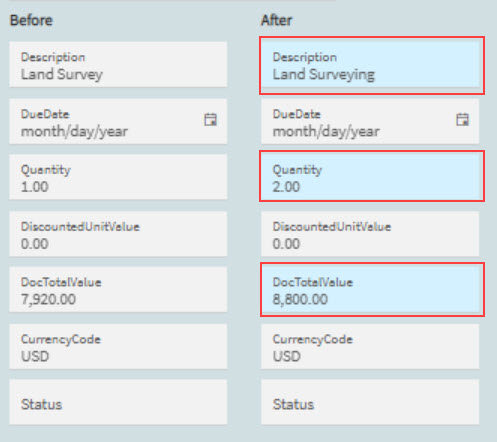
In the report, any changes from the previous snapshot are highlighted in light blue.
|
To view a contract’s changes in snapshots:
-
Navigate to Contract and Budget Change History (Advanced Project Management > Contract Management > Reports > Contract and Budget Change History).
The Contract And Budget Change History - Preview page opens.
-
Select a ContractNum to open the contract’s snapshot history.
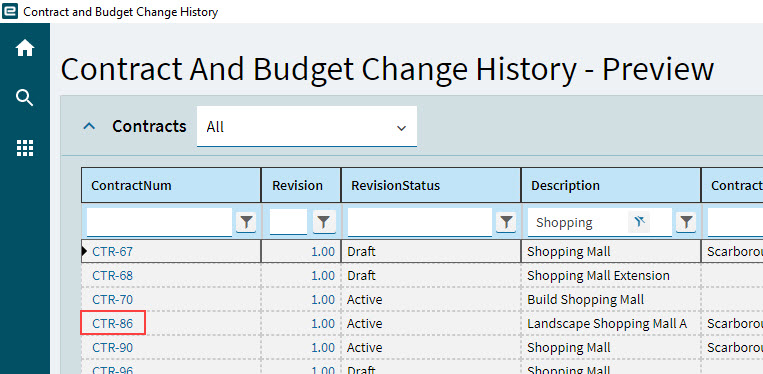
The Contract and Budget Change History report view displays for the selected snapshot.
-
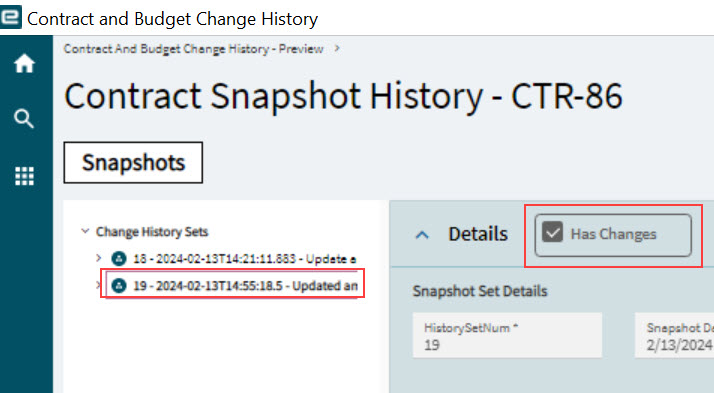
Select a snapshot from the Navigation Tree, under the Change History Sets node.
If no snapshots are created for a contract, there will be no Change History Sets to select. The selected snapshot loads. If there are any changes since the previous snapshot, the Has Changes check box is selected.
-
If there are changes, you can see these at different levels by clicking through the nodes on the Navigation Tree.
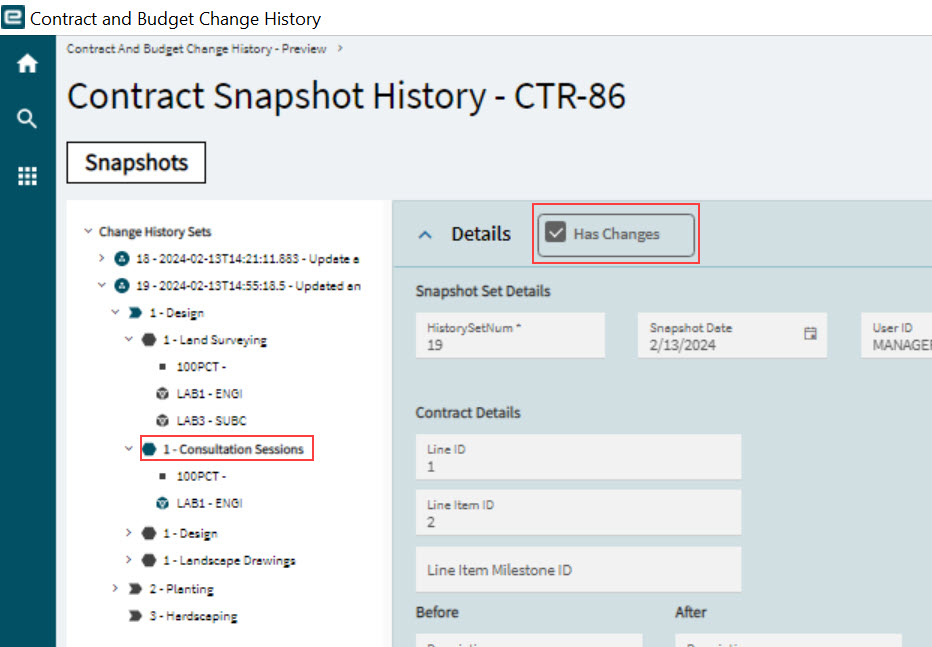
The following values are displayed:
- Snapshot Set Details
-
The details for the currently selected snapshot set appear here:
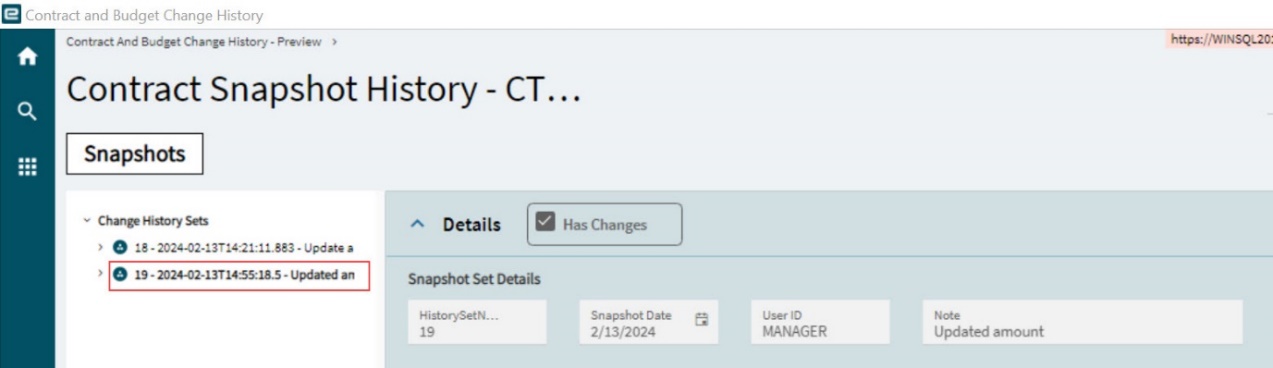
- HistorySetNum
-
Sequential numbers for the contract are stored with each snapshot. HistorySetNum shows the set number for the currently selected snapshot set.
- SnapshotDate
-
The date the snapshot set was created.
- UserID
-
The user who created the snapshot, or the user who created the event that triggered the snapshot.
- Note
-
The note that was captured when the snapshot was created. If the snapshot is automatically generated, then the note relates to the event that triggered it.
- Contract Details
-
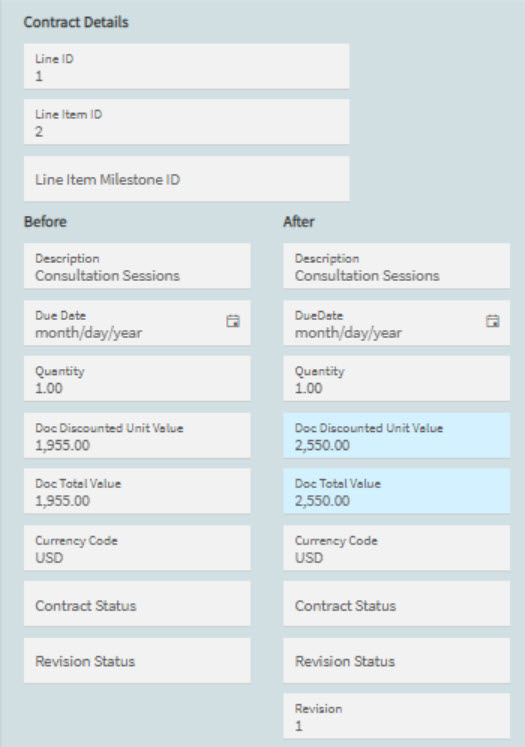
The values that appear here relate to your selection on the Navigation Tree: Contract Header, Line, Line Item, or Milestone.
- Line ID
-
The Line ID (applicable if Line, Line Item, or Milestone are selected in the navigation tree).
- Line Item ID
-
The Line Item ID (applicable if Line Item or Milestone are selected in the navigation tree).
- Line Item Milestone ID
-
The Milestone ID (applicable if a Milestone is selected on the Navigation Tree).
The following fields have Before and After columns:
- Description
-
The description of the contract/line/line item/milestone.
- Due Date
-
The due date of the contract/line/line item/milestone.
- Quantity
-
Applicable to the line item, if selected.
- Doc Discounted Unit Value
-
The Discounted Unit Value of the line item.
- Doc Total Value
-
The Gross Value of the Contract / Value for the Line / Discounted Value for the Line Item. The Doc Total Value does not apply to Milestones.
- Currency Code
-
The Currency Code of the Contract for the Line Item / Currency Code of the Milestone.
- Contract Status
-
The Contract Status, which appears when the contract is selected in the navigation tree.
- Revision Status
-
The contract’s revision status.
- Revision
-
The contract revision number.
- Project Details
-
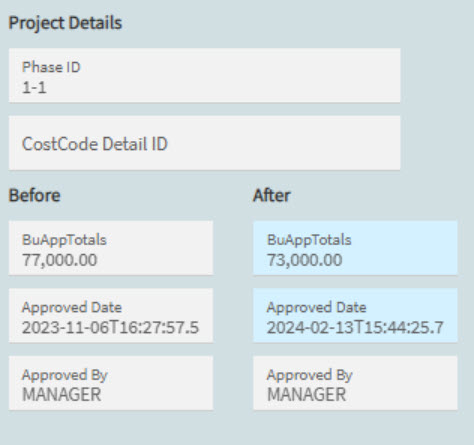
The values that appear here correspond to your selection on the Navigation Tree: Contract Header, Line, Line Item, or Cost Code.
- Phase ID
-
The Phase ID of the WBS Phase corresponding to the selected line item or a Cost Type – Cost Code belonging to the WBS Phase.
- CostCode Detail ID
-
The Cost Code Detail ID appears when you select a Cost Type - Cost Code on the Navigation Tree.
The following fields have Before and After columns:
- BuAppTotals
-
The Approved Budget Total for the WBS Phase corresponding to the selected line item or for a selected Cost Type – Cost Code that belongs to the corresponding WBS Phase.
- Approved Date
-
The Approved Date for the WBS Phase corresponding to the selected line item or for a selected Cost Type – Cost Code that belongs to the corresponding WBS Phase.
- Approved By
-
The Approved By (User ID) for the WBS Phase corresponding to the selected line item or for a selected Cost Type – Cost Code that belongs to the corresponding WBS Phase.
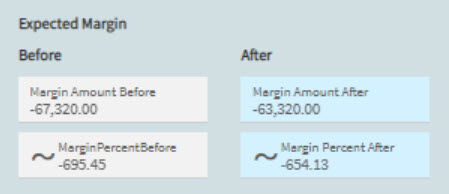
- Expected Margin
-
These fields are calculated using the contract’s Discounted Value compared with the Project’s Approved Budget, to show an expected profit margin. The fields for Before and After show the Margin Amount and the Margin Percent.