Generate Claims
- Path
-
Advanced Project Management > Contract Management > General Operations > Generating Claims
Use this application to generate multiple claims at once.
Select Contracts for Contract Claims
Start by selecting one or more Billing Types.
Next, select the contracts for which you want to generate claims. There is no validation around duplicate claims – a claim will not be generated if one already exists for that contract number/contract configuration/contract line item combination (or contract number/contract configuration/contract line item/transaction-details combination for rates billing). Contracts with more than one claim configuration will have a separate claim generated for each claim configuration.
Select Filters against the Contracts
After selecting which contracts to generate claims for, you can filter out by any of the following aspects of the chosen contracts:
-
Contract Type
-
Territory
-
Contract Manager
-
Customer
For any of the above filters, leave the selection blank if you choose not to use the filter, otherwise select one or more to include only those. For example, select customer “Dalton” to only include from the selected contracts where the customer is “Dalton”. Leave the customer selection blank to include all contracts regardless of the customer.
Optionally Select a Claim Date
If you select a Claim Date from the date picker, then this is the Claim Date used for each of the generated claims. Otherwise, the current date is used as the Claim Date in the Contract Claim.
To Set a Schedule
To generate the claims now, keep the default in the Advanced section. To set a schedule, refer to the instructions in Scheduling Process Set.
Generating Claims for Specific Contracts
To generate contract claims for specific contracts, select one or more Billing Types, select just
those contracts in the Search panel results, then select Process  on the standard menu.
You can filter out some of these contracts by choosing secondary filters such as Customer or Contract Type.
Generating Claims for All Contracts
To generate contract claims for all contracts, select one or more Billing Types, select all contracts
by selecting the header check box in the Search panel results, then select Process on the standard menu.
You can filter out some of these contracts by choosing secondary filters such as Customer or Contract Type.
Processing Generated Claims
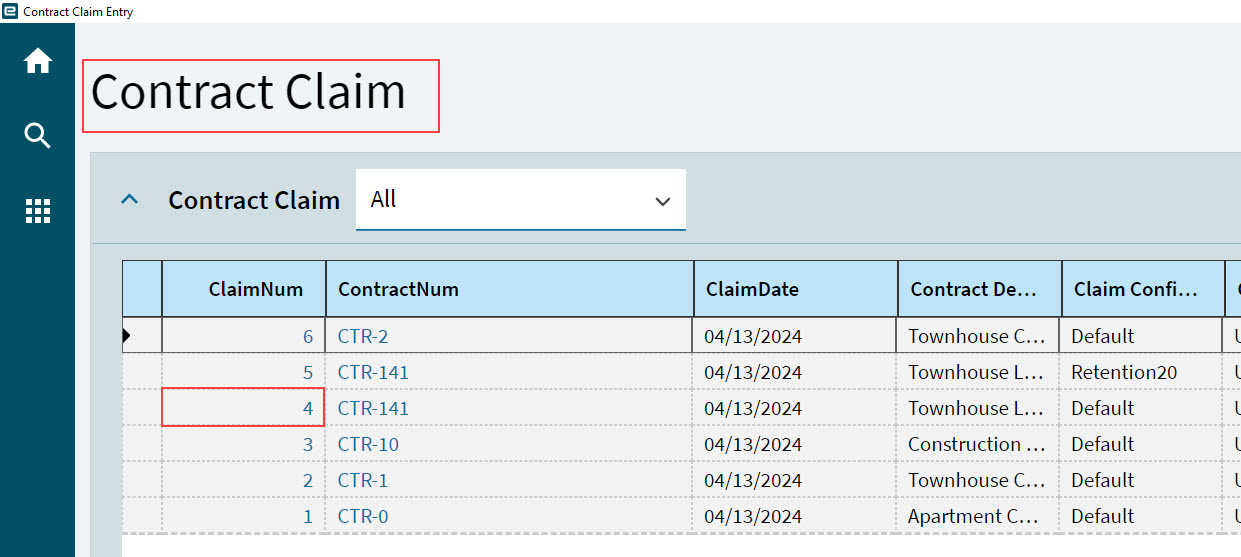
After the claims are generated, you can access and process them in the usual way. Search for and open a claim in Contract Claim Entry, then process. See Processing Contract Claims and Retentions.