Quotes and Projects Budgets Exercise
This exercise demonstrates how to use a Contract to create a Quote together with a related Project, edit the Quote with manufacturing details and Analysis Codes, and then bring the Quote details into the project phases as Cost Codes with Budgets, and into the project phase jobs as Materials and Operations.
Create a New Contract
-
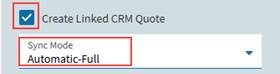
Create a Contract (see Adding a New Contract). Ensure that Create Linked CRM Quote is selected, and Sync Mode is Automatic-Full.
-
Add some contract lines.
-
Add line items with the Progress Billing Type.
Note that the Contract line items do not require values in this exercise.
Create Project from Contract
-
Create a Project from the contract. (See Creating a Project from Contract).
The new Project is created from the contract and appears on the Related page, on the Linked Projects card (see Project Created from Contract).
The Opportunity/Quote screen opens, displaying the new Quote. The Quote has a line for each line item in the Contract.
-
Open the Project in APM Project Entry.
Add Cost Codes and Jobs to the Project
In the Project Entry application:
-
Create and release the project job (see Create Project Job).
-
Create WBS Phase Jobs for each phase (see Create WBS Phase Job).
-
Optionally, add Cost Codes that are linked with the Analysis codes that will be selected in the Quote details in a later step. See Adding Cost Codes to WBS Phases.
Note that if you don’t add the Cost Codes, these will be added when you import the budget from the quote, in a later step.
Update the Quote Details
To open the Quote from APM Project Entry:
-
In APM Project Entry, search for and open the Project, or refresh the Project if it is already loaded.
-
Open the Activity page, then select Quotes on the Navigation Tree.
The Quote lines appear in the grid.
-
Right-click on the Quote and select APM Quote Entry. Alternatively, navigate to Advanced Project Management > General Operations > APM Quote Entry and open the quote.
Update the Quote Details in Opportunity / Quotes
-
Select Lines on the Navigation Tree.
-
Select the first quote Line from the grid on the Lines card on the Details page.
-
Select Lines / Detail on the Navigation Tree.
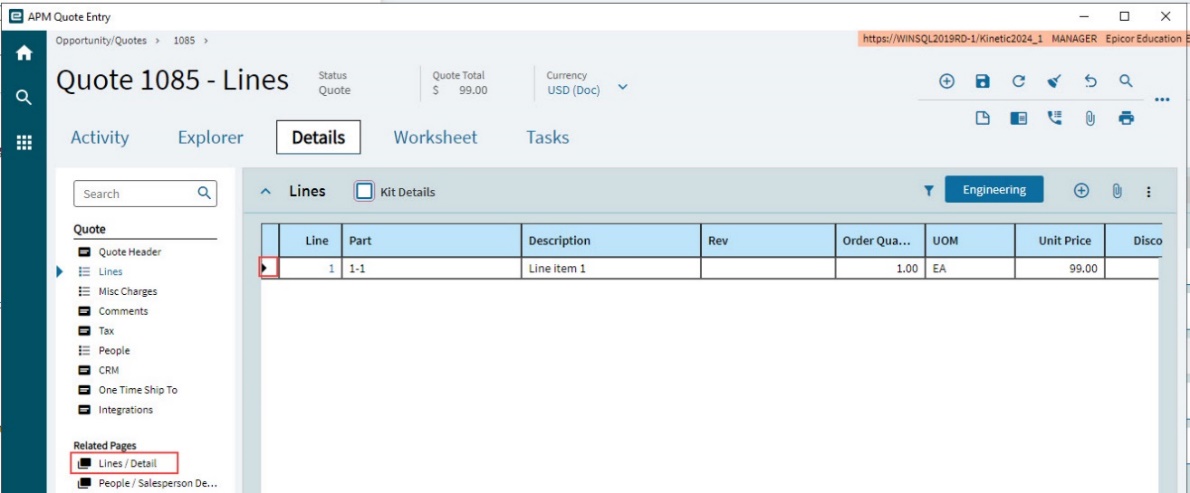
This opens the Line Detail card.
-
Click the Engineering button on the Standard toolbar.
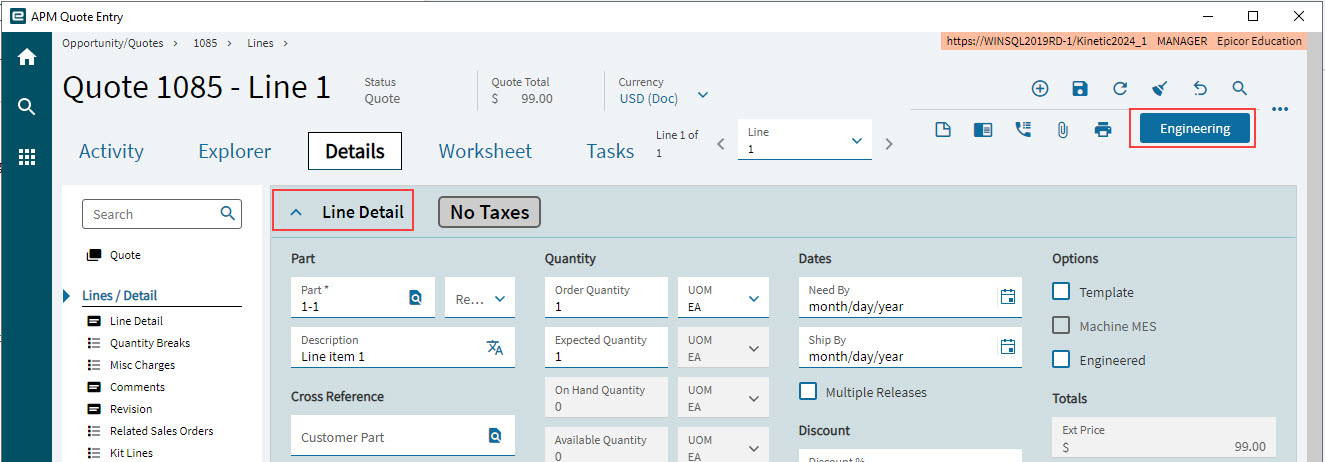
This opens the Quote Engineering Entry for the quote line.
-
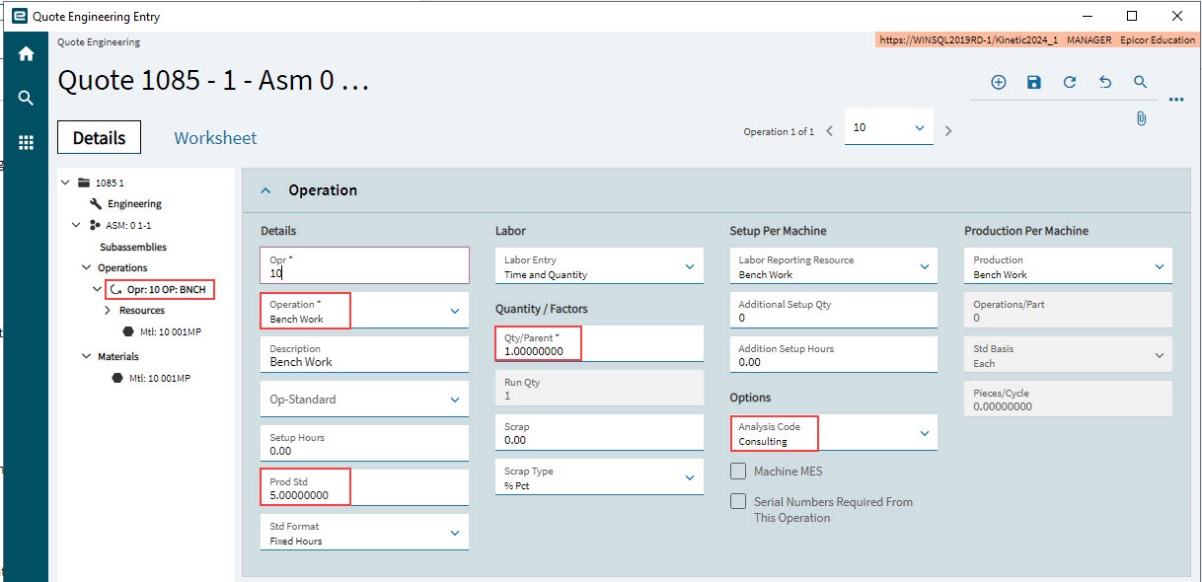
Update the manufacturing details for the quote line:
-
Add one or more Operations.
-
For each Operation:
-
Select an Operation (e.g. Bench Work).
-
Select a Prod Std (e.g. 5.00).
-
Select the Std Format (e.g. Fixed Hours).
-
Select an Analysis Code that is linked to a Cost Code for the corresponding Project Phase (or if no Cost Codes have been added to the project phases yet, select an Analysis Code that is linked to a suitable Cost Code). For example, Engineering.
-
-
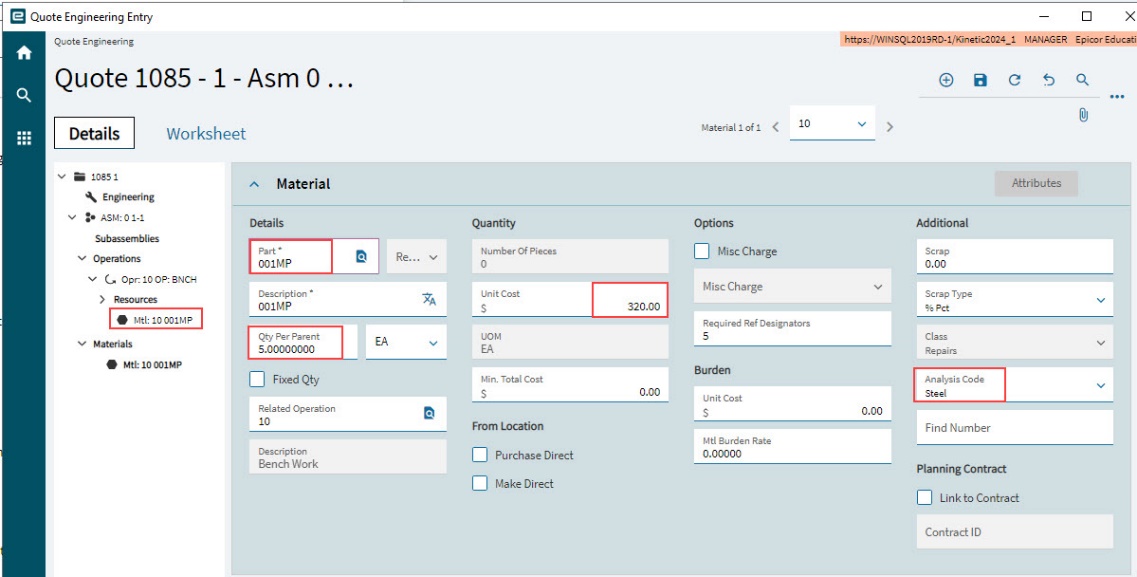
Add one or more Materials.
-
For each Material:
-
Select a Part (e.g. 001MP).
-
Select a Qty Per Parent (e.g. 5.00).
-
Select a Unit Cost (e.g. 320.00).
-
Select an Analysis Code that is linked to a Cost Code for the corresponding Project Phase (or if no Cost Codes have been added to the project phases yet, select an Analysis Code that is linked to a suitable Cost Code). For example, Steel.
-
-
-
Close Quote Engineering Entry.
-
Refresh Opportunity/Quotes.
-
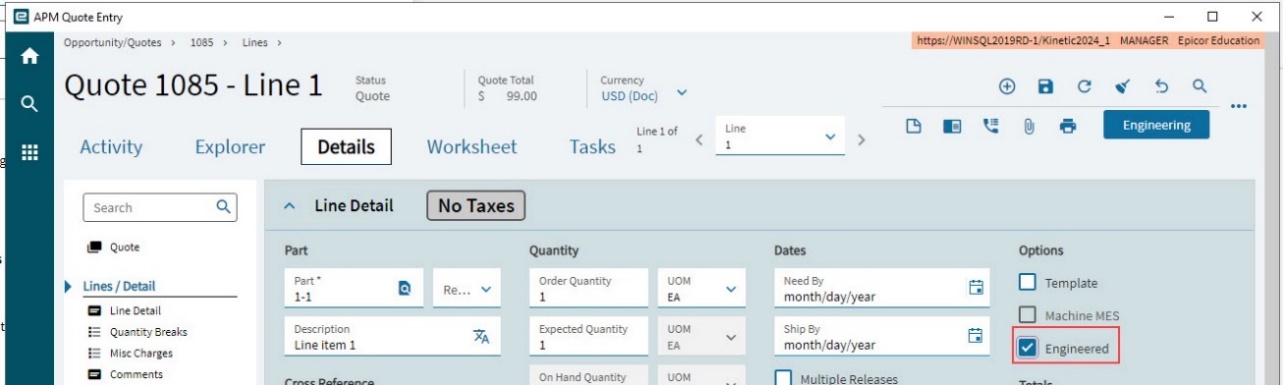
Select Engineered on the Quote Line.
-
Complete the Engineering for the remaining quote lines.
-
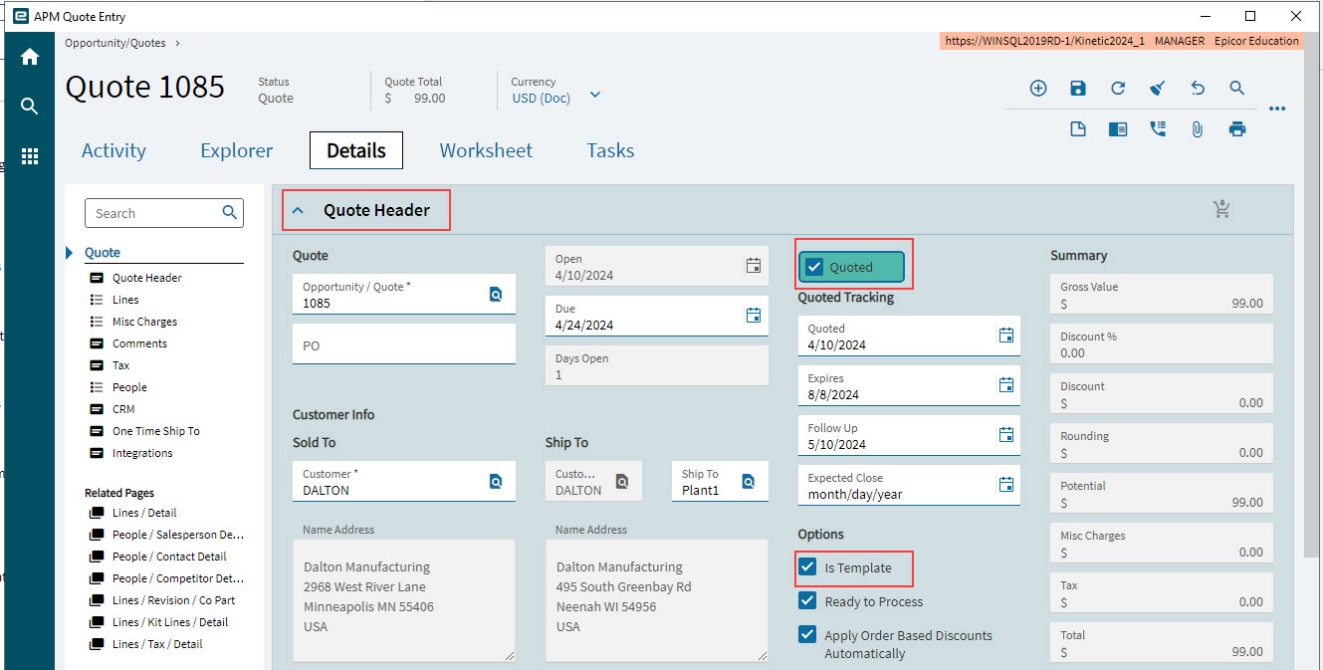
After updating all the quote lines, select Quote on the Navigation Tree.
-
Select Is Template so that you can use the quote details in jobs.
-
Save the quote.
Add Quote Details to Project
In this step, import the cost codes and budgets, and then run Recalculate Analysis to update the budget details in the Quote and Job Cost Detail section on the Cost Code Details (see Cost Codes).
Import the Cost Codes and Budgets
-
Open APM Project.
-
Import Cost Codes and Budgets from the Quote. See Importing Budgets from Quote. Note that the budget is updated for the respective Cost Codes if you have already added the Cost Codes to the different WBS Phases.
Update the Quote and Job Cost Details
-
To update the Quote and Job Cost Details, run Recalculate Analysis (see Running Recalculate Analysis).
Job Entry
Now bring the quote details into the WBS Phase jobs.
For each WBS Phase in the Project:
-
Select the WBS Phase on the Navigation Tree.
-
Right-click on the WBS Job Number and select APM Job Entry.
The Job Entry application opens, with the WBS Phase Job open.
-
Select
 Get Details from the standard menu.
 -
On the Get Details panel:
-
Select Quote in the From drop-down list.
-
Search for or type in the Quote number.
-
Select the Quote line from the Quote Assemblies. Note that only quote lines that are flagged as Template appear in the list.
-
Select Ok.
-
Keep the defaults on the Schedule Job panel and select OK.
The Quote operations and materials are brought into the Job. The Job’s Engineered and Released check boxes are selected automatically.
-