APM Project Journal Entry
Use Advanced Project Journal Entry to enter GL journals charged directly to Advanced Project Project/Phase and/or Cost Code or to transfer costs between projects, phases and or cost codes or GL accounts. Note that a journal entry does not auto reverse.
Some examples are:
| APM Project Journal Entry | In APM Project (after running Recalculate Analysis): |
|---|---|
Transfer costs between Projects |
|
Transfer costs between Phases within a Project |
|
Transfer costs between Cost Codes within a Project > WBS Phase |
|
| All other features and functionality remain the same as the Journal Entry in other menu paths in Kinetic. Read more about Setting Up GL Journals in the Standard Kinetic online help, and GL Journal Entry in the application help. |
Accrued Flag and Classification
The Accrued flag and the Classification work together to define how the General Journal transaction is classified in the APM Project Ledger when Project Analysis is run.
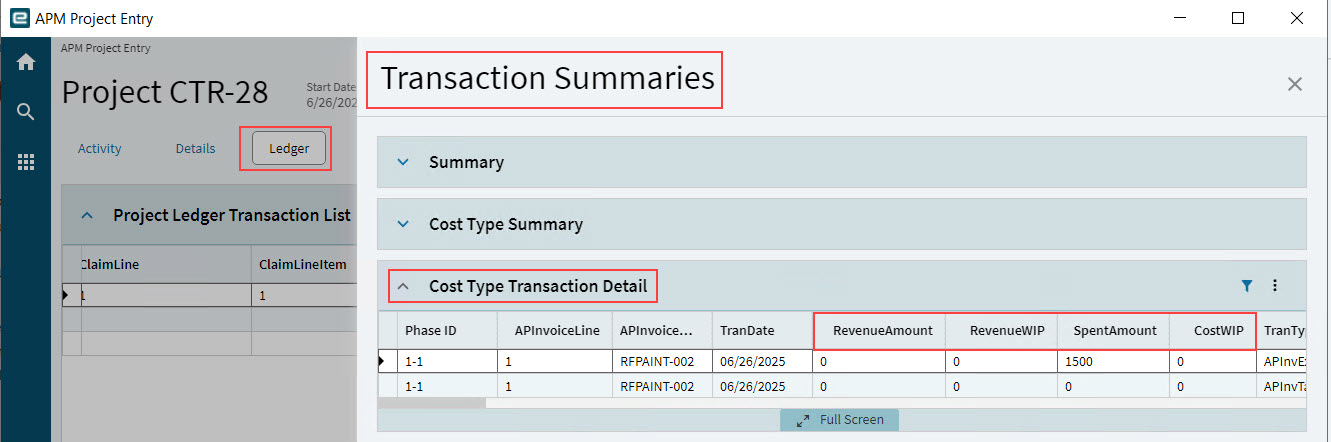
The transaction amount (debit or credit) populates different columns in the project’s Ledger page, as follows:
| Accrued flag | Classification | Ledger column populated with the Transaction amount: |
|---|---|---|
True |
Revenue |
Revenue |
False |
Revenue |
RevenueWIP |
True |
Cost |
SpentAmount |
False |
Cost |
CostWIP |
The General Journal transactions appear in the Cost Type Transaction Detail card (see Cost Type Transaction Detail), for the Cost Code used in the Journal entry.
Capturing an APM Project Journal
The example below demonstrates how to transfer costs between Projects, using APM Project Journal. There are two journal lines (a debit of 120.00 against G/L Account 8050|00|50, for Project CTR-1 and a credit of 120.00 against G/L Account Code 8050|00|50 for Project CTR-10) for a journal entry 'Meals on Consulting Trip'.
The steps are:
Step 1. Capture a Journal Group
-
Navigate to Advanced Project Management > Project Accounting > General Operations > APM Project Journal Entry.
-
Select New Group
 on the Standard toolbar.
-
Enter a value into the Group field.
-
Accept all defaults.
-
-
Select Save
 on the Standard toolbar.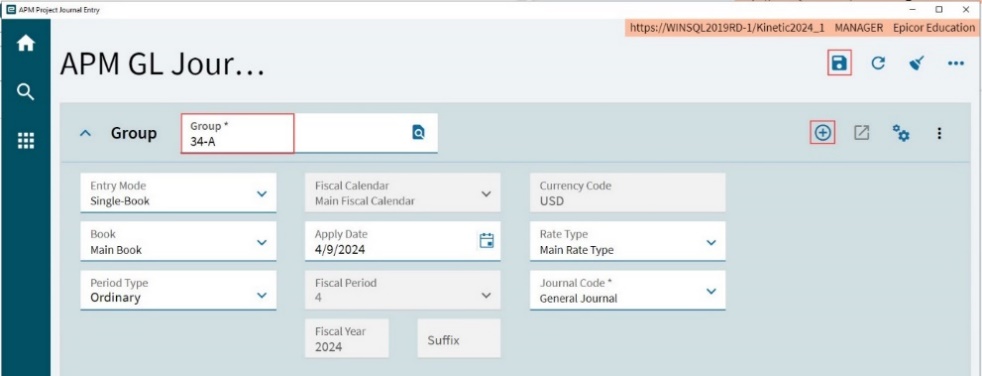
Step 2. Capture a Journal
The example below demonstrates how to transfer a cost between two different projects, using journal entries.
-
Select New Journal
on the Journal Entries in Process toolbar.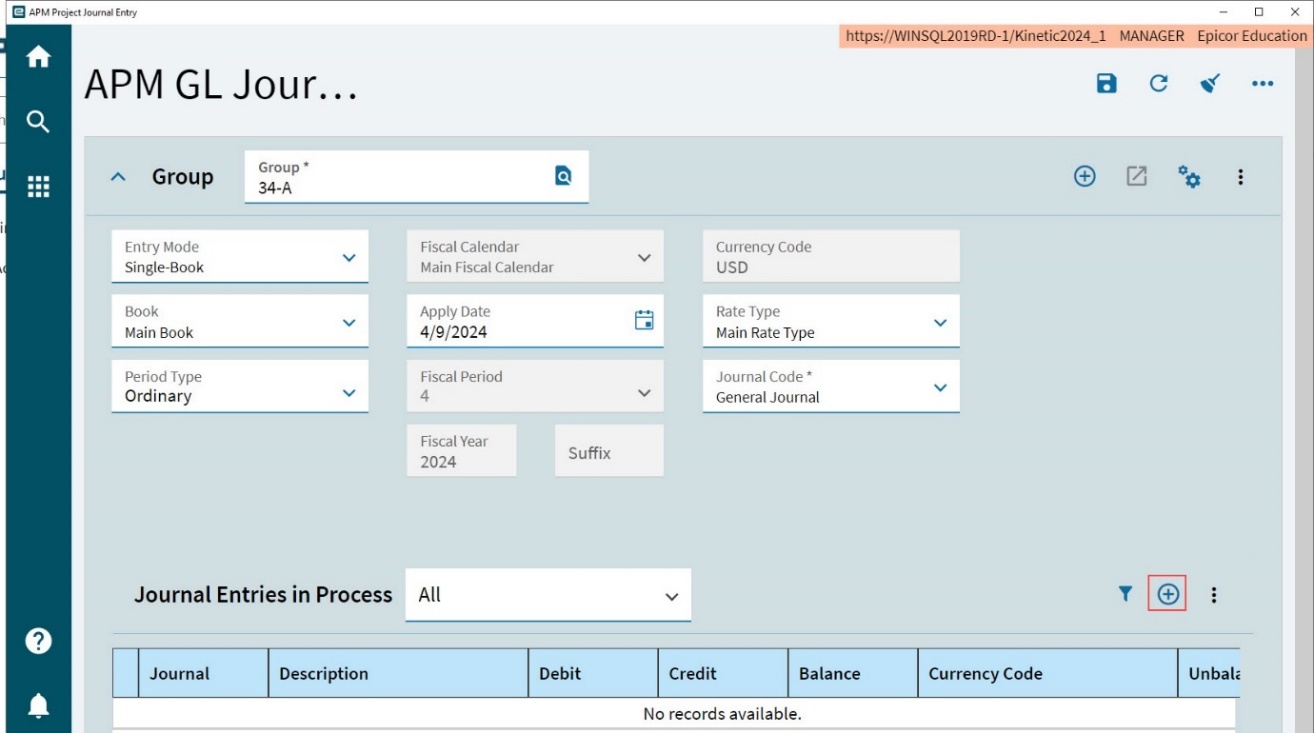
A new journal opens for the group.
-
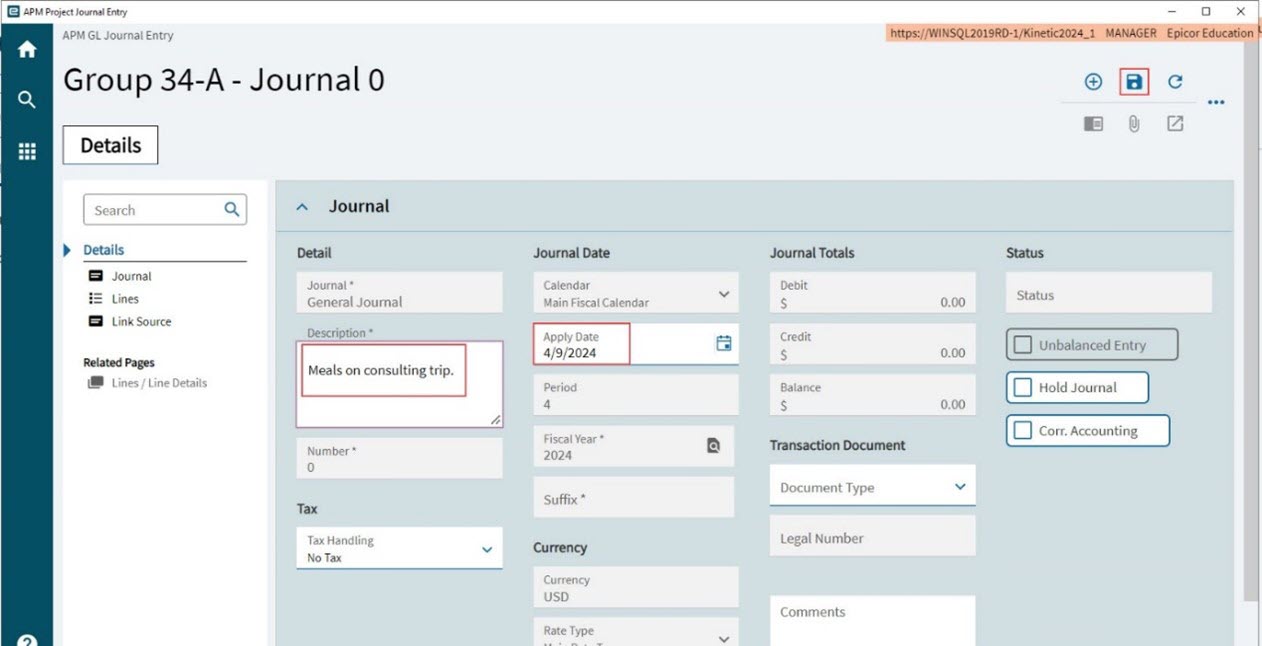
Capture the journal details.
-
In the Description field, type in a description for the journal, for example 'Meals on Consulting Trip'.
-
Select the Apply Date.
The Apply Date must fall within the Fiscal Year and Fiscal Period of the current date. -
Keep all other defaults.
-
-
Select Save
on the Standard toolbar.The new journal is saved.
Step 3. Capture a Journal Line for Debit
Create a Debit journal line for the cost.
-
Select Lines on the Navigation Tree.
The Lines card appears.
-
Select New Journal Line
on the Lines menu bar.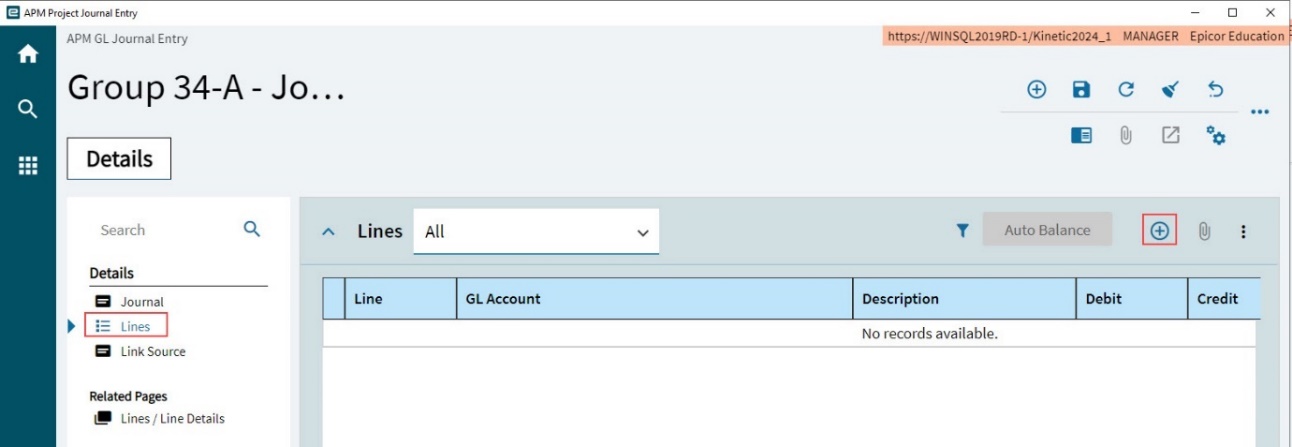
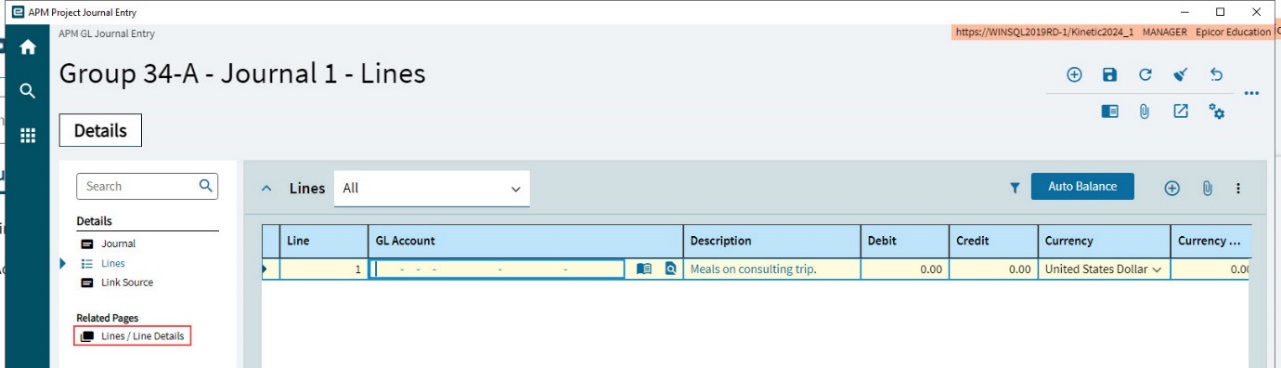
A new line is added.
-
Select Lines / Line Details under the Related Pages node on the Navigation Tree.
This displays the General card for the new line.
-
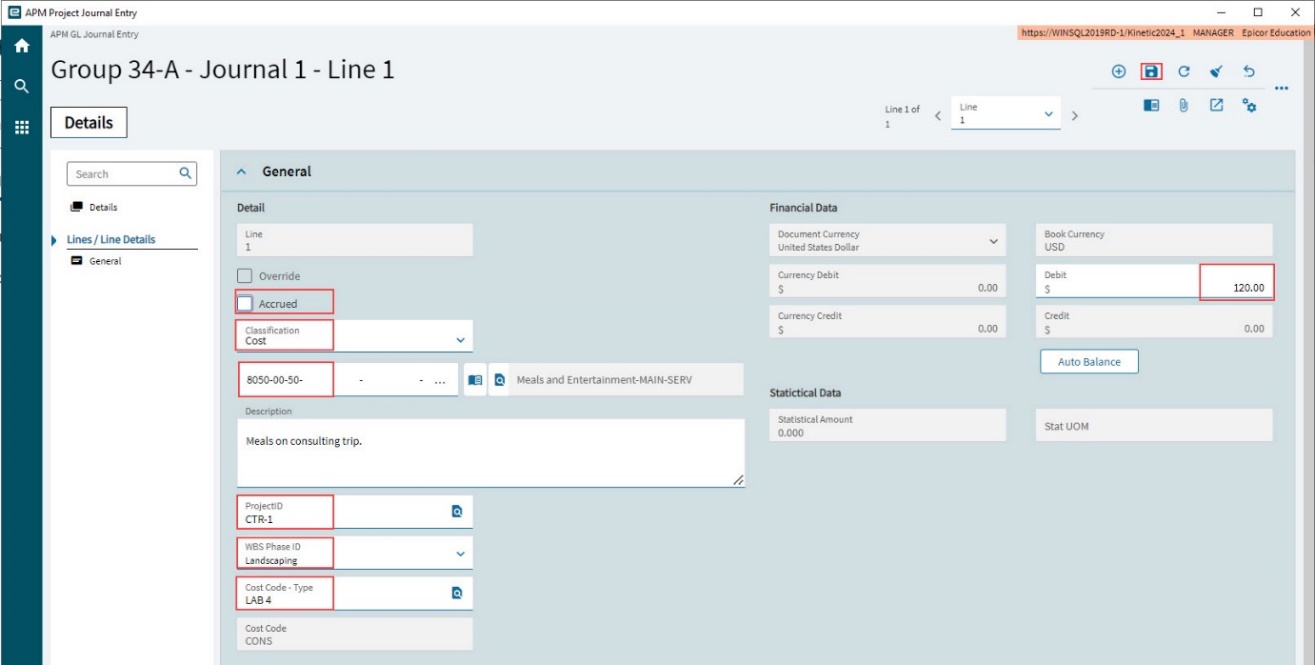
Update the details for the Debit journal line.
-
Clear the Accrued check box. Accrued is used by the system for posting project journal accruals.
-
Select Cost from the Classification drop-down list. The Cost is for journal entries relating to transfer or reallocation of costs. Cost classification is required for the correct classification in the Project Ledger.
Accrued and Classification work together to determine if the transaction is an accrual (deferral) transaction for APM Project Ledger classification purposed when Project Analysis is run. See Accrued Flag and Classification. -
In the G/L Account field, type in or select a G/L Account Code appropriate for the journal transaction. In this example, G/L Account number 8050-00-50 is used, which is the Meals and Entertainment cost code, for the Main branch, in the Services division.
-
Enter the Project ID. In this example: CTR-1.
-
In the WBS Phase ID drop-down list, choose a WBS Phase ID from the project.
-
In the Cost Code drop-down list, choose a Cost Code from the Project > WBS Phase.
Type displays the Cost Code Type for the selected Cost Code.
-
Enter a value (120.00) in the Debit field.
-
Select Save
on the Standard toolbar to save the journal line.
-
Step 4. Capture a Journal Line for Credit
-
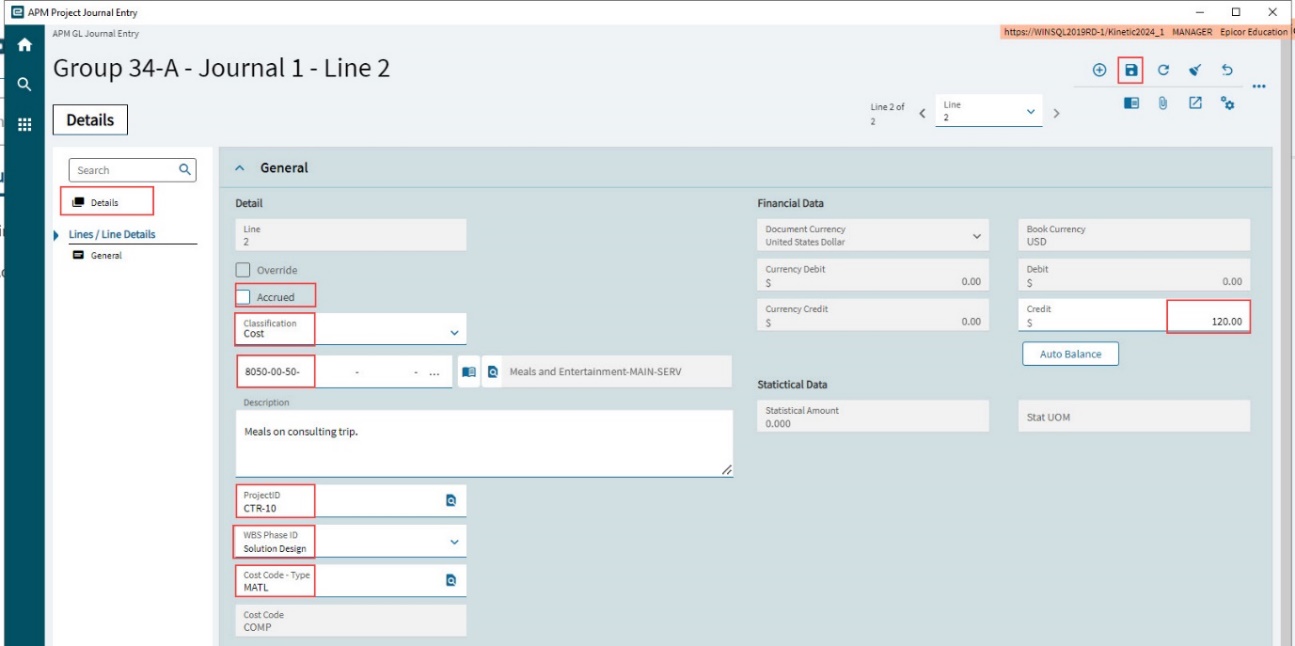
Now create a new journal line, using the same G/L Account, but for a different Project, in this example: CTR-10. Clear the Accrued check box. Select the same G/L Account Code. Select a WBS Phase and Cost Code belonging to the Project. Enter a Credit amount (120.00).
-
Save.
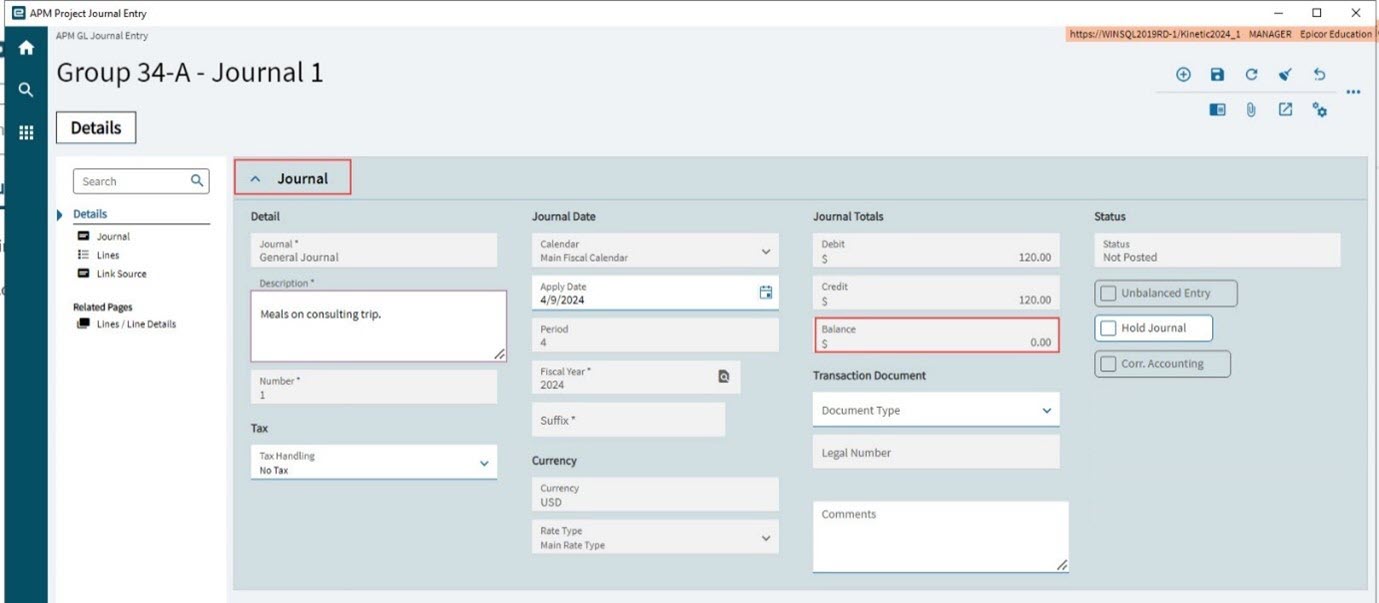
Posting an APM Project Journal
To post a journal entry:
-
Select Post Asynchronous from the
 Overflow menu.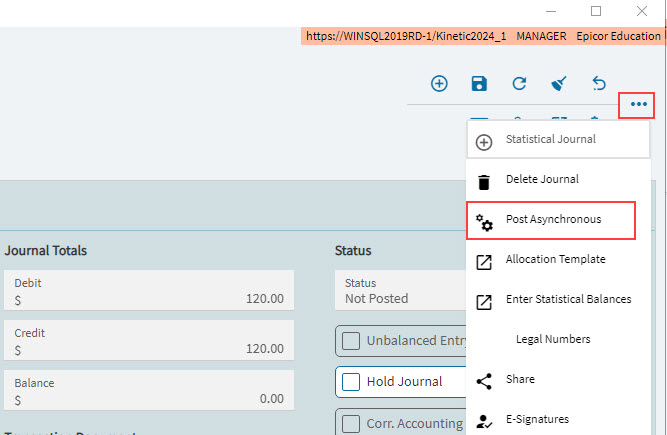
-
Select Process
 image on the Journal Entry Post Process slide-out panel.
The transaction is posted to the General Ledger.
Viewing the Posted Journals on the Project
Captured and posted journals can be viewed on several of the project pages.
-
Run Recalculate Analysis for the project to bring the journal transactions in.
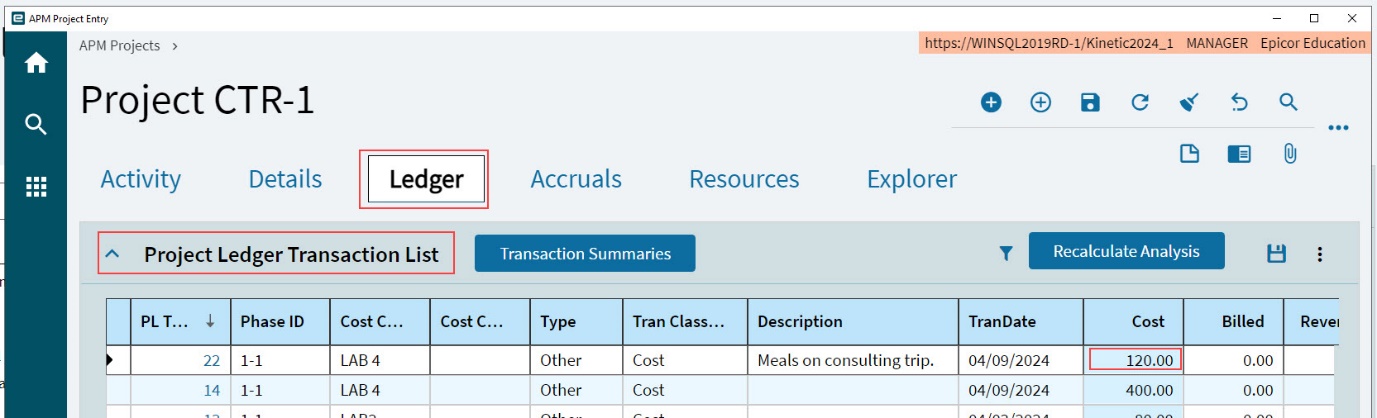
The Transaction Summaries show the transaction in Cost Type Summary, Cost Type Transaction Detail.
For the credit journal transaction (project CTR-10) this is a negative value (-120.00).
For the debit journal transaction (project CTR-1) this is a positive value (120.00).
The budget for the affected Cost Code is also affected.
The transaction amount (120.00) is included in the Costed amount, and Remaining is reduced by that amount.
The project that the amount was transferred to has a change to its General Ledger also, and the affected Cost Code Detail Costed goes down, while the Remaining goes up.