APM Purchase Order Entry
Use APM Purchase Order Entry to enter Purchase Orders.
On the Line Detail card for a purchase order, you can select the enter the Job, Assembly, and Material matching a Project > Phase > Cost Code. (The Material has an Analysis Code matched to the Cost Code.)
|
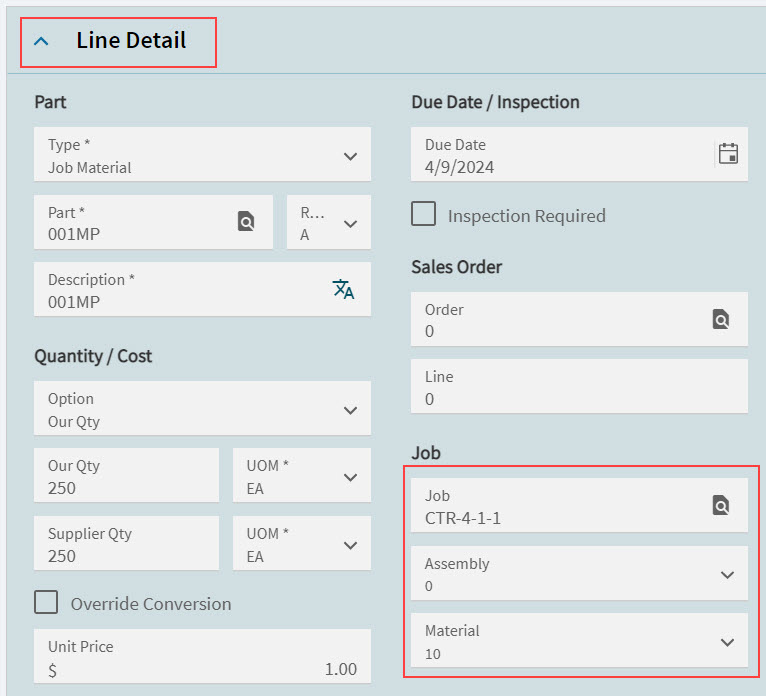
Once the APM Purchase Order is Approved and Confirmed, the Purchase Order Total is included in the Committed (Total) for the Project > Phase > Cost Code Budget, and the PO appears on the Activity page on the POs card.
| All other features and functionality remain the same as the Purchase Order Entry in other menu paths in Kinetic. Read more about Purchase Order Entry in the Standard Kinetic help. |
Capturing an APM Purchase Order
This scenario describes how to capture an APM Purchase Order for a project, using Job Material. Ensure you have a Project, WBS Phase, and Job Number (for the WBS Phase) ready. The Job must be released.
The Job must have a Material with an Analysis Code that is linked to a Cost Code used by the Project > Phase if you want to purchase against that Project > Phase > Cost Code.
The steps in this example are:
Step 1. Capture a Purchase Order
-
Navigate to Advanced Project Management > Project Accounting > General Operations > APM Purchase Order Entry.
-
Select New PO
 on the Standard toolbar.
This opens the Details page for a new Purchase Order with the PO Header card expanded.
-
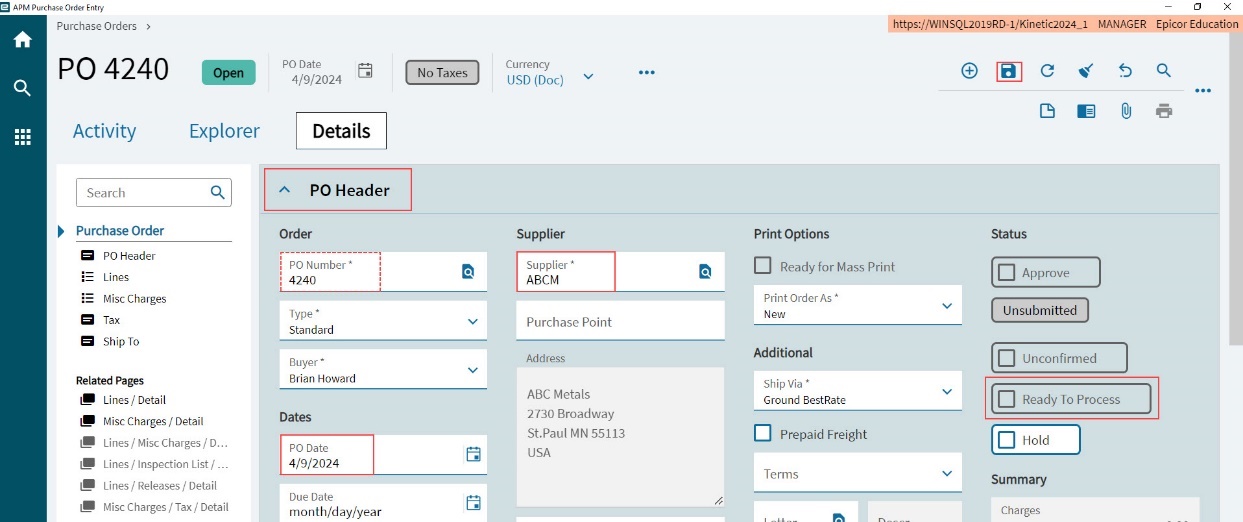
Capture the PO details.
-
Select a Supplier.
-
Ensure the Ready to Process check box is cleared.
-
Update the PO Date if necessary.
-
-
Select Save
 on the Standard toolbar.
The Purchase Order is saved, in the Open status, and a PO Number is allocated. Note down the PO Number.
Step 2. Capture a Purchase Order Line
-
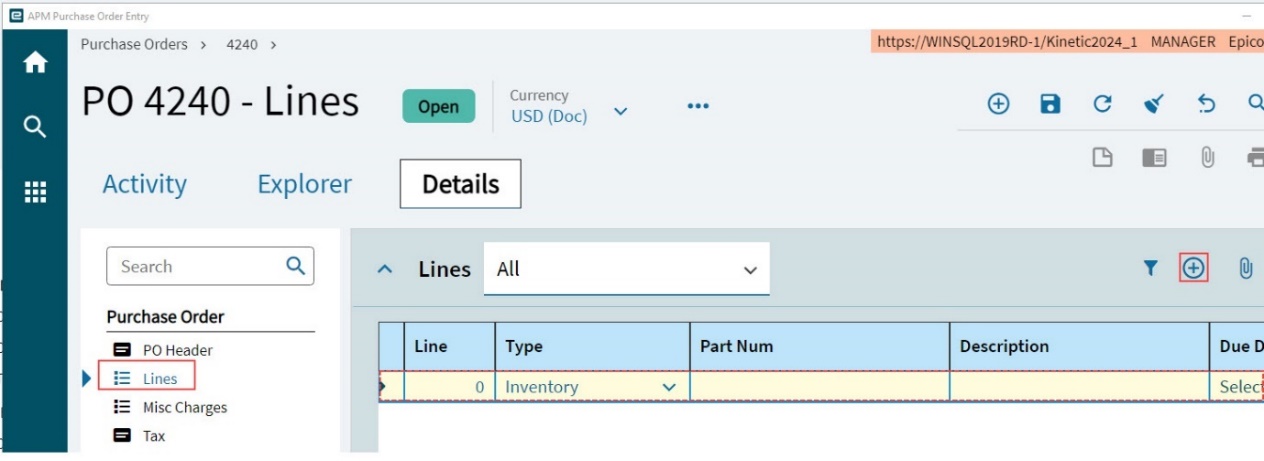
Select Lines on the Navigation Tree.
-
Select New lines
on the Lines menu bar.A new PO line is created.
-
Select the Line to edit it.
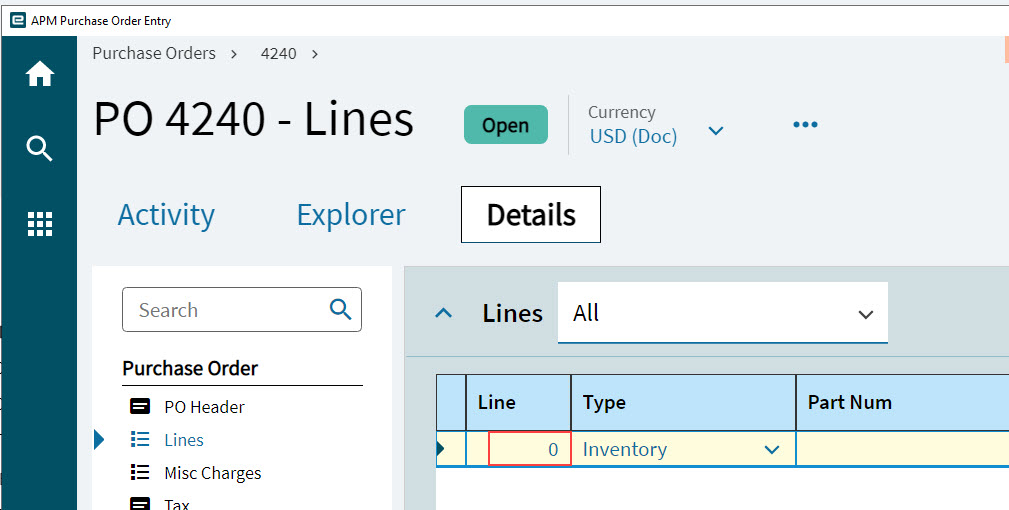
This opens the Line Detail card.
-
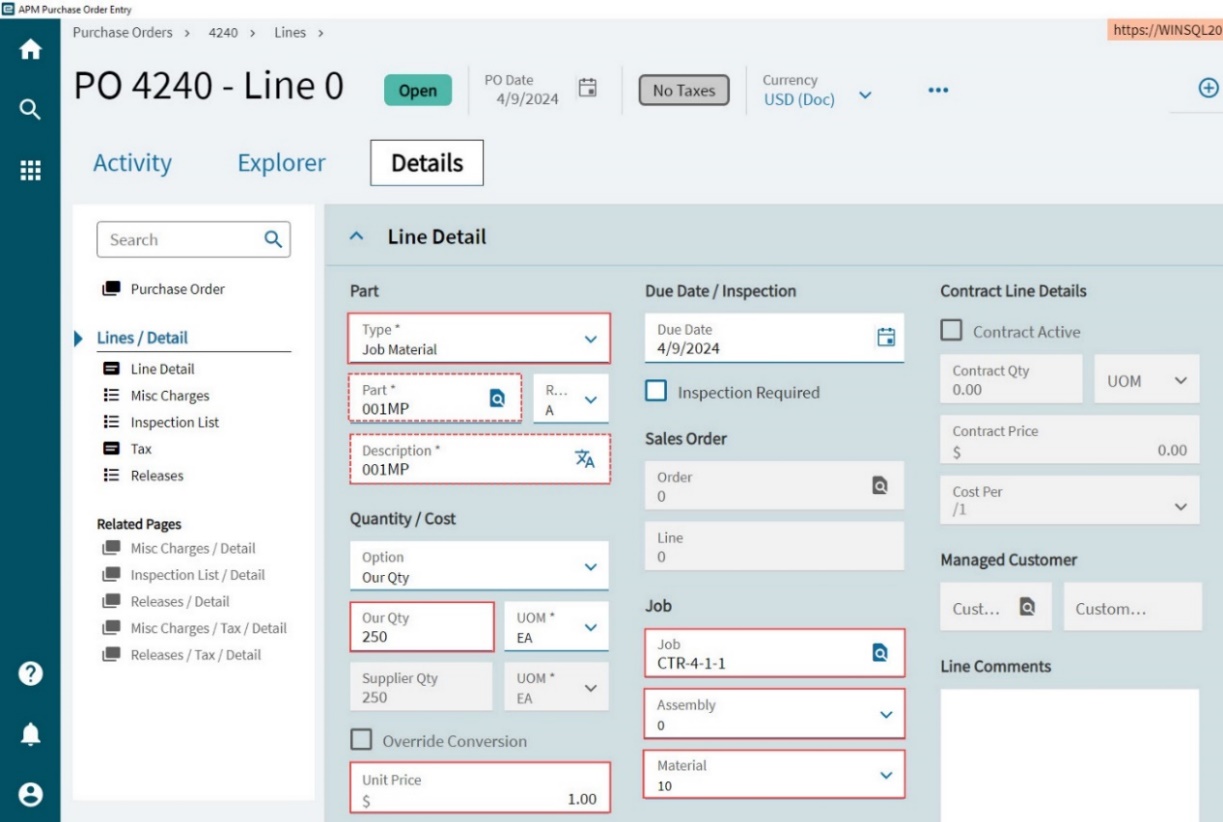
Enter the Line Detail fields.
-
Select Job Material from the Type drop-down list.
-
Enter or select the Job number.
-
Select the Assembly from the drop-down list.
-
Select the Material from the drop-down list.
The Part and Description fields are filled in from the Job selection.
-
Adjust the quantity ordered, in Our Qty, if ordering less than what is required for the job.
-
Update the Unit Price.
-
-
Select Save
on the Standard toolbar.
Step 3. Approve and Confirm the Purchase Order
In APM Purchase Order Entry:
-
Select the Purchase Order node at the top of the Navigation Tree.
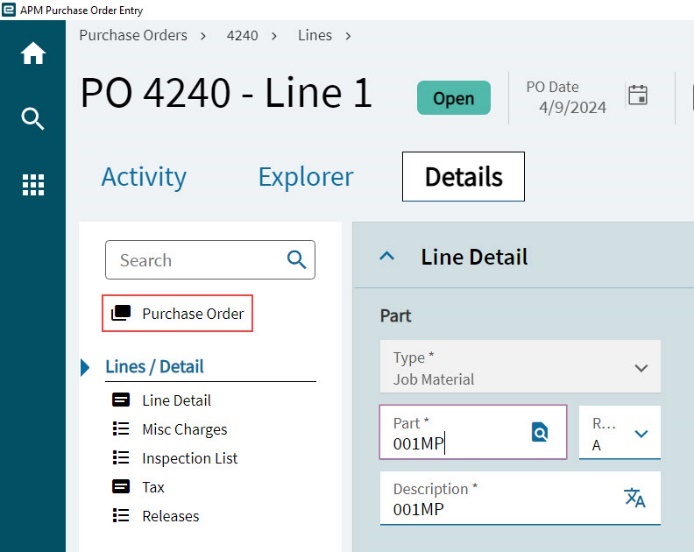
This opens the PO Header card.
-
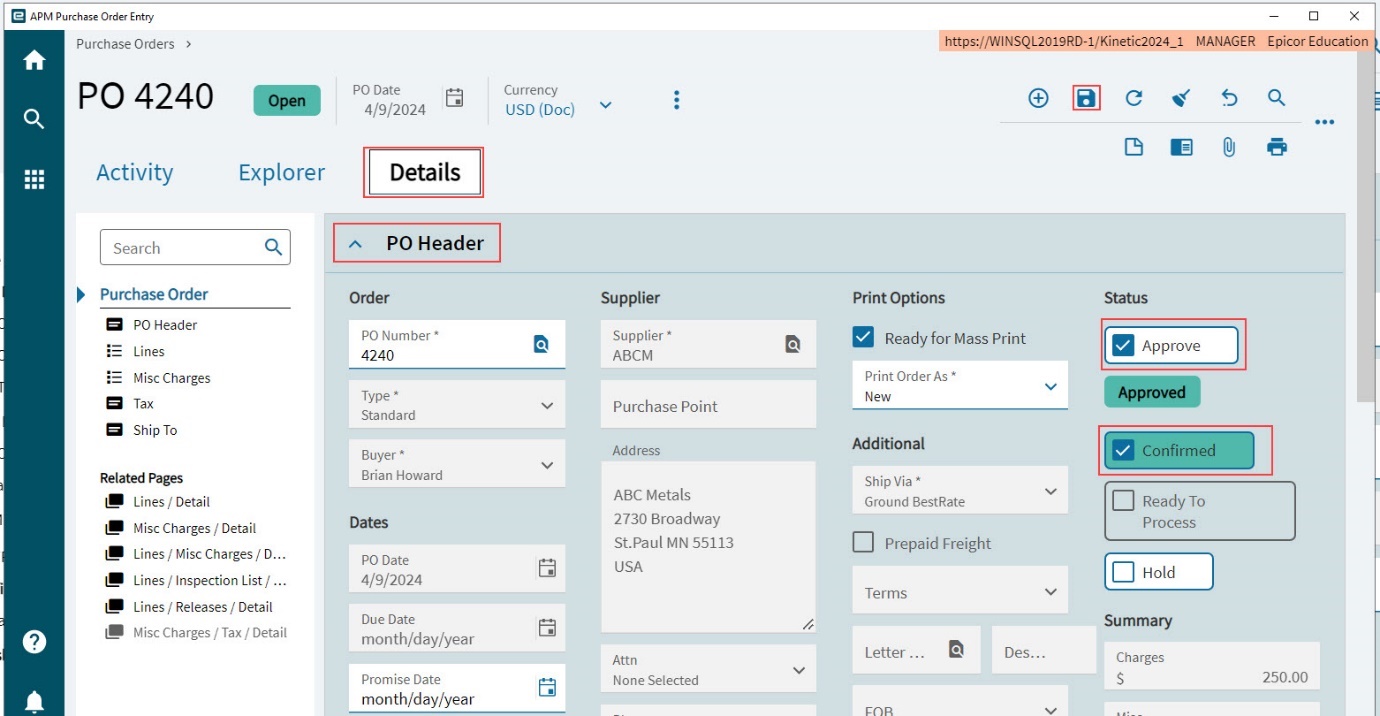
On the PO Header card:
-
Select the Unapproved check box to Approve.
-
Select the Unconfirmed check box to Confirm.
-
Select Save
on the Standard toolbar.The Purchase Order is Approved and Confirmed.
-
Step 4. View Purchase Order Effect on the Project
Open the project in APM Project Entry, run Recalculate Analysis and refresh the project to see the following changes:
-
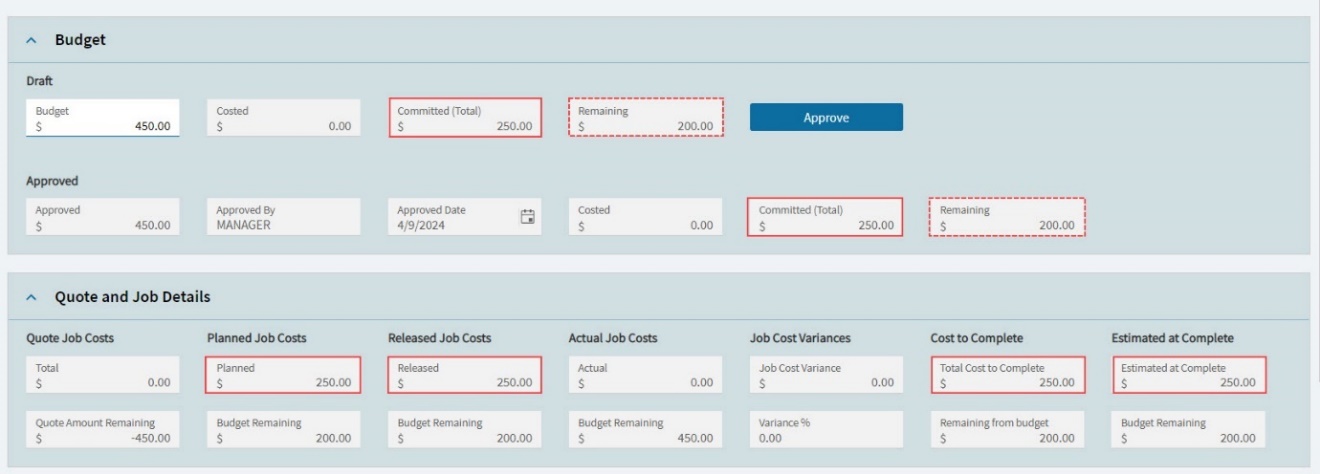
The Purchase Order Total is included in the Committed (Total) field on the Budget card for the Project > Phase > Cost Code (see Budget for a Cost Code). The Remaining for the Project > Phase > Cost Code is reduced by that amount.
-
The Purchase Order Total is included in the Planned Job Costs, Released Job Costs, Cost To Complete and Estimated at Complete on the Quote and Job Details card for the WBS Phase > Cost Code (see Quote and Job Details for a Cost Code).
-
On the Activity page, the Purchase Order appears on the POs card. The Purchase Order is still Open at this stage. See POs.