APM Program Entry
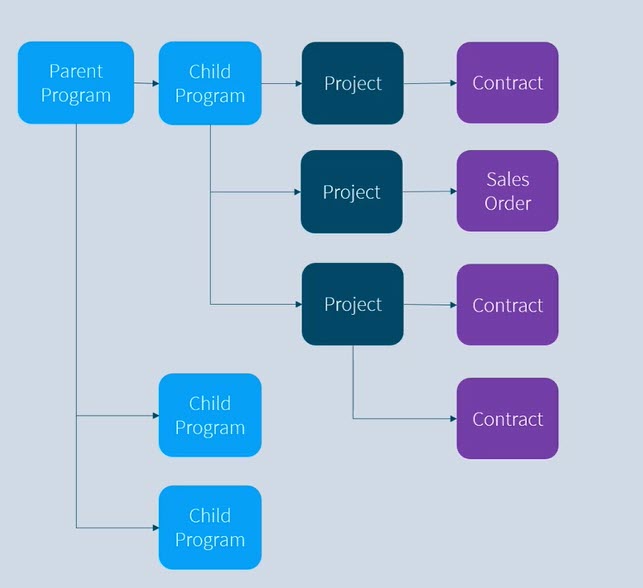
Use APM Program Entry to manage programs. A program is used to manage multiple projects, or a combination of other programs and projects.
See diagram of programs, child programs, projects, and contracts:
|
Adding New Programs
-
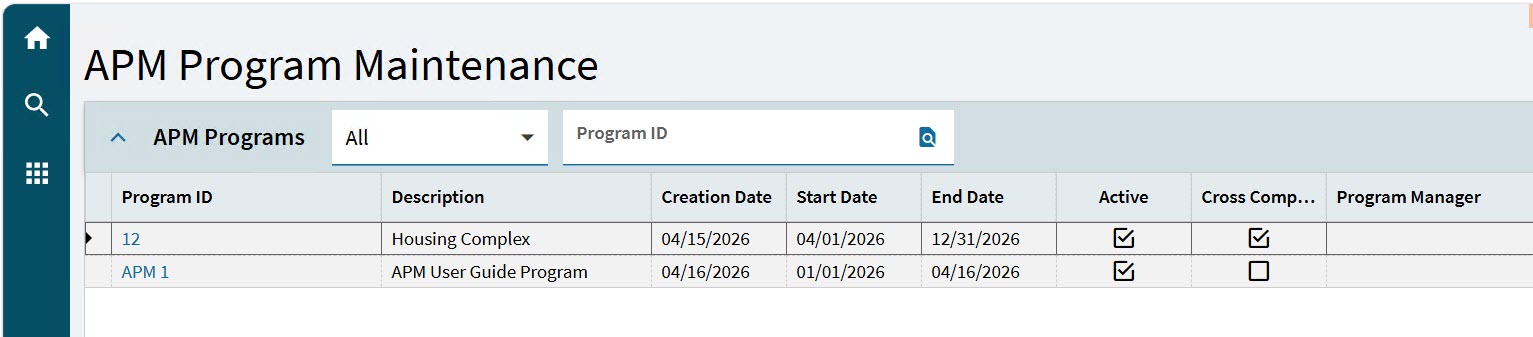
Open APM Program Entry (Advanced Project Management > Project Accounting > General Operations > APM Program Entry).
-
To add a new program, select New
 on the Standard toolbar.
A new program is added.
-
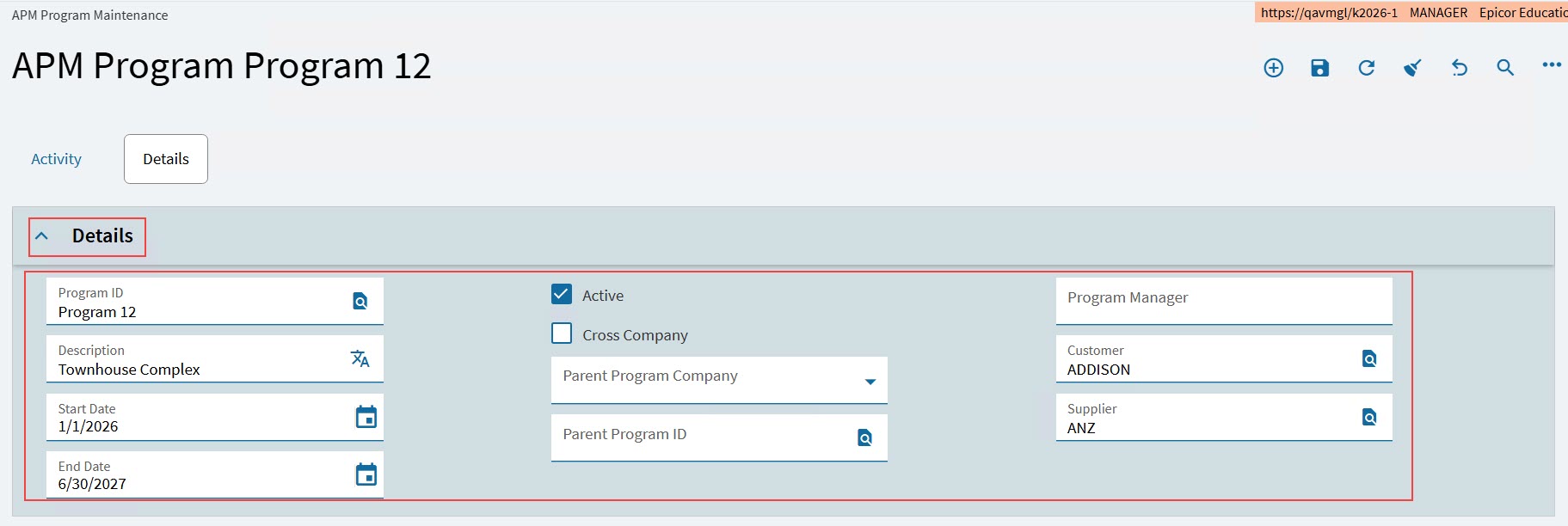
Capture the program header details in the Details card. See Updating Program Detail.
-
Select Save
 on the Standard toolbar.
 -
Update the program.
Updating Program Detail
Use the Detail card on the Program Details page to update/view general details of the program: Program ID, Description, Start Date and End Date.
Use the Detail card on the Project Details page to update/view general details of the project: Project ID, Revision, Description, Project Start Date and Project End Date.
-
Enter a Program ID.
-
Enter a Program Description.
-
Select a Start Date and End Date.
-
Salect the Active flag to activate the program.
-
If the program runs across more than one company, select Cross Company.
-
If the program is part of a larger program, select a Parent Program Company and a Parent Program ID.
-
Optionally add a Customer.
-
Optionally add a Supplier.
-
Select Save
on the Standard toolbar.
Allocating Child Programs to this Program
To allocate a program to this program, open that program and assign this program as the Parent Program ID. You can allocate multiple programs to this program. Child programs appear on the Activity page.
Allocating Projects to this Program
To allocate a project to this program, open that project and assign this program as the Program ID. See Updating Project Detail. You can allocate multiple projects to this program. Child projects appear on the Activity page.
Adding Budget
The program budget represents the overall budget for all programs and projects beneath this project.
To add or review a budget:
-
Open the Details page.
-
Select the program the Navigation Tree.
-
Expand the Budget card.
-
Enter a budget value in the Draft edit box.
-
To approve the budget, see Approving the Budget.

The remaining budget values are a summary of budget values from programs and projects that belong to this program.
-
To update with the latest values, run Updating Summary Values.
Approving the Budget
To approve a Program Budget:
-
Open the Detail page.
-
Select the program on the Navigation Tree.
-
Expand the Budget card.
-
Adjust the Draft Budget value if necessary.
-
Select Approve to approve the draft budget.
The values in the Approved section are updated.
Approved now holds the Draft Budget value. The Approved By and Approved Date are updated to the logged-in user name and the current date.
Quote and Job Details
The Quote and Job Details card at the program level displays a roll-up of quote and job values from the programs and projects belonging to this program.
-
Open the Detail page.
-
Select the program on the Navigation Tree.
-
Expand the Quote and Job Details card.

-
To update with the latest values, run Updating Summary Values.
Values that are updated:
-
Quote Job Costs
-
Total
-
Quote Amount Remaining
-
-
Planned Job Costs
-
Planned
-
Budget Remaining
-
-
Release Job Costs
-
Released
-
Budget Remaining
-
-
Actual Job Costs
-
Actual
-
Budget Remaining
-
-
Job Cost Variances
-
Job Cost Variance
-
Variance %
-
-
Costs to Complete
-
Total Cost to Complete
-
Remaining from budget
-
-
Estimated at Complete
-
Estimated at Complete
-
Budget Remaining
-
-
Estimated at Complete (EAC)
The Estimated at Complete (EAC) card at the program level displays a roll-up of Estimated at Complete from the programs and projects belonging to this program.
| For more information, see Estimated at Complete (EAC) for a Project. |
-
Open the Detail page.
-
Select the program on the Navigation Tree.
-
Expand the Estimated at Complete (EAC) card.

-
To update with the latest values, run Updating Summary Values.
Values that are updated:
-
EAC Base Amount
-
EAC Base Amount Roll Up / Allocation
-
EAC Adjustment
-
EAC Adjustment Roll Up / Allocation
-
EAC Amount
-
EAC Amount Roll Up / Allocation
-
-
Optionally enter a note in EAC Notes.
Linked Billing, Revenue, and Profit Summary
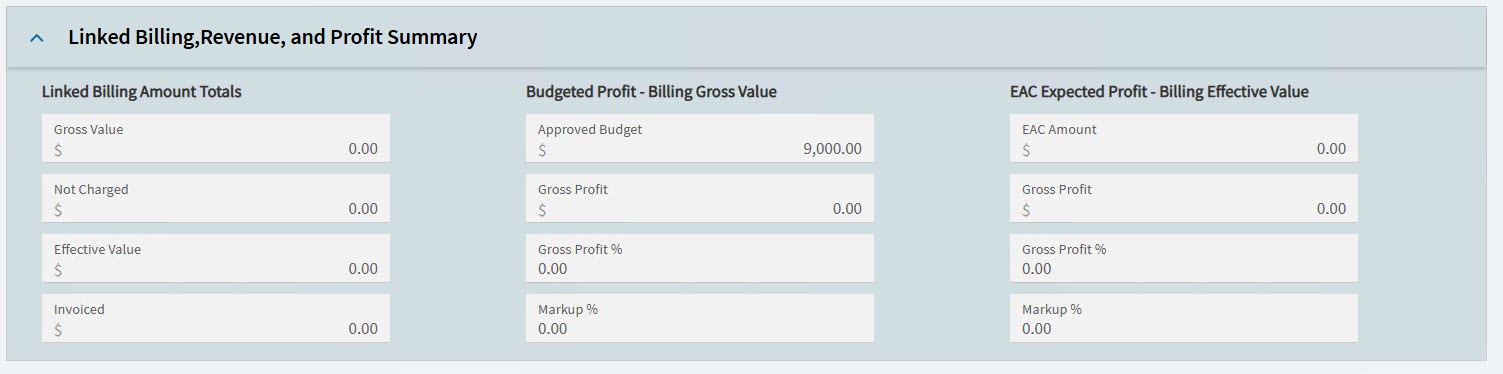
The Linked Billing, Revenue, and Profit Summary card displays a roll-up of Linked Billing, Revenue, and Profit Summary from the programs and projects belonging to this program.
See Linked Billing, Revenue, and Profit Summary for a Project.
-
Open the Detail page.
-
Select the program on the Navigation Tree.
-
Expand the Linked Billing, Revenue, and Profit Summary card.
-
To update with the latest values, run Updating Summary Values.
Values that are updated:
-
Linked Billing Amounts
-
Gross Value
-
Not Charged
-
Effective Value
-
Invoiced
-
-
Budgeted Profit - Billing Gross Value
-
Approved Budget
-
Gross Profit
-
Gross Profit %
-
Markup %
-
-
Budgeted Profit - EAC Expected Profit - Billing Effective Value
-
EAC Amount
-
Gross Profit
-
Gross Profit %
-
Markup %
-
-
Updating Summary Values
To update all summary values in the program, select Update Summary Values from the Overflow  menu.
menu.
Values from programs and projects belonging to this program are summarized and appear in the various sections:
-
Budget
-
Quote and Job Details
-
Estimated at Complete (EAC)
-
Linked Billing, Revenue, and Profit Summary