APM Job Entry
Use APM Job Entry to capture Predecessors and Successors in the Operation card for a Job. All other features and functionality in APM Job Entry can be found in Kinetic’s standard Job Entry (Product Management > Job Management > General Operations > Job Entry).
| For further information, refer to the standard Kinetic Help topic Creating Jobs in the Job Management module. |
-
Open APM Job Entry (Advanced Project Management > Project Accounting > General Operations > APM Job Entry).
-
To add a new job, select New Job
 . Complete the job details as you would for a
standard Kinetic job.
. Complete the job details as you would for a
standard Kinetic job.OR
-
To open an existing job, select a Job in the search results grid. Alternatively, you can open an APM Job directly from APM Project (right-click on the Job in the project or one of the project phases and select APM Job Entry from the context menu).
-
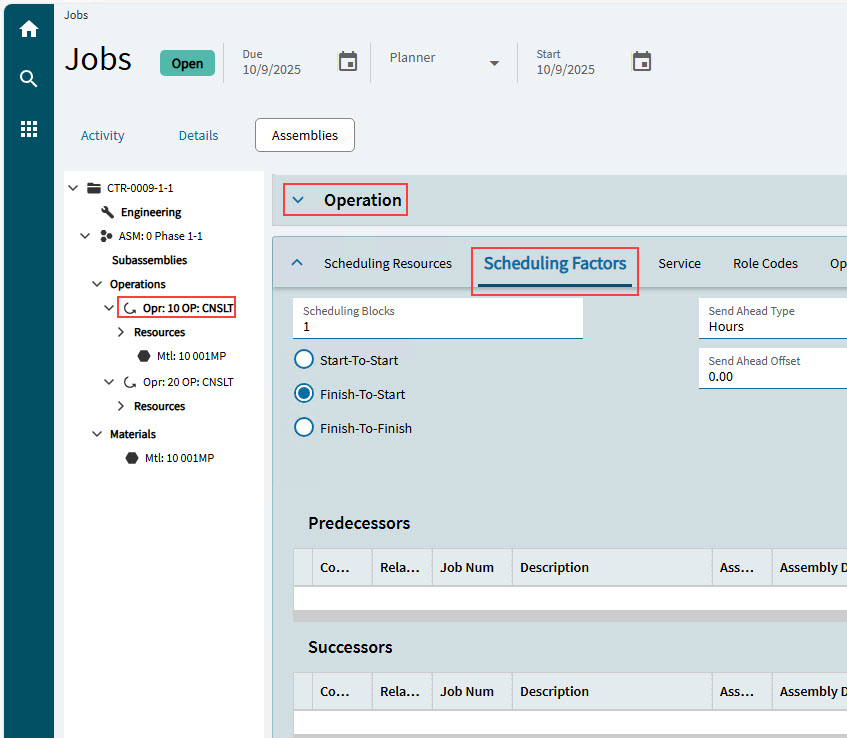
Select the Assemblies tab to open the Assemblies page.
-
Locate the relevant operation from the Navigation Tree and select it to open the Operation card.
-
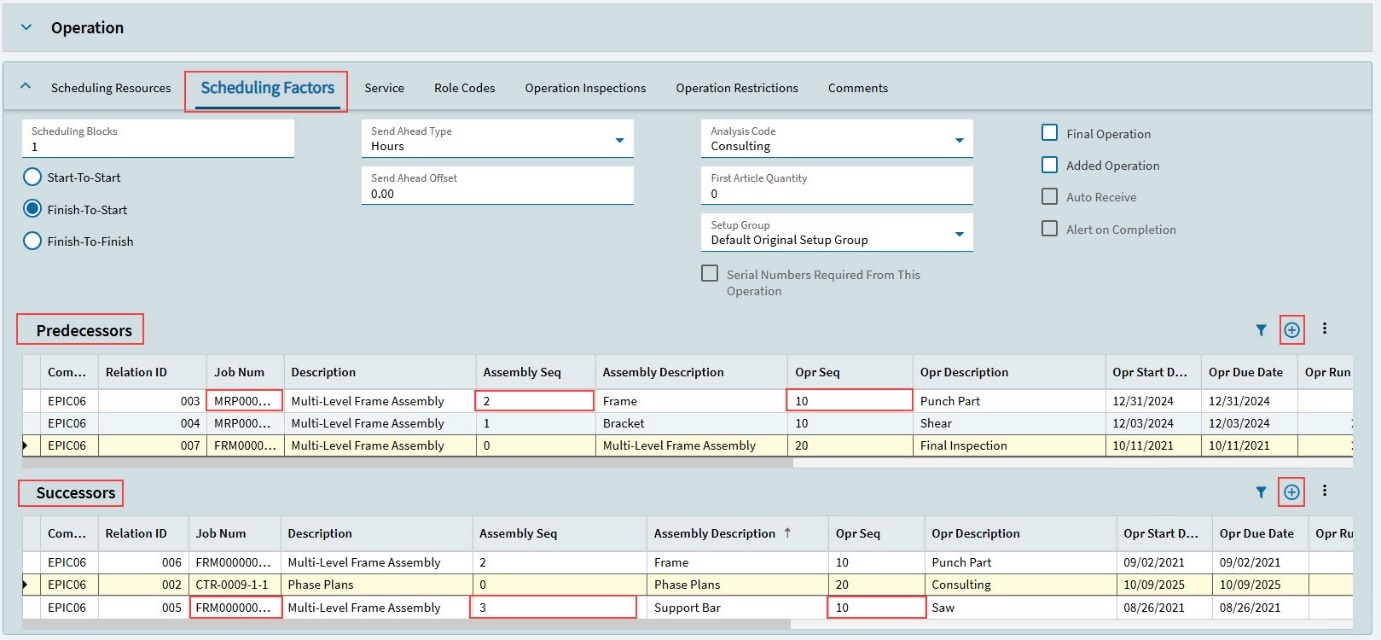
To view or edit the Scheduling Factors, select the Scheduling Factors tab in the tabbed cards below the Operation Card.
-
To add a Predecessor for this job:
-
Select New
on the Predecessors menu bar. -
Search for and select a job to be scheduled in before this job operation.
-
Select an Assembly Seq from the drop-down in the grid.
-
Select an Opr Seq from the drop-down in the grid.
-
Continue to add Predecessors.
-
-
To add a Successor for this job:
-
Select New
on the Successors menu bar. -
Search for and select a job to be scheduled in after this job operation.
-
Select an Assembly Seq from the drop-down in the grid.
-
Select an Opr Seq from the drop-down in the grid.
-
Continue to add Successors.
-
-
Save.